
Searching Leads by Date and Interested State
This section explains how users can search and narrow down leads using date-based filters and then further refine the results to view only Interested leads by applying the State filter. This approach is commonly used to review recent high-intent leads, monitor pipeline movement, or prepare follow-ups.Accessing Lead Search
- Navigate to Lead Search.
- Open the Leads List view.
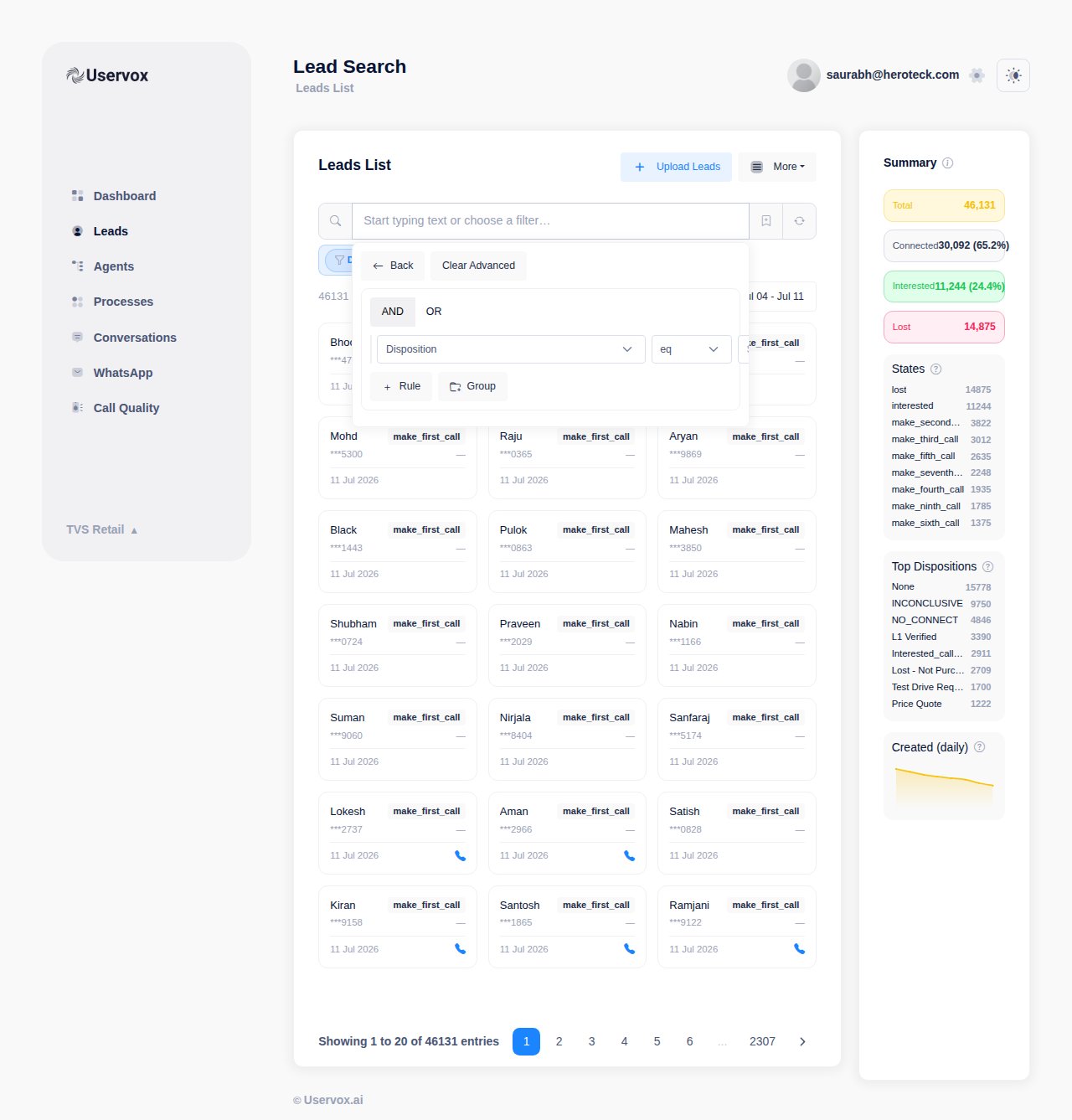
- Locate the search bar at the top of the page labeled:
“Start typing text or choose a filter…”
Applying a Date-Based Filter
Date filters help restrict results to leads that were updated or acted upon within a specific time window.Steps
- Click inside the search bar and open advanced filtering.
- From the list of available fields, select a relevant date field, such as:
- Updated At
- Manually Scheduled At
- Last State Transition
- Choose a comparison condition:
- Equals
- Before
- After
- Between
- Select the required date or date range.
Result
Only leads that satisfy the selected date condition will remain visible in the leads list.Filtering Leads by Interested State
Once the date range is applied, you can further narrow results to only those leads that are currently marked as Interested.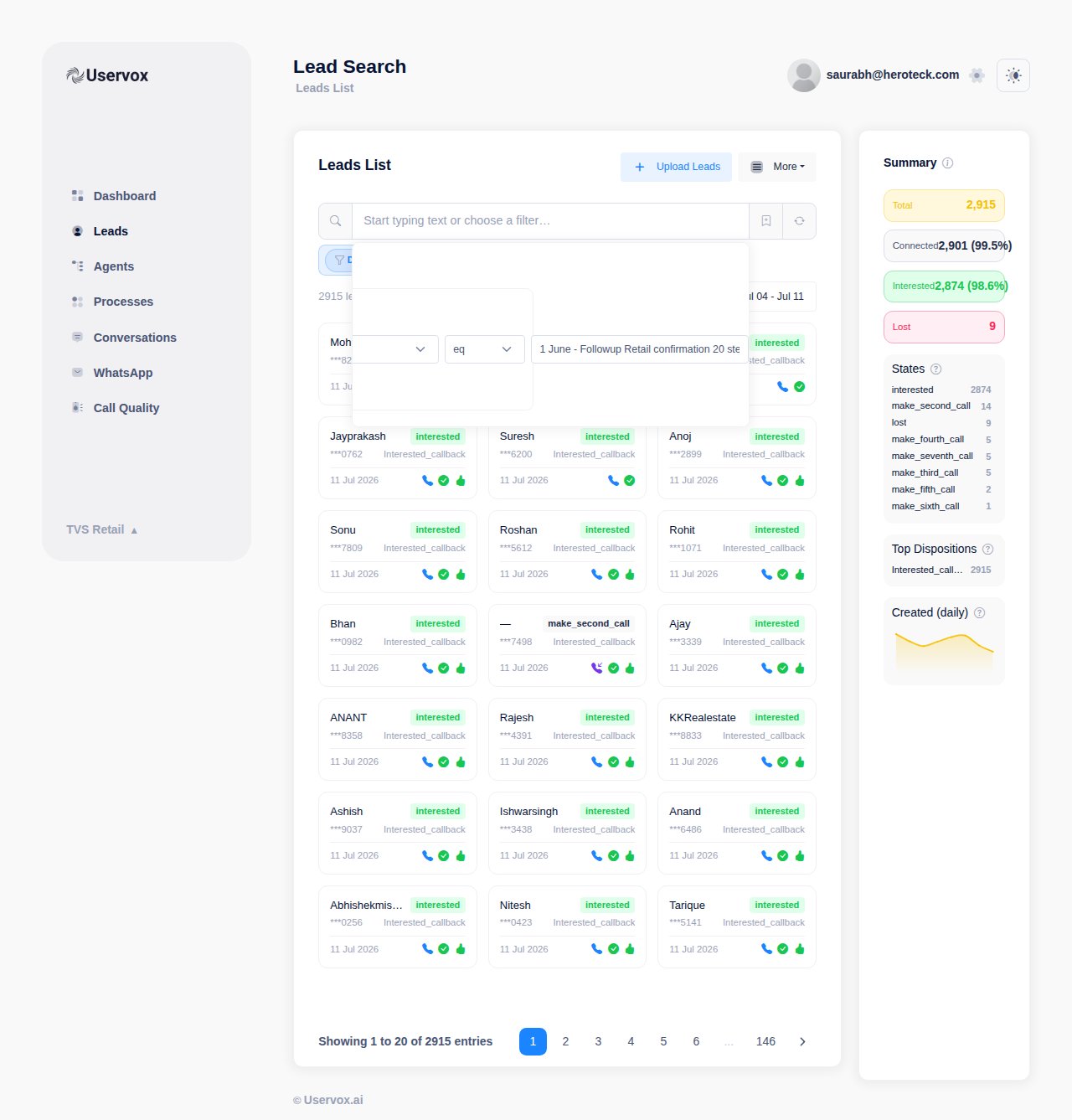
Steps
- Add a new rule.
- Select State as the field.
- Set the condition to equals.
- Choose Interested from the available states.
Result
The leads list now shows only those leads that:- Fall within the selected date range, and
- Are currently in the Interested state.
Using Multiple Filters Together
By default, filters are applied using AND logic, meaning:- A lead must satisfy all applied rules to appear in the results.
- Updated At → Between 1 Jan and 31 Jan
- State → Interested
Advanced Logic: AND vs OR
- AND is used to progressively narrow results.
- OR can be used when leads should match any one of the conditions.
Clearing or Modifying Filters
- Use Clear Advanced to remove all applied filters.
- Existing rules can be edited individually to refine the search without starting over.
Summary
Using date filters in combination with the Interested state allows users to focus on:- Recent leads with high intent
- Time-bound follow-up lists
- Performance analysis for specific periods
Searching Leads Using Fields and Lead Metadata
This section explains how to search leads using standard lead fields and custom lead metadata, and how multiple filters can be combined to create precise and highly targeted lead searches.Understanding Lead Fields vs Lead Metadata
Lead Fields
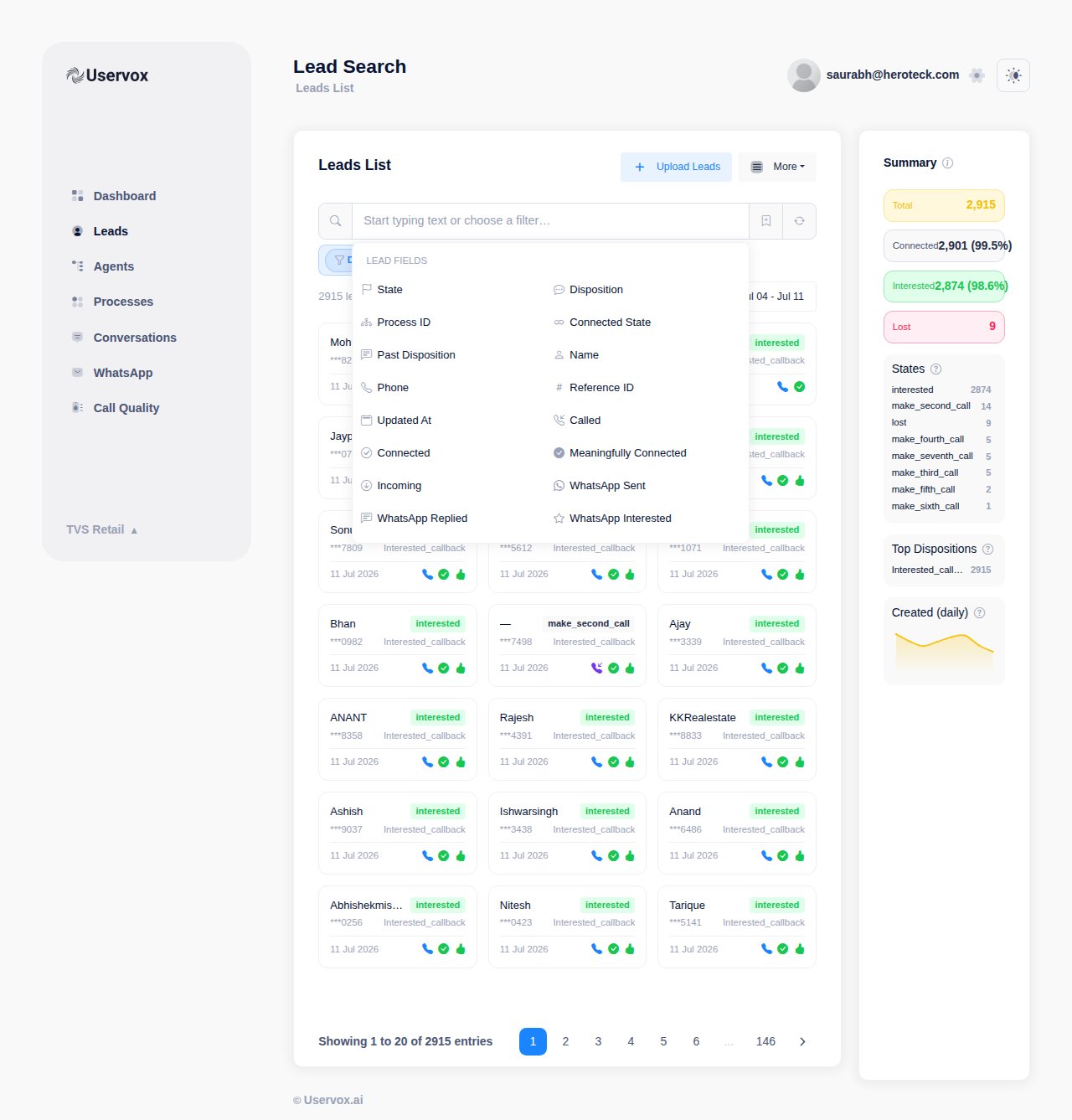
- Name
- Phone
- State
- Disposition
- Connected
- Meaningfully Connected
- Called
- Process ID
- Reference ID
- Updated At
Lead Metadata
Lead metadata consists of additional attributes associated with a lead, often originating from uploads, integrations, or enrichment processes.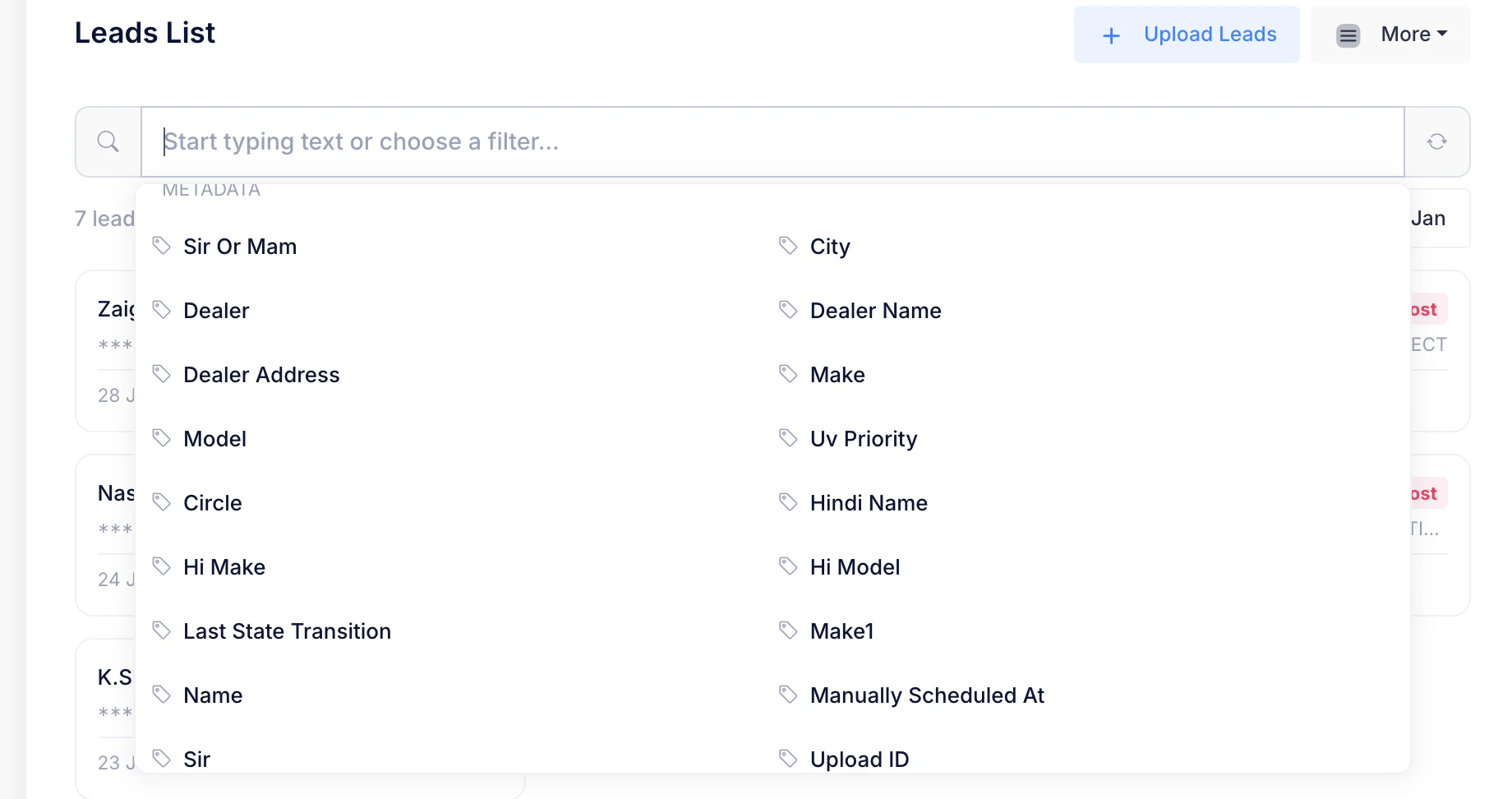
- City
- Dealer
- Dealer Name
- Dealer Address
- Make / Model
- Hindi Name
- Hi Make / Hi Model
- Circle
- UV Priority
- Upload ID
- Sir / Sir or Mam
Searching Using Lead Fields
Steps
- Click inside the search bar.
- From the Lead Fields section, select the desired field.
- Choose an appropriate condition (for example, equals or contains).
- Enter or select the value.
- Apply the rule.
Searching Using Lead Metadata
Steps
- Click inside the search bar.
- Scroll to the Metadata section.
- Select the required metadata field.
- Choose a condition such as equals or contains.
- Enter the value.
- Apply the rule.
Combining Multiple Filters to Narrow Results
Multiple filters can be applied together to progressively reduce the result set.Example Scenarios
- State equals Interested AND City equals Mumbai
- Model equals Nexon AND Dealer Name contains Auto
- Hindi Name exists AND UV Priority equals High
- State equals Interested AND Updated At after a specific date
Using Groups for Complex Searches
When multiple conditions need to be evaluated together, filters can be grouped. Grouping helps structure complex queries, such as:- Multiple metadata conditions evaluated together
- A mix of AND and OR logic across different rule sets
Modifying or Clearing Search Criteria
- Individual rules can be edited or removed at any time.
- Use Clear Advanced to reset all applied filters and return to the full leads list.
Summary
The Lead Search functionality enables users to:- Search using core lead fields
- Filter using rich lead metadata
- Apply multiple filters to narrow results
- Combine conditions using logical operators
- Build precise views for sales, operations, or quality review