
Overview
A template is a pre-approved WhatsApp message. Businesses can only start a WhatsApp conversation with a customer using a template that Meta (WhatsApp) has approved. You create templates in Uservox; Meta reviews them. Templates live under WhatsApp → Templates.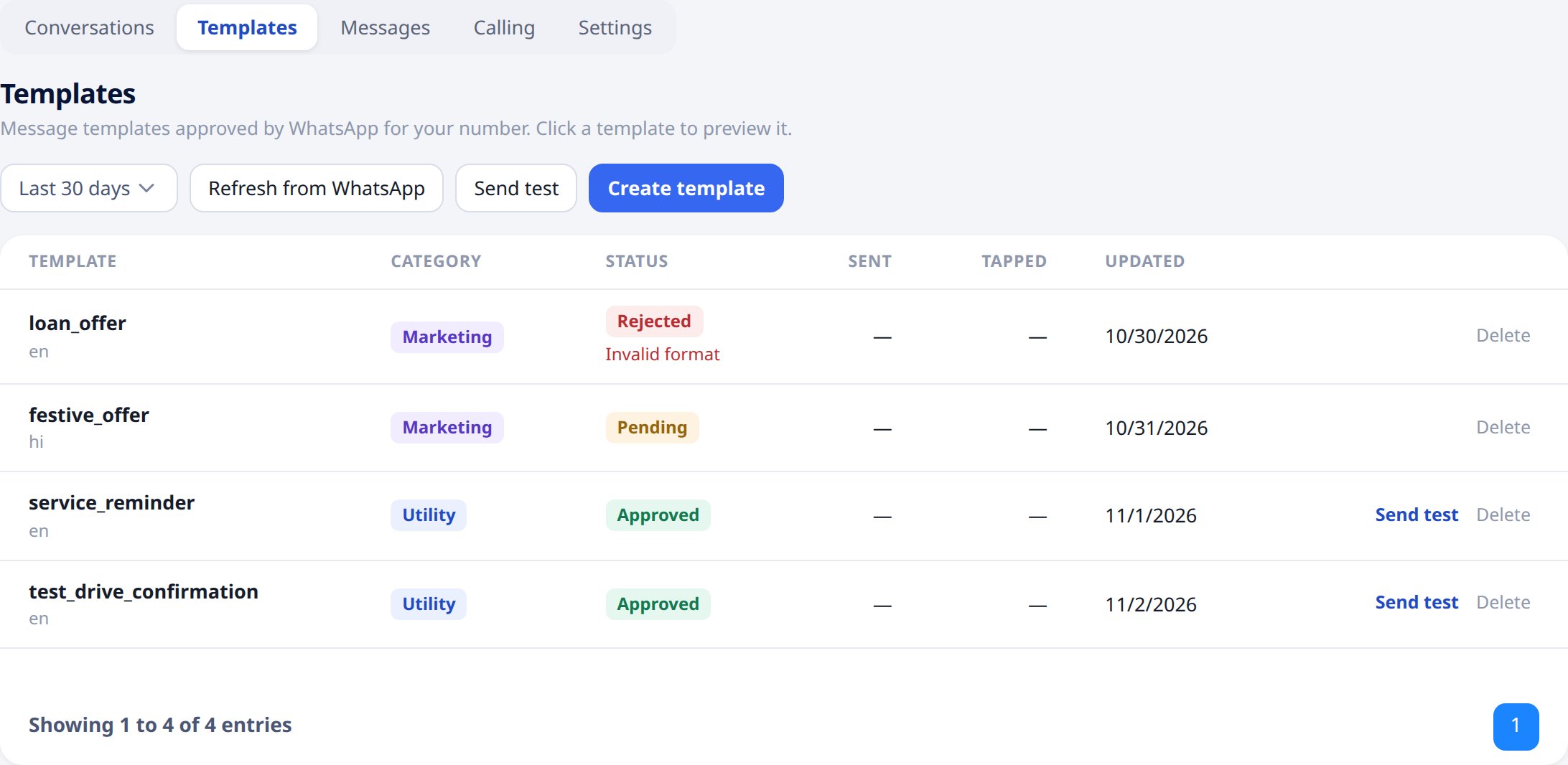
Templates need a connected WhatsApp Business Account. See Connect your WhatsApp Business Account.
Create a template
Click Create template. Fill in the form on the left; the Preview on the right shows the message as customers will see it, updating as you type.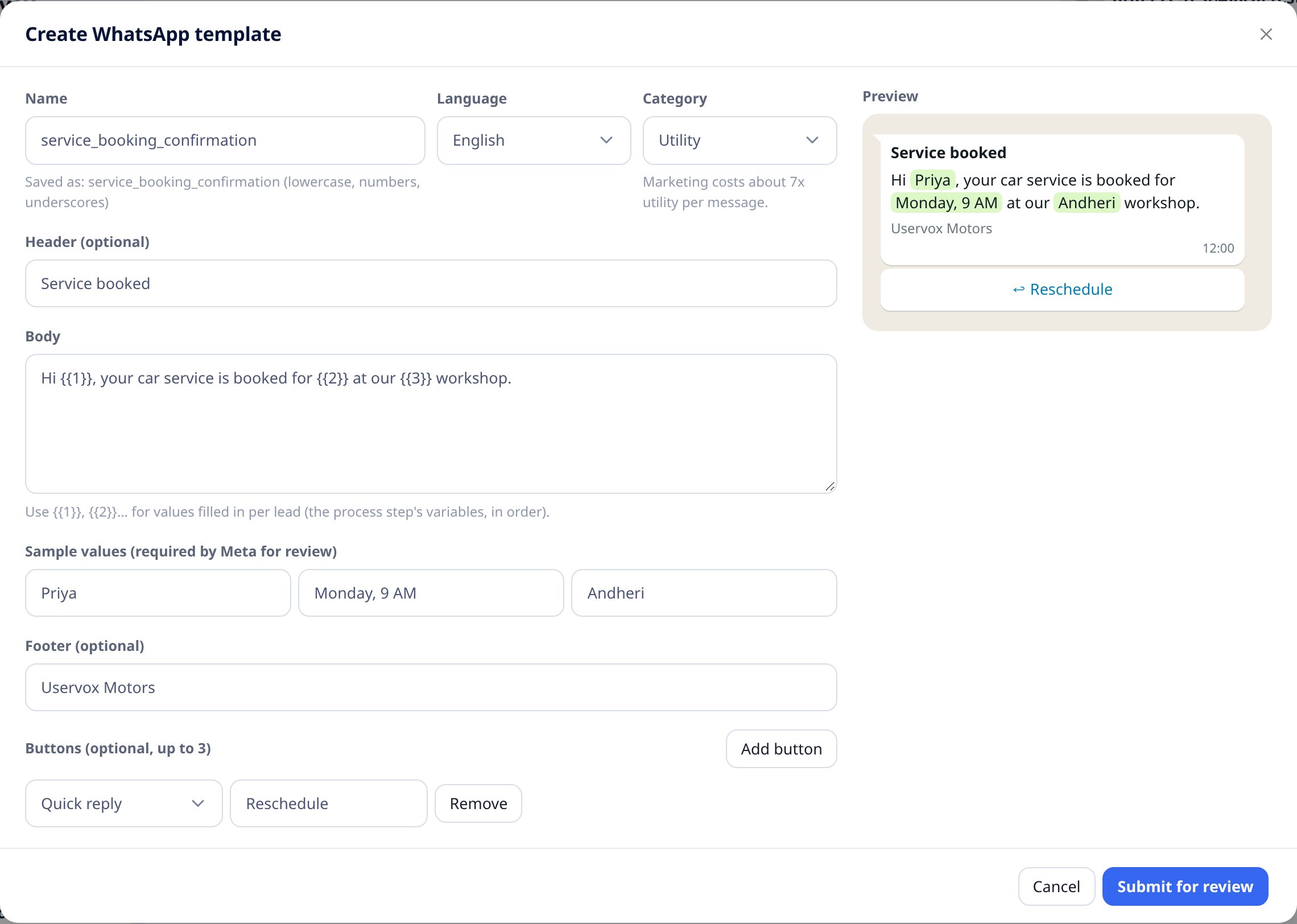
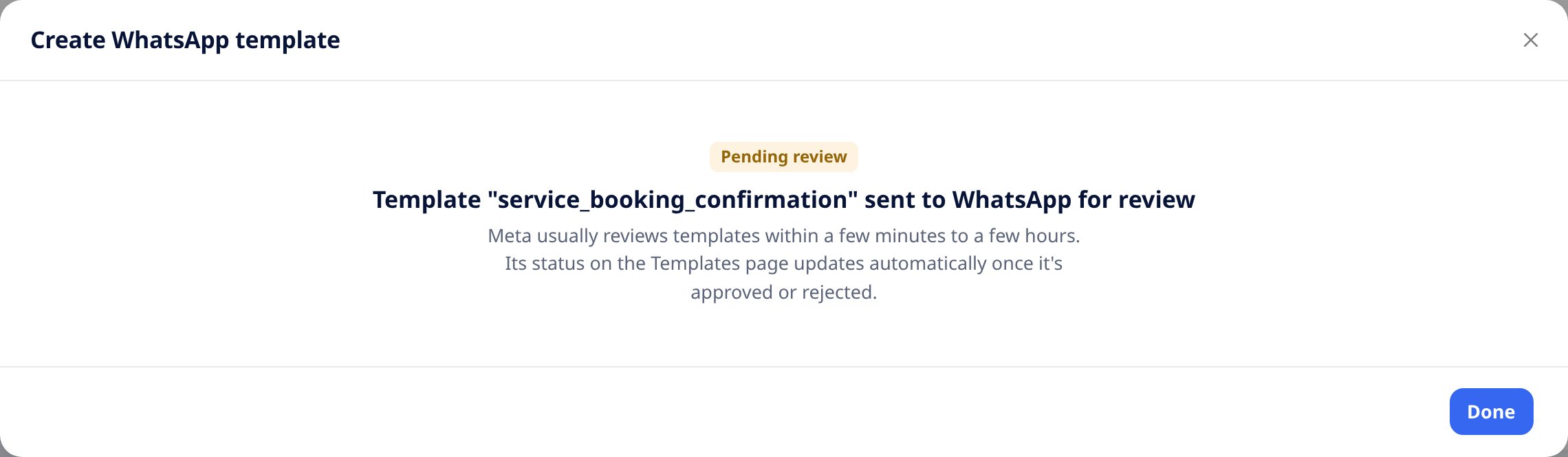
When it looks right, click Submit for review.
Tips for getting approved
- Pick the category that matches the content. A promotion filed as Utility is usually rejected or moved to Marketing.
- Number values in order (
{{1}},{{2}},{{3}}) and don’t start or end the body with a value. - Give realistic sample values, e.g.
Priyarather thantest. - Avoid excessive punctuation, all-caps and misleading text.
Approval and status
Meta (WhatsApp) approves or rejects every template, usually within minutes and sometimes up to 24–48 hours. The status in Uservox updates on its own when Meta decides.
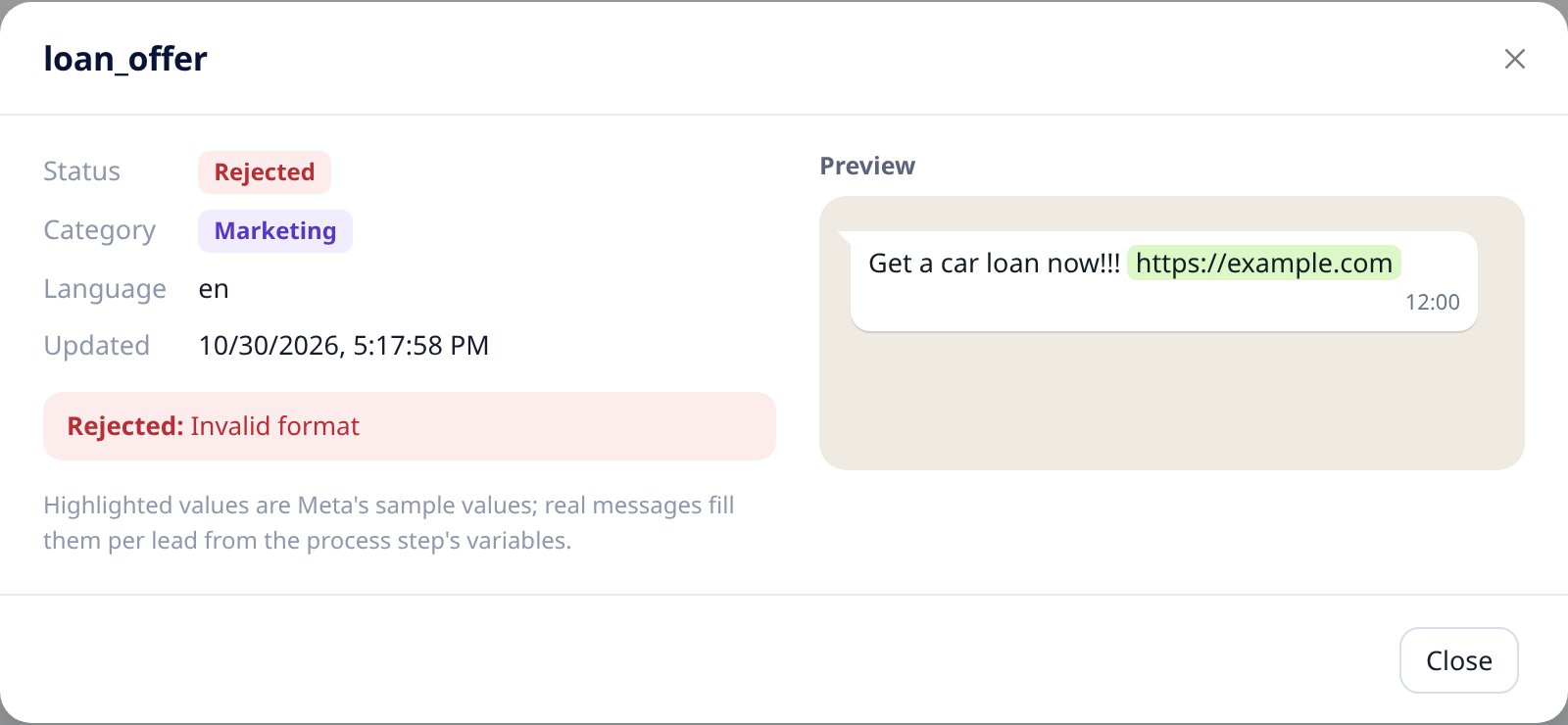
Click a template to see its details and preview. A rejected template also shows the reason.
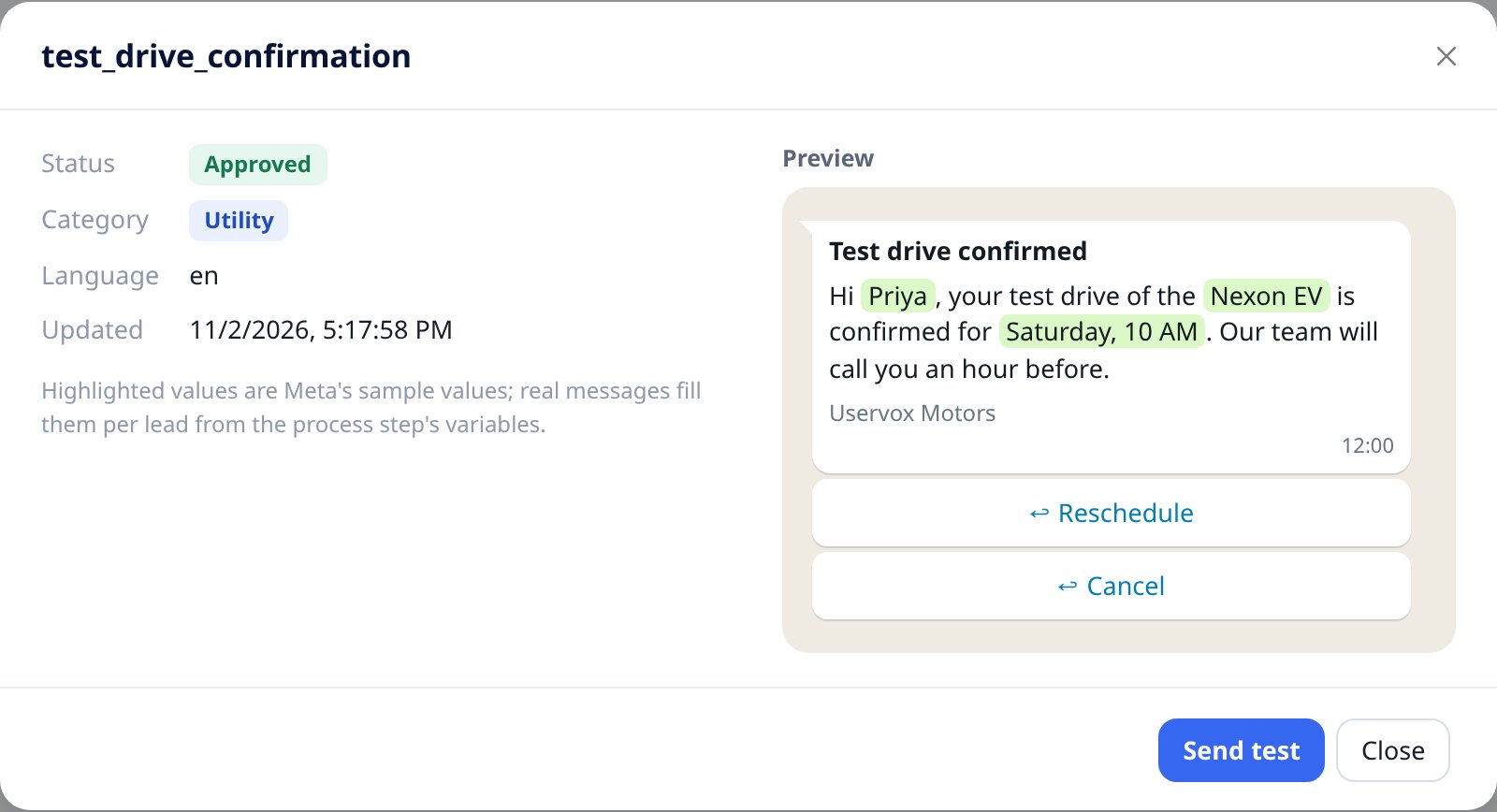
Meta can also change a template’s category after approval, for example from Utility to Marketing, and rate its quality. These changes appear in Uservox automatically.