Overview
The WhatsApp section has five tabs: Conversations, Templates, Messages, Calling and Settings. This page covers Settings and Messages.Settings
Open WhatsApp → Settings.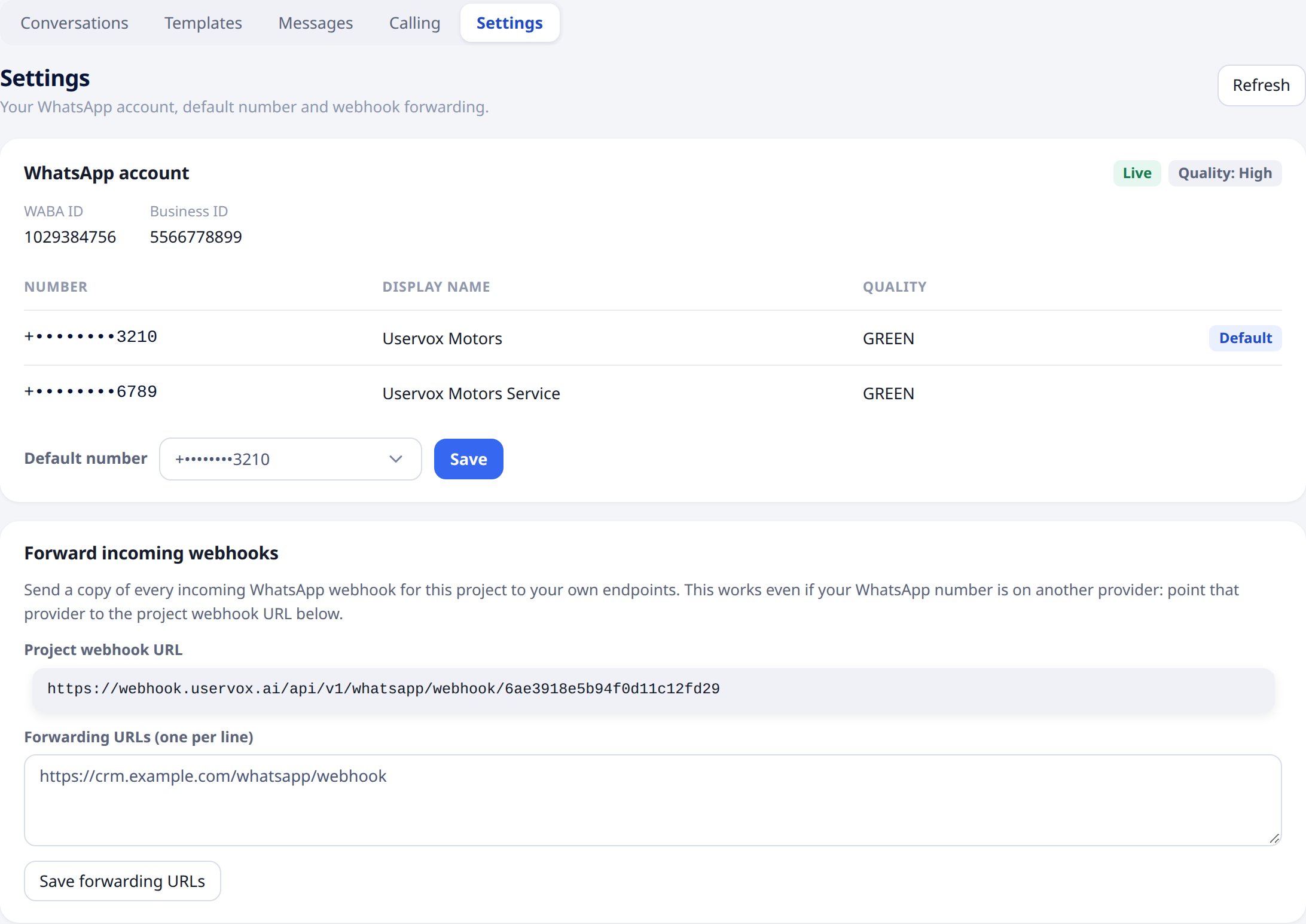
WhatsApp account
Shows your connected account:- Live and the quality rating WhatsApp gives your number.
- Your WABA ID and Business ID.
- Your numbers with their display name and quality. The Default number is used to send your messages.
Forward incoming webhooks
Send a copy of every incoming WhatsApp event for your project (replies and delivery updates) to your own systems.- Enter one or more URLs under Forwarding URLs, one per line.
- Click Save forwarding URLs.
Only project admins can change settings. Other members can view them.
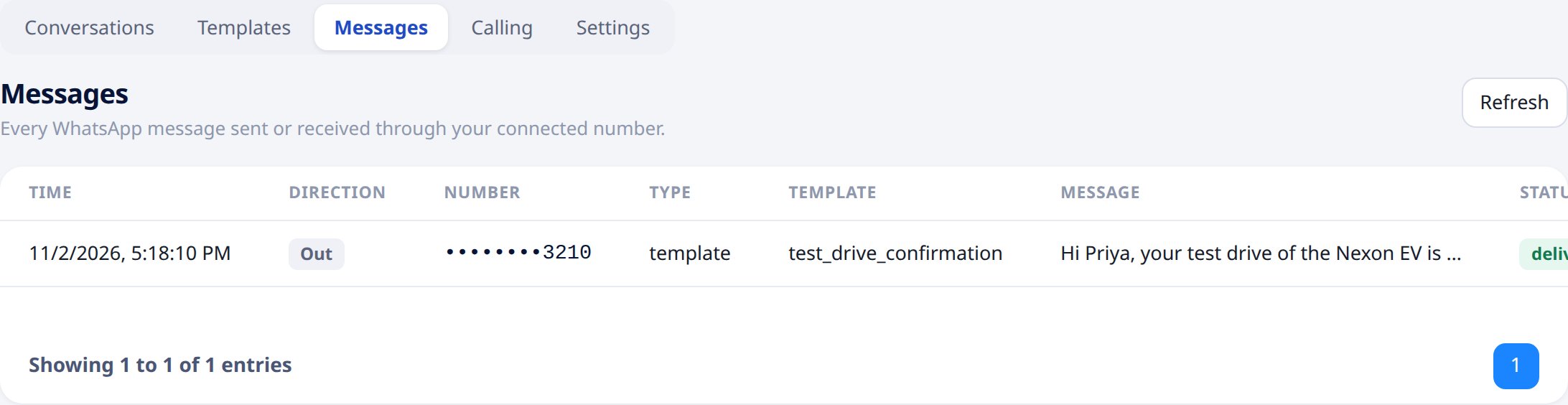
Messages
Open WhatsApp → Messages to see every WhatsApp message sent or received through your connected number, newest first.