
Overview
Voice Settings let you control which voice the agent uses during conversations. There are two modes:- Fixed — the same voice is used for every conversation
- Random — a different voice is randomly selected for each new conversation
Where to Find It
Agent Details page → Advanced section → Voice Settings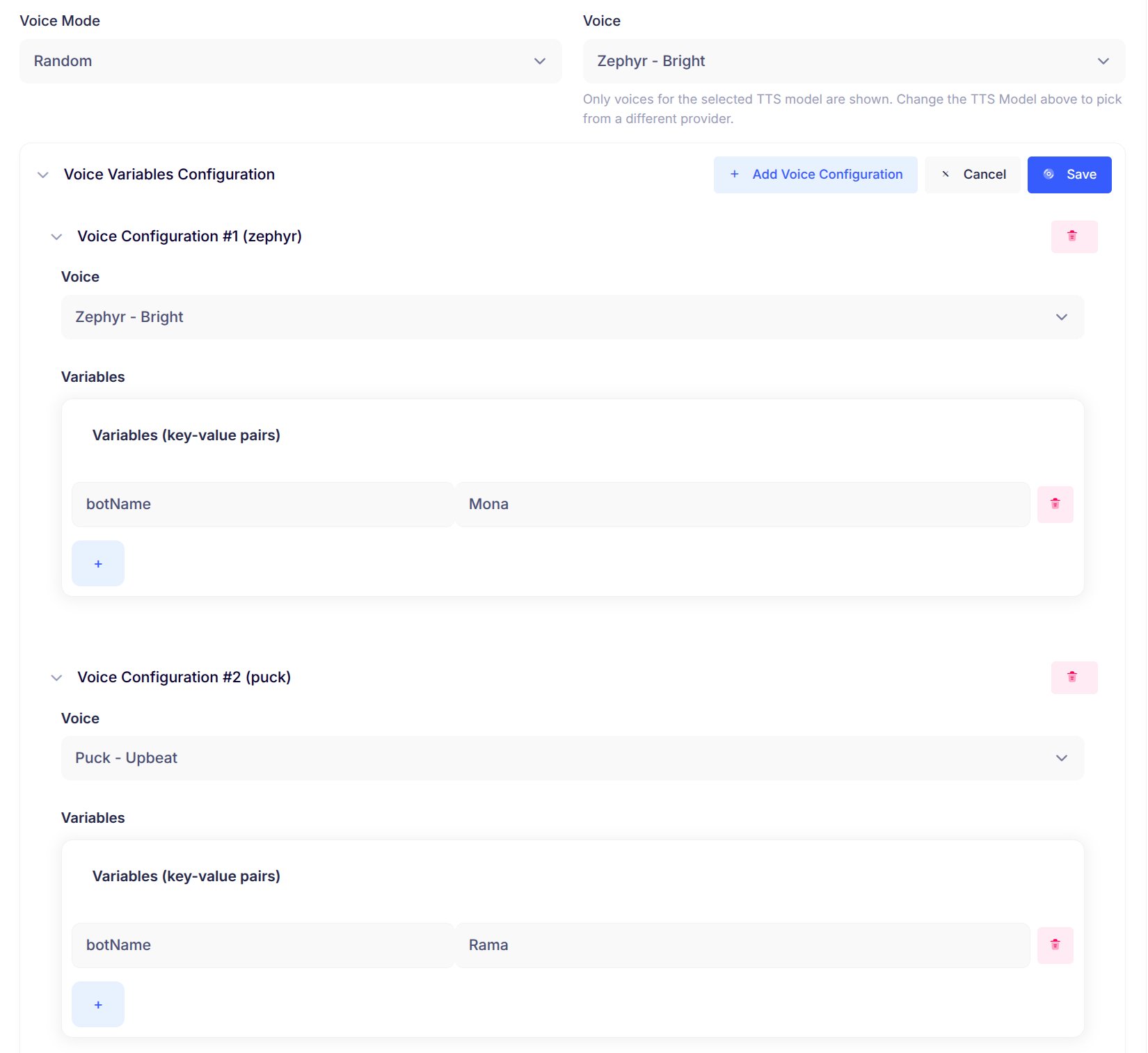
How Voice Selection Works
Fixed Mode
- If you have configured Voice Variables, the system uses the first entry from that list.
- If Voice Variables is empty, it falls back to the Voice dropdown selection.
Random Mode
- The system randomly picks one voice from your Voice Variables Configuration for each new conversation.
- At least one entry in Voice Variables Configuration is required.
Configuration
Option 1 — Fixed Mode (simple)
- Select Fixed from the Voice Mode dropdown.
- Choose a voice from the Voice dropdown.
- Save.
Option 2 — Fixed Mode (with variables)
- Select Fixed from the Voice Mode dropdown.
- In the Voice Variables Configuration card, click Edit.
- Click Add Voice Configuration.
- Select a voice and add any variables (e.g.,
botName = "Maya"). - Save.
The first entry in Voice Variables takes priority over the Voice dropdown when both are set.
Option 3 — Random Mode
- Select Random from the Voice Mode dropdown.
- In the Voice Variables Configuration card, click Edit.
- Click Add Voice Configuration to add multiple voice options.
- For each voice, select a voice from the dropdown and optionally add variables (e.g.,
botName = "Maya"). - Save.
Using Variables in the Agent Prompt
Reference any variable you defined using mustache syntax in your agent prompt:"Hello, I'm Maya" (or whichever value matches the selected voice configuration).
Prompt Example
Testing Guide
Test 1 — Fixed Mode
- Set Voice Mode to Fixed.
- Add one voice configuration (Voice = “Voice A”,
botName = "Maya"). - Update the agent prompt to include
Hello, I'm {{botName}}. - Save and start multiple conversations.
Test 2 — Random Mode
- Set Voice Mode to Random.
- Add 3 voice configurations with different voices and variables:
- Voice A with
botName = "Maya" - Voice B with
botName = "Alex" - Voice C with
botName = "Sam"
- Voice A with
- Update the agent prompt to include
Hello, I'm {{botName}}. - Save and start multiple conversations.
Test 3 — Edit & Cancel
- Open Voice Variables Configuration and click Edit.
- Make some changes (add/remove voices or variables).
- Click Cancel.
Notes
- Priority in Fixed Mode — Voice Variables (first entry) takes priority over the Voice dropdown.
- Variables are optional — you can configure voices without any variables.
- Random Mode requires Voice Variables — must have at least one voice configuration.
- Switch anytime — change between Fixed and Random mode as needed.
- Remember to Save — always click Save after editing Voice Variables Configuration.