
Overview
Uservox supports two kinds of agent knowledge, both managed from the same Knowledge settings page:- Document Knowledge — PDF files containing product documentation, policies, FAQs, or other unstructured reference material. Covered below.
- CSV Lookup — structured, tabular data (e.g. a product catalog or pricing sheet) your agent can query. See CSV Lookups below.
Accessing Knowledge Management
To manage knowledge documents for your agents:- Navigate to Account Settings from your dashboard.
- In the Settings sidebar, click on Knowledge.

Adding a New Knowledge Document
To add a new knowledge document to your account:- Click the Add Knowledge or Add Document button.
- The “Add Document Knowledge” dialog will appear with the following fields:

Required Fields
Optional Fields
- Fill in the Knowledge Name (e.g., “Product Documentation”).
- Optionally add a Topic (e.g., “Insurance”) and Subtopic (e.g., “Health Insurance”) to help organize your knowledge documents.
- Click Click to select a PDF file to upload your document.
- Only PDF files are supported
- Ensure the PDF contains well-formatted, readable text
- Click Create Knowledge to upload and save the document.
Important Notes
- File Format: Only PDF files are supported for knowledge documents.
- API Endpoint Generation: The knowledge name you provide will be used to generate the API endpoint for accessing this knowledge.
- Organization: Use Topic and Subtopic fields to organize multiple knowledge documents for easier management.
- Agent Access: Once uploaded, you can reference these knowledge documents in your agent’s configuration to enable context-aware responses.
Updating a Knowledge Document
To update an existing knowledge document:- Go to Account Settings → Knowledge.
- Find the knowledge document you want to update in the list.
- Click on the Edit or Update button next to the document.
- You can modify:
- Knowledge Name
- Topic
- Subtopic
- Upload a new PDF file to replace the existing one
- Click Save or Update Knowledge to apply your changes.
CSV Lookups
Use a CSV Lookup instead of a document when your agent needs to look up structured, row-based data — a product catalog, pricing table, or dealer list — rather than search unstructured text. From Account Settings → Knowledge, click Add CSV Lookup: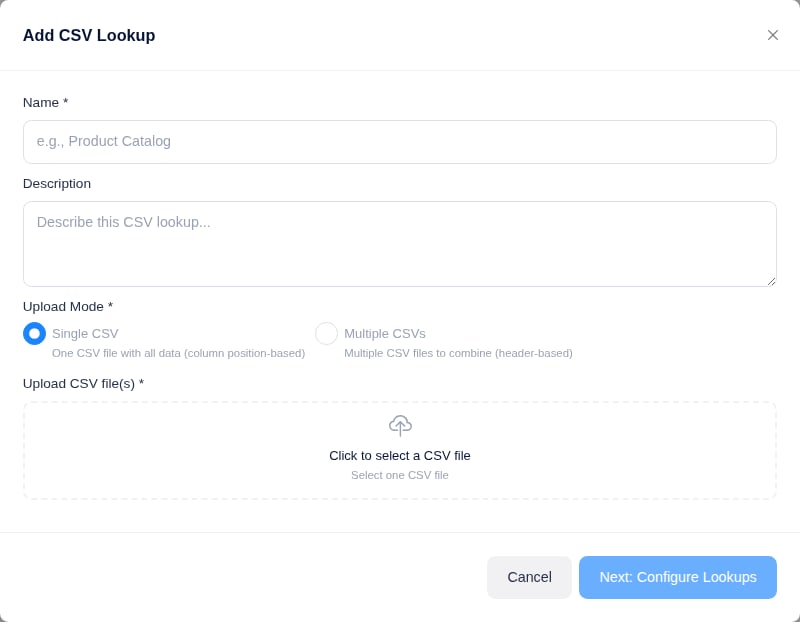
- Enter a Name and optional Description.
- Choose an Upload Mode:
- Single CSV — one file with all data, matched by column position.
- Multiple CSVs — several files combined by matching header names, useful when the same lookup is assembled from more than one source file.
- Upload the CSV file(s).
- Click Next: Configure Lookups to map which columns the agent can query and what it should return.
Testing a Knowledge Document
Every Knowledge item — PDF Document or CSV Lookup — has a Test button (the same feature is also available on FAQ Sets; see FAQ Sets). It opens a modal with two things:- The exact curl command for that item, ready to copy — useful for confirming what a real API call to it looks like.
- A Live Test box — type a query (or fill in the CSV lookup’s input fields) and run it directly in the browser. No terminal needed.
Best Practices
- Descriptive Names: Use clear, descriptive names for your knowledge documents to make them easy to identify.
- Organized Content: Ensure your PDF documents are well-structured with clear headings and sections.
- Regular Updates: Keep your knowledge documents up to date with the latest product information, policies, or procedures.
- Logical Categorization: Use Topics and Subtopics to create a logical hierarchy for your knowledge base.
- File Size: While there’s no strict limit, keep PDF files reasonably sized for faster processing and retrieval.
Using Knowledge in Agent Conversations
Once you’ve uploaded knowledge documents, you can configure your agent to reference them during conversations. This enables your agent to:- Answer specific questions about your products or services
- Provide accurate policy information
- Reference detailed documentation
- Maintain consistency across all customer interactions