
Overview
The Call Transfer feature allows you to seamlessly route calls to human agents in your system. Configure different strategies to control how calls are distributed among your team members, ensuring optimal coverage and workload balance.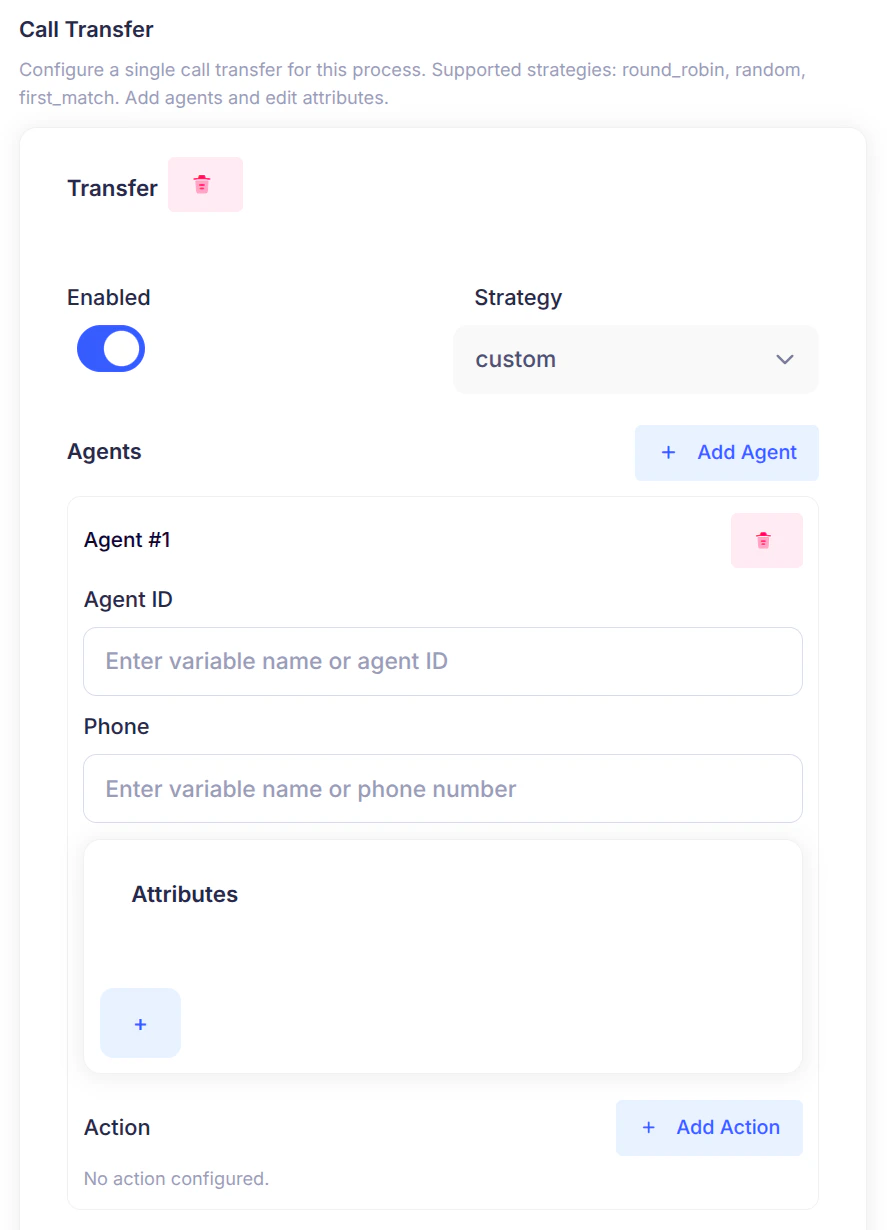
Key Concepts
Transfer Configuration
- Enabled/Disabled: Toggle to activate or deactivate call transfers for your process
- Strategy: The method used to select which agent receives the call
- Agents: List of agents available to receive transferred calls
Agent Configuration
Each agent in your transfer pool has:- Agent ID: Unique identifier for the agent
- Phone Number: Contact number where the agent will receive the call
- Attributes (Optional): Custom key-value pairs for additional metadata
- Action (Optional): A webhook or action to execute when transferring to this agent
Transfer Strategies
1. First Match
How it works: Tries agents in order based on their position in the list and availability. Use case: Priority-based routing where certain agents should be tried first. Example:- Call 1 → Agent A
- Call 2 → Agent B (Agent A is busy)
- Call 3 → Agent C (Agent A and B are busy)
2. Round Robin
How it works: Distributes calls evenly across all agents in a rotating pattern. Use case: Ensure fair distribution of calls among team members. Example:- Call 1 → Agent A
- Call 2 → Agent B
- Call 3 → Agent C
- Call 4 → Agent A (cycle repeats)
3. Random
How it works: Randomly selects an available agent for each call. Use case: Simple, unpredictable distribution without any pattern. Example:- Call 1 → Agent B
- Call 2 → Agent A
- Call 3 → Agent C
- Call 4 → Agent B
4. Custom
How it works: Uses variable names to dynamically determine agent details at runtime based on lead metadata. Use case: When agent ID or phone number is stored in lead metadata. How to configure:- Agent ID: Enter a variable name like
assigned_agent(ensure it exists in lead metadata) - Phone: Enter a variable name like
agent_phone(ensure it exists in lead metadata)
- The system looks for these variable names in the lead metadata
- If found, uses the value from the lead metadata
- If not found, uses the variable name itself as the actual value
Agent Locking (Availability)
The system automatically checks if an agent is available before transferring:- Available: Call is transferred to this agent
- Busy/Locked: System tries the next agent in the strategy
- All Busy: System transfers to the selected agent anyway (they may have call waiting)
Setting Up Call Transfer
Step 1: Enable Transfer
Toggle the Enabled switch to activate call transfers for your process.Step 2: Choose Strategy
Select from:first_match- Priority-based routinground_robin- Even distributionrandom- Random selectioncustom- Dynamic selection from lead metadata
Step 3: Add Agents
Click “Add Agent” and configure: For Standard Strategies (first_match, round_robin, random):- Agent ID: e.g.,
agent_001,john_doe - Phone: e.g.,
9876543210(auto-formatted to+91 9876543210)
- Agent ID: Variable name (e.g.,
assigned_agent) or fixed ID - Phone: Variable name (e.g.,
agent_phone) or fixed number
Step 4: Add Attributes (Optional)
Add custom key-value pairs for reporting or conditions:- Example:
department: sales,language: hindi,skill: expert
Step 5: Configure Actions (Optional)
Set up webhooks to trigger when transferring to an agent:- Action Type:
webhook_call - URL: Your webhook endpoint
- Method: GET, POST, etc.
- Headers: Authentication or custom headers
- Body: Request payload
Phone Number Formatting
Standard Strategies
Phone numbers are automatically formatted:- Input:
9876543210 - Saved as:
+91 9876543210
Custom Strategy
No automatic formatting - values saved exactly as entered:- Allows variable names like
agent_phone - Or fixed numbers like
+919876543210
Common Scenarios
Scenario 1: Sales Team Distribution
Strategy: Round RobinGoal: Distribute calls evenly among 5 sales reps
Scenario 2: Priority Support
Strategy: First MatchGoal: Try senior agent first, then juniors
Scenario 3: Dynamic Assignment
Strategy: CustomGoal: Transfer to agent assigned in lead metadata
Agent Actions (Webhooks)
When a call is transferred, you can trigger a webhook to:- Notify your CRM system
- Log the transfer event
- Update agent status
- Send notifications
- url: Webhook endpoint URL
- method: HTTP method (GET, POST, PUT, etc.)
- headers: Custom headers (e.g., authentication)
- body: Request payload
processId: Current process IDprojectId: Project IDagentId: Selected agent IDagentPhone: Agent phone numbercallSid: Call identifier
Troubleshooting
Transfer Not Working
✓ Check if transfer is Enabled✓ Verify at least one agent is configured
✓ Confirm phone numbers are valid
✓ Check system logs for errors
Custom Strategy Not Resolving
✓ Verify variable names match your lead metadata✓ Check that variables are set before transfer is triggered
✓ Ensure variable values are valid when resolved
All Agents Busy
The system will transfer anyway - the agent may have call waiting or voicemail configured.Webhook Not Firing
✓ Verify webhook URL is accessible✓ Check authentication headers
✓ Review webhook endpoint logs
✓ Ensure action is properly configured on the agent
Best Practices
- Start Simple: Begin with
first_matchorround_robinbefore usingcustom - Test Thoroughly: Verify transfers work in test environment
- Use Meaningful IDs: Name agents clearly (e.g.,
support_team_lead) - Document Variables: For custom strategy, document what variables are used
- Monitor Performance: Track which agents receive the most calls
- Keep Numbers Updated: Regularly verify agent phone numbers are current
Summary
Choose the right strategy for your needs:- First Match: Priority-based routing
- Round Robin: Fair, even distribution
- Random: Simple, unpredictable distribution
- Custom: Dynamic routing based on lead metadata