
Overview
Every agent in UserVox has a prompt — the instructions that tell the AI how to behave during a call. By default, this is a single block of text you write in a plain-text editor (called Legacy mode). Prompt Builder is an alternative, structured mode that lets you split that text into two distinct, purpose-built pieces:
This makes long prompts easier to read, edit, and debug — especially for complex scripts with conditional logic.
Enabling Prompt Builder
- Open your agent and navigate to the Details tab.
- Scroll to the Prompt Builder toggle and switch it on.
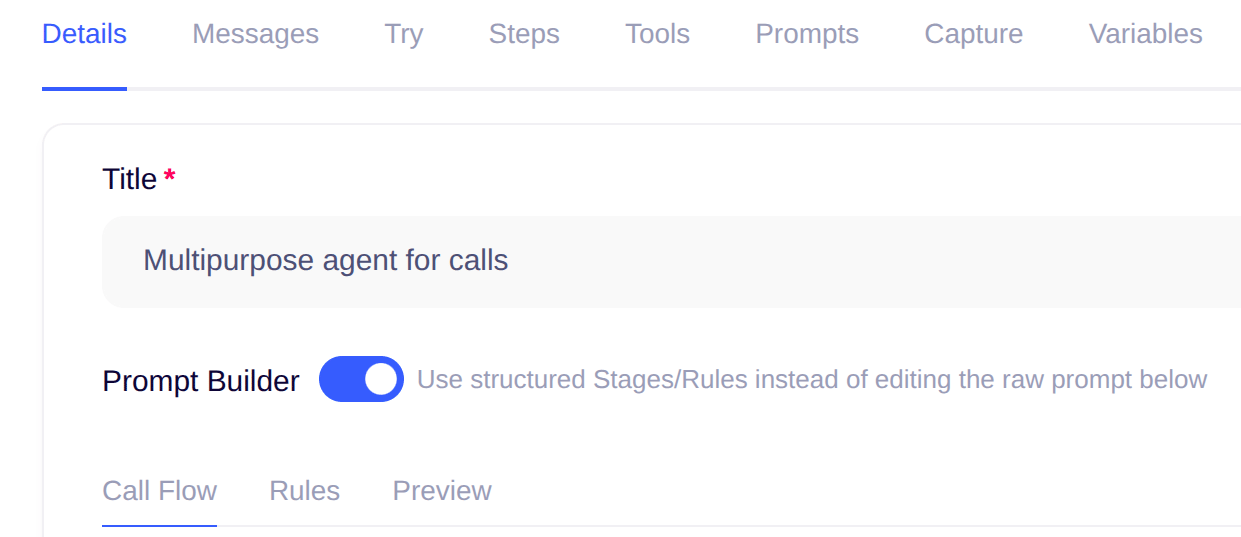
Switching back to Legacy mode restores the raw text editor. Your stages and rules are saved but not used until Builder mode is active again.
Call Flow Tab (Stages)
Stages define the step-by-step progression of a call. They run top to bottom — the AI moves from one stage to the next as the conversation progresses.Adding a stage
- Click Edit in the Call Flow tab.
- Click Add Stage — a new card appears at the bottom of the list.
- Click the stage title to rename it inline.
- Write the Instruction for that stage — this is natural language telling the AI what to do, what to say, and how to respond in this part of the call.
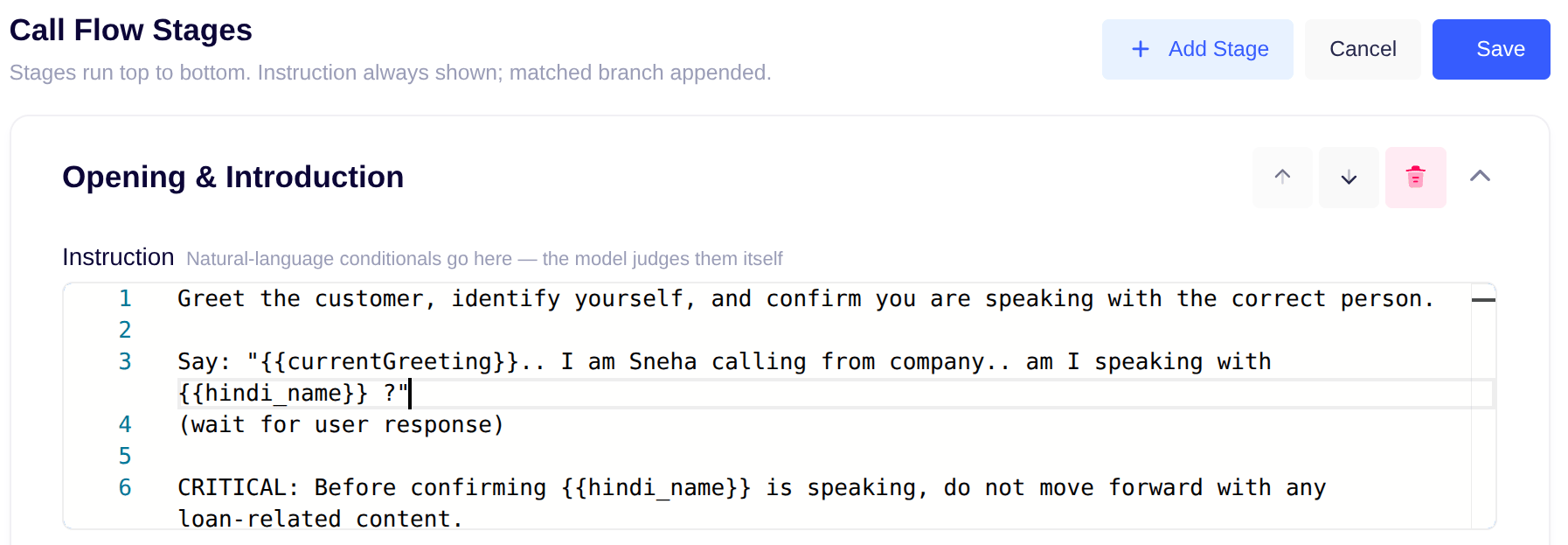
Instruction vs. Branch — the key distinction
Each stage has two parts: Instruction — always sent to the AI, every turn, while this stage is active. Write everything the AI needs to know to handle this stage here. Branch — an optional, condition-based block appended on top of the instruction only when specific variable conditions are met. Branches do not replace the instruction; they add to it.Adding a branch
- In a stage card (edit mode), click Add Branch.
- Configure one or more conditions — each condition has three parts:
- Variable — the call variable to check (e.g.
switchGender,language) - Operator — how to compare it (
equals,in,exists,contains, etc.) - Value — the expected value (e.g.
Sir,Mam)
- Variable — the call variable to check (e.g.
- Set the combinator to AND (all conditions must pass) or OR (any condition is enough).
- Write the Response — the text that gets appended to the instruction when this branch matches.
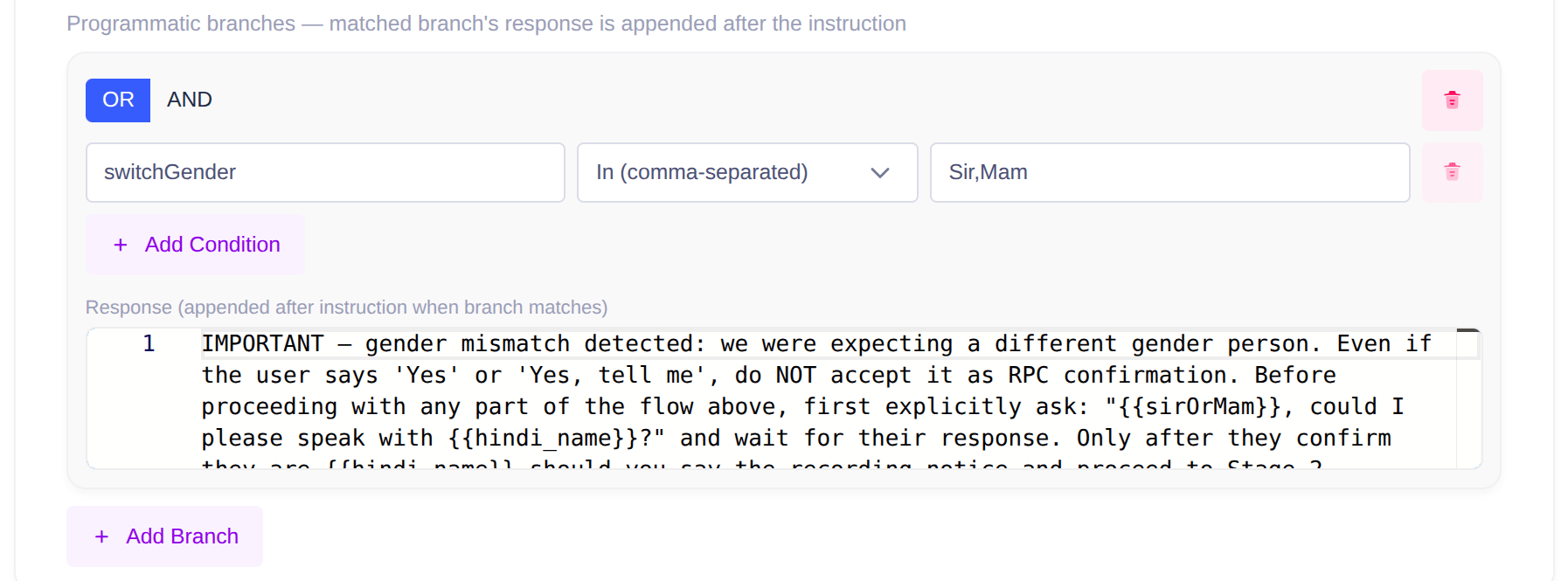
Only the first matching branch is used. Branches are checked in order; if none match, nothing extra is appended.
Reordering and removing stages
- Use the ↑ / ↓ arrow buttons on a stage card to move it up or down.
- Click the trash icon to delete a stage.
- Click a stage header to collapse/expand it.
Saving
Click Save in the Call Flow tab toolbar to persist your changes. Changes are not auto-saved — unsaved edits show a Cancel option next to Save.Rules Tab
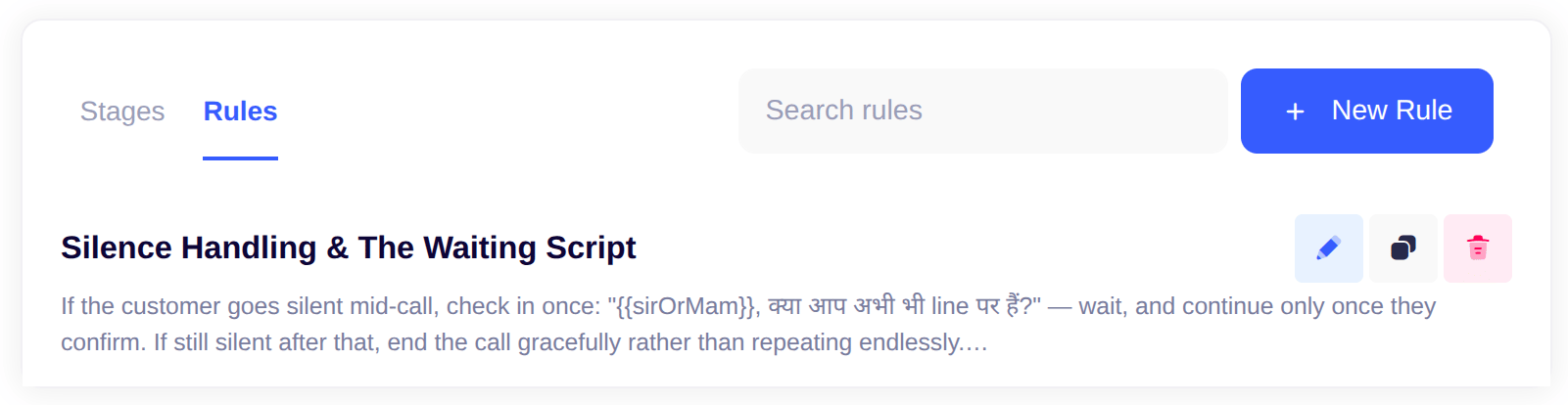
Rules are global guidelines that apply throughout the entire call, not tied to any specific stage. Think of rules as the “always-on” layer: persona, tone, compliance requirements, speech formatting, language handling, and so on.Adding a rule
- Click Edit in the Rules tab.
- Click Add Rule — a new card appears.
- Rename it by clicking the title inline.
- Write the Content — everything this rule should enforce during the call.
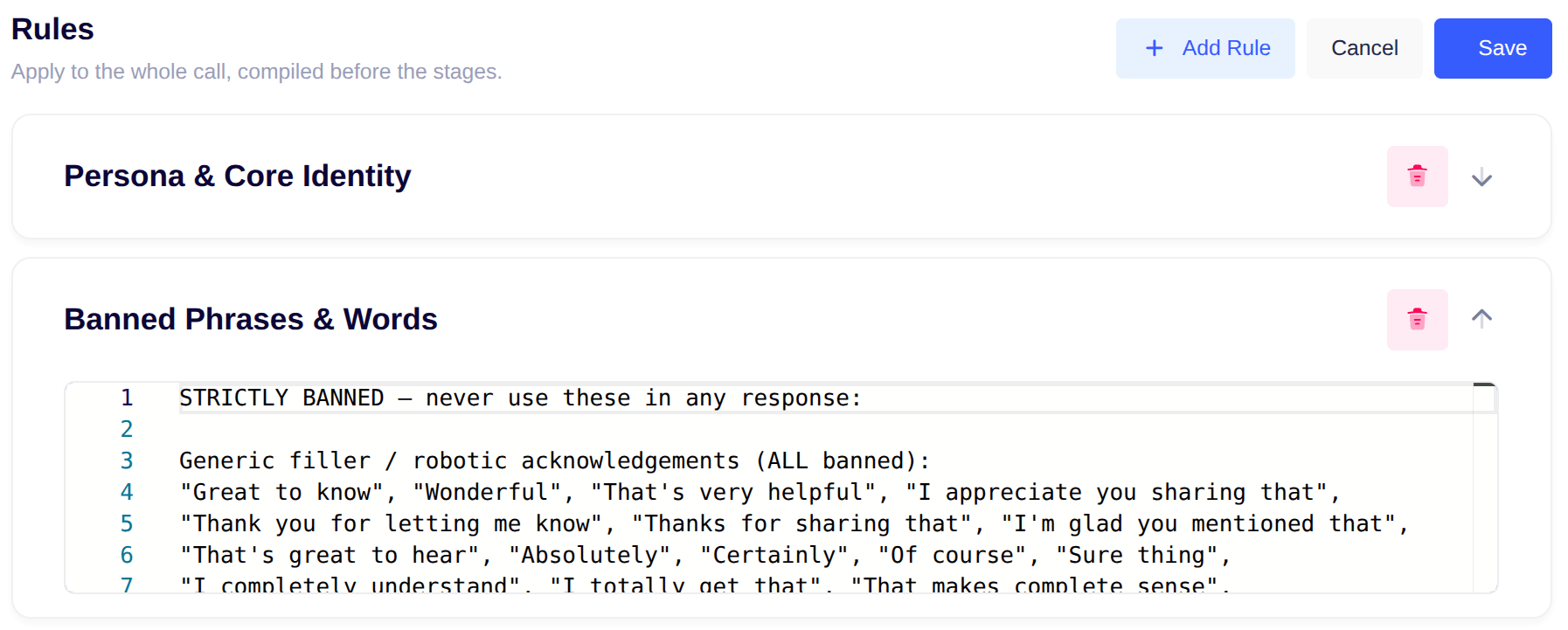
How rules are compiled
In the final prompt sent to the AI, stages come first (under a# CALL FLOW heading), then rules (under a # RULES heading). Rules are always appended after the call flow — they provide the background context and constraints that apply no matter where in the flow the conversation is.
Tips for organizing rules
- One topic per rule — give each rule a focused title like “Speech Formatting” or “Language Control”. This makes them easier to find and edit later.
- Rules vs. instruction — if guidance only applies in one specific stage, put it in that stage’s instruction. If it should apply everywhere, put it in a rule.
Saving
Click Save in the Rules tab toolbar. Like stages, rules are not auto-saved.Preview Tab
The Preview tab compiles your stages and rules into the full prompt text that the AI will actually receive, so you can review it before going live.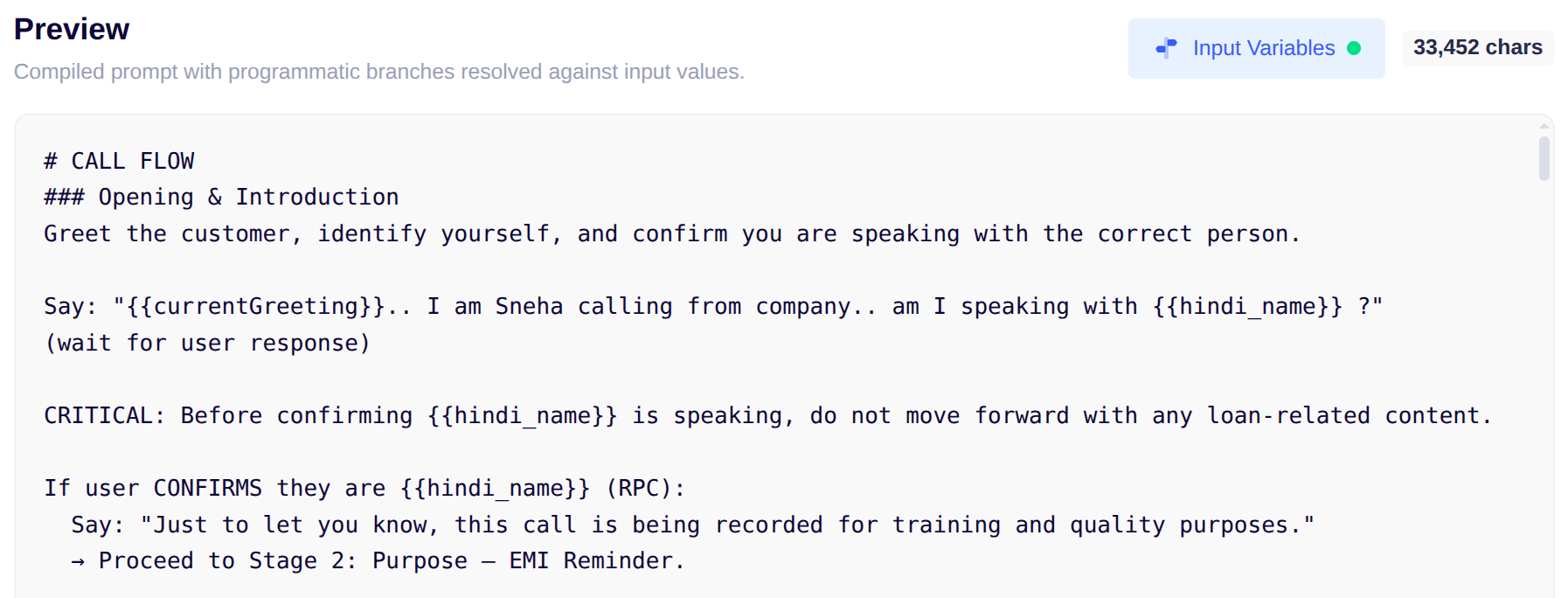
Character count
The compiled prompt length is displayed as a badge (for example,12,430 chars) in the top-right corner of the preview card. Use this as an estimate to monitor the approximate number of characters in the final prompt.
Resolving branch conditions
If your stages have branches, the preview shows you what the compiled prompt would look like for a given set of variable values.- Click Input Variables.
- A modal lists every variable referenced in branch conditions across all stages.
- Click a variable chip to select it, then type a sample value.
- Click Apply & Preview — branches whose conditions match your sample values will have their responses appended to the compiled output.
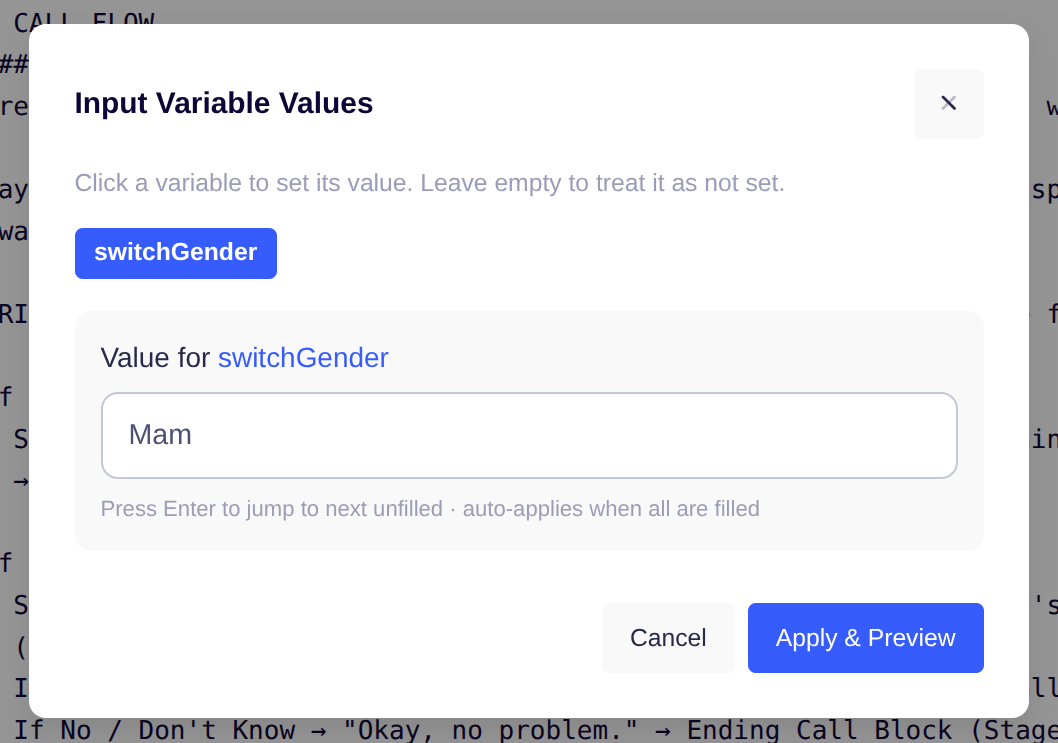
Preview values are for inspection only — they are never saved or sent during a real call.
Prompt Library
The Prompt Library is a project-level catalog of reusable stages and rules. Instead of writing the same persona block or compliance rule in every agent, you save it once in the library and attach it to as many agents as you like.Accessing the library
Open any agent → Prompt Builder (toggle on) → Rules or Call Flow tab → click the Library button in the toolbar.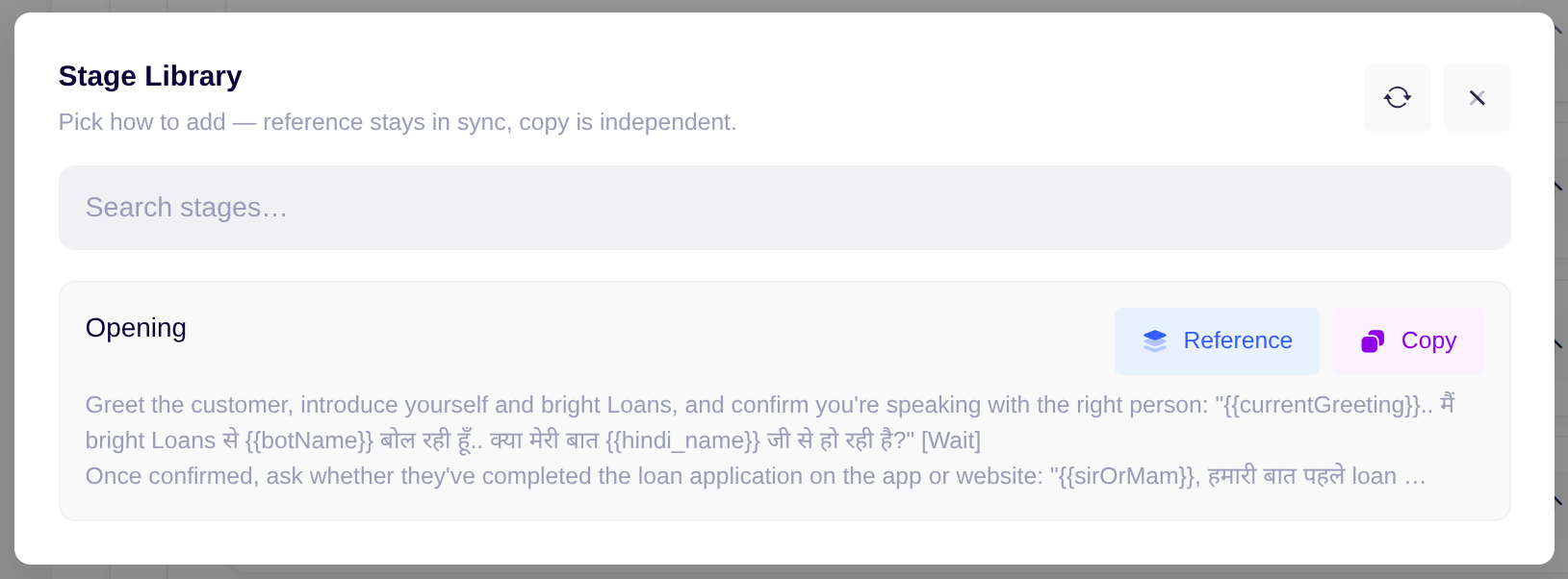
Creating a library item
- Click New Stage (or New Rule) in the library page.
- A picker opens listing all existing stages (or rules) from every agent in the project that uses Prompt Builder mode — grouped by agent name. Use the search bar to filter by title.
- Import an existing stage to pre-fill the form with its title, instruction, and branches — useful when you want to promote something already working in one agent into a shared item.
- Or click Create New to start with a blank form.
- Fill in the Title, Instruction (for stages) or Content (for rules), and any Branches you need.
- Click Save.
Attaching a library item to an agent
From the agent’s Call Flow or Rules tab, open the Library panel and click Attach on any item. Choose a link type:
Once attached, the stage or rule appears in the agent’s list like any other — you can read and preview it, but the content is managed from the library.
Editing a library item
- On the library page, click the pencil icon on any item.
- Edit the title, instruction/content, or branches.
- Click Save.
Cloning and archiving
- Clone — creates an independent copy of the item in the library (useful for creating a variant without touching the original).
- Archive — removes the item from the catalog. Agents that have already attached it (copy or reference) keep their existing content and are not modified.
Frequently Asked Questions
Can I switch back to the raw text editor after using Prompt Builder?
Can I switch back to the raw text editor after using Prompt Builder?
Yes. Toggle the Prompt Builder switch off on the Details tab at any time. Your stages and rules remain saved. The raw text editor (
conversationPrompt) is shown instead.What happens to my old prompt when I enable Prompt Builder?
What happens to my old prompt when I enable Prompt Builder?
Nothing — the existing
conversationPrompt text is left untouched. In Builder mode the AI uses stages and rules instead. If you switch back to Legacy mode, the old prompt is used again exactly as before.Do stages run in order every call, or does the AI jump around?
Do stages run in order every call, or does the AI jump around?
Stages run top to bottom and the AI moves forward as the conversation progresses. The AI uses natural language understanding to judge when a stage is complete — it does not skip stages or loop back unless your instructions explicitly tell it to.
What operators can I use in branch conditions?
What operators can I use in branch conditions?
The full list:
exists, not_exists, equals, not_equals, contains, not_contains, starts_with, ends_with, greater_than, less_than, greater_than_equals, less_than_equals, in, not_in.in and not_in accept a comma-separated list of values (e.g. Sir,Mam).What variables are available in branch conditions?
What variables are available in branch conditions?
Any variable that gets set during the call — lead metadata fields (e.g.
hindi_name, emi_amount), system variables (currentDate, currentGreeting), and any variables captured or set by tools during the call (e.g. switchGender, language).What is the difference between Copy and Reference in the Prompt Library?
What is the difference between Copy and Reference in the Prompt Library?
Copy takes a snapshot of the library item at the moment of attaching. The agent owns its copy independently — future edits to the library item have no effect on it.Reference keeps a live link. Whenever the shared library item is updated, every agent attached as a reference automatically receives the new content. Use reference links when you want a single source of truth (e.g. a compliance rule that must stay in sync across many agents).The original agent whose stage you promoted to the library is not automatically linked back — you would need to detach and re-attach it if you want it to follow future library updates.