
Prerequisites
- You must be logged in to your UserVox account.
Step-by-Step Guide
Step 1: Open Account Settings
- Log in to your UserVox dashboard.
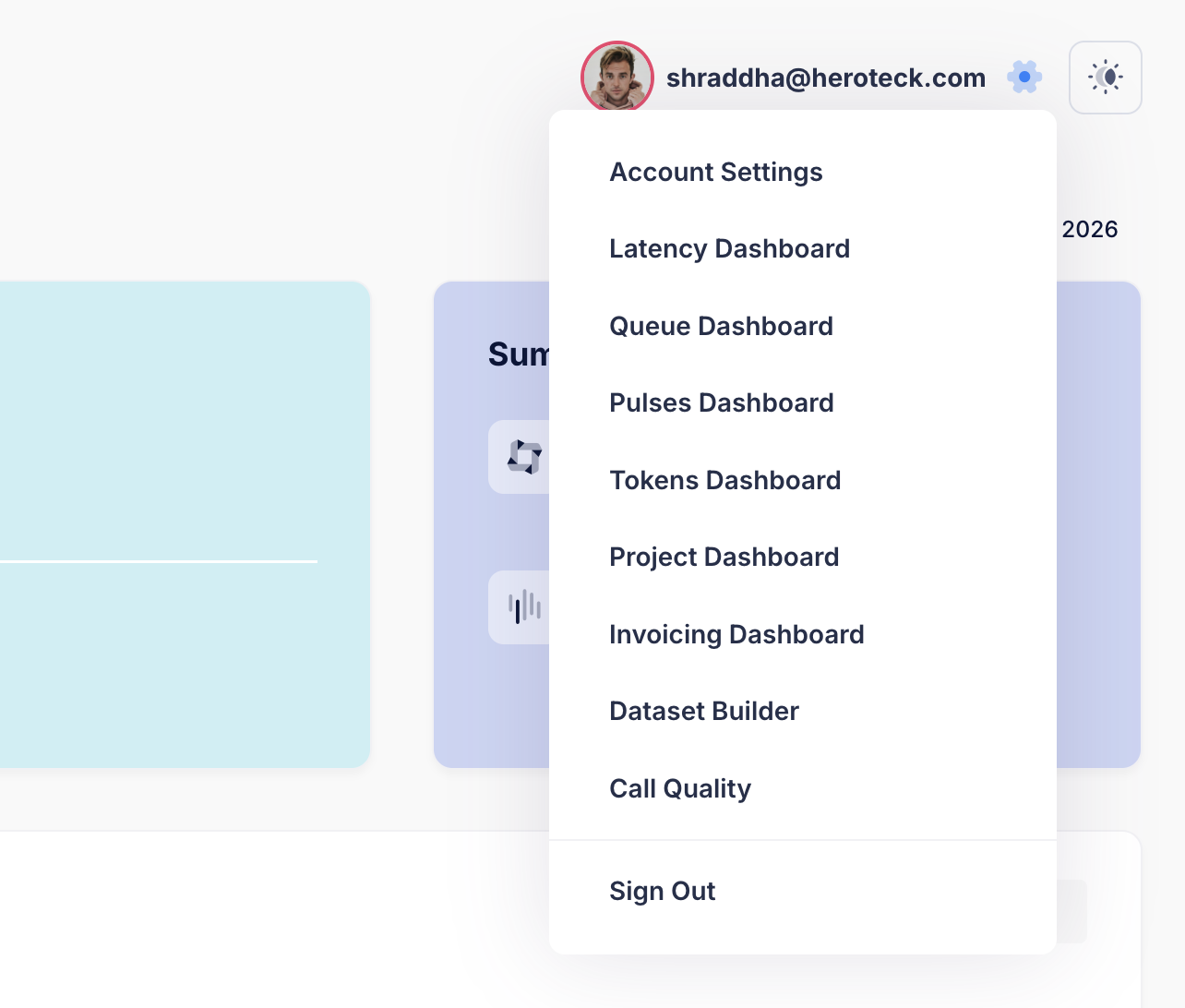
- Click on your profile icon / email at the top-right corner.
- From the dropdown menu, select Account Settings.
Step 2: Navigate to Members Section
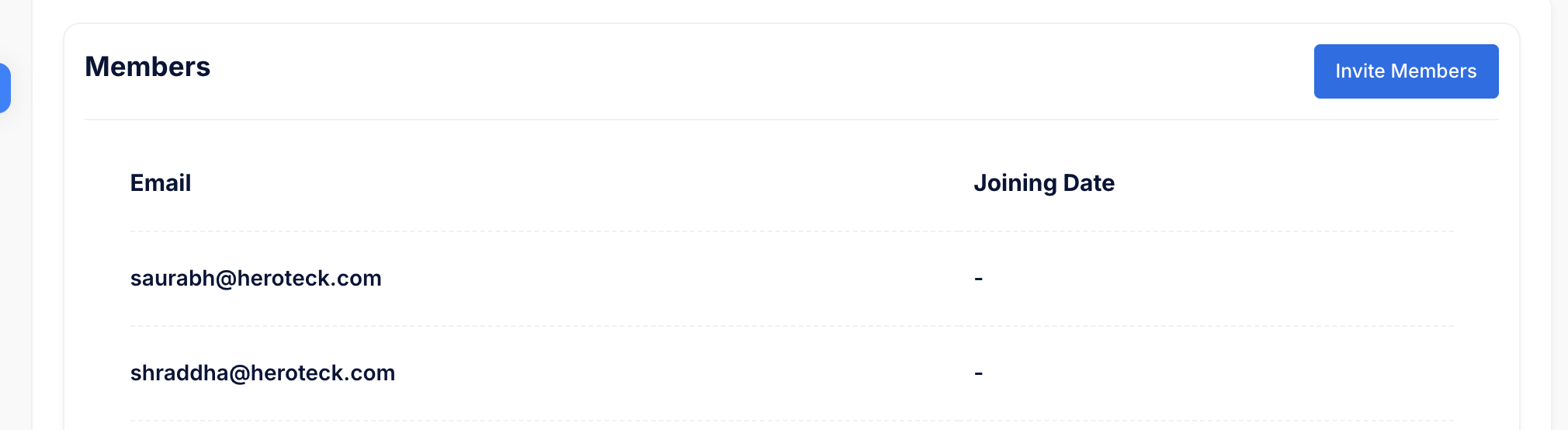
- Inside Account Settings, go to Member List / Members.
- You will see a list of existing members along with their email IDs and joining dates.
Step 3: Invite a New Member
- Click on the Invite Members button on the top-right.
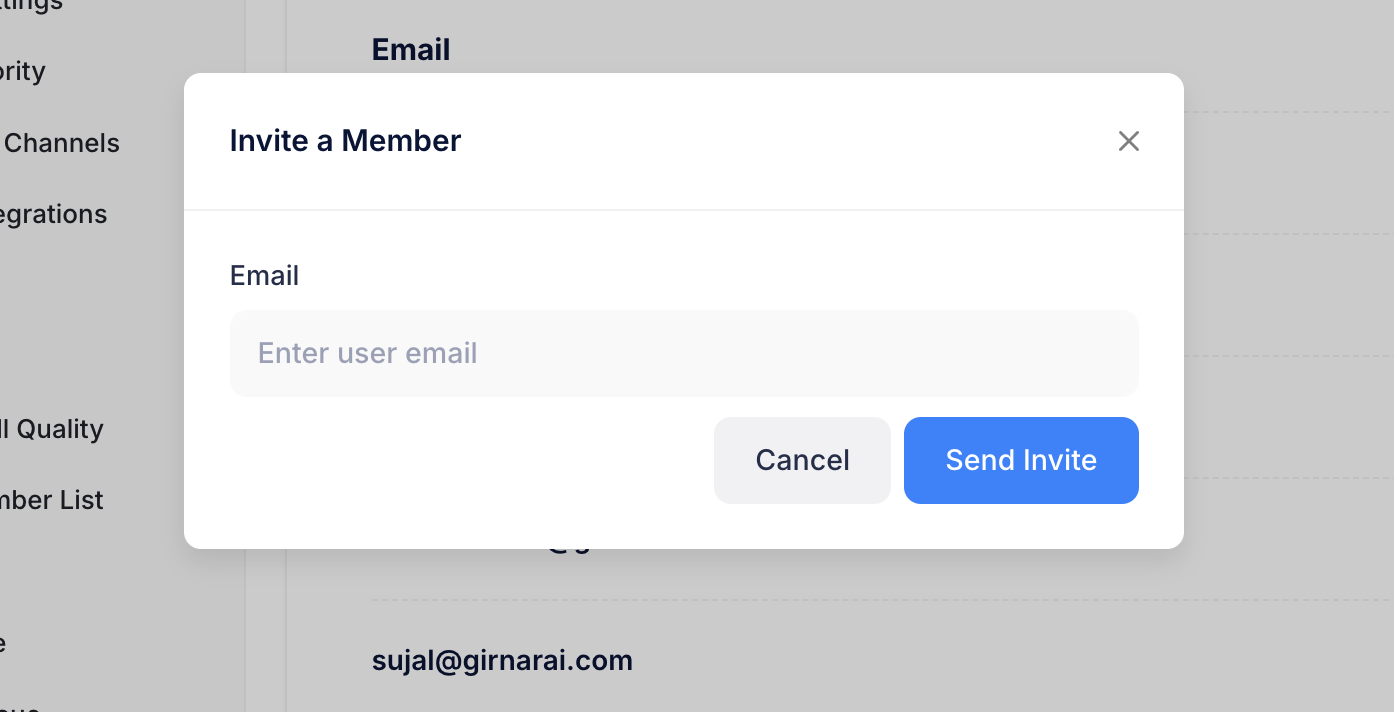
- A modal titled Invite a Member will appear.
- Enter the email address of the user you want to add.
- Click Send Invite.
What Happens Next
- The invited user will receive an email invitation.
- Once they accept the invite, they will be added to your UserVox account.
- Their email will appear in the Members list.
Managing Member Roles
Every member is either an Admin or a Viewer:- Admin — can change project settings and manage other members’ roles.
- Viewer — read-only access.
Notes & Best Practices
- Ensure the email ID is entered correctly before sending the invite.
- If the user does not receive the invite, ask them to check their spam/junk folder.