
Step-by-Step: Add a Webhook to a Process
1. Open the Process
- Go to Processes from the main dashboard.
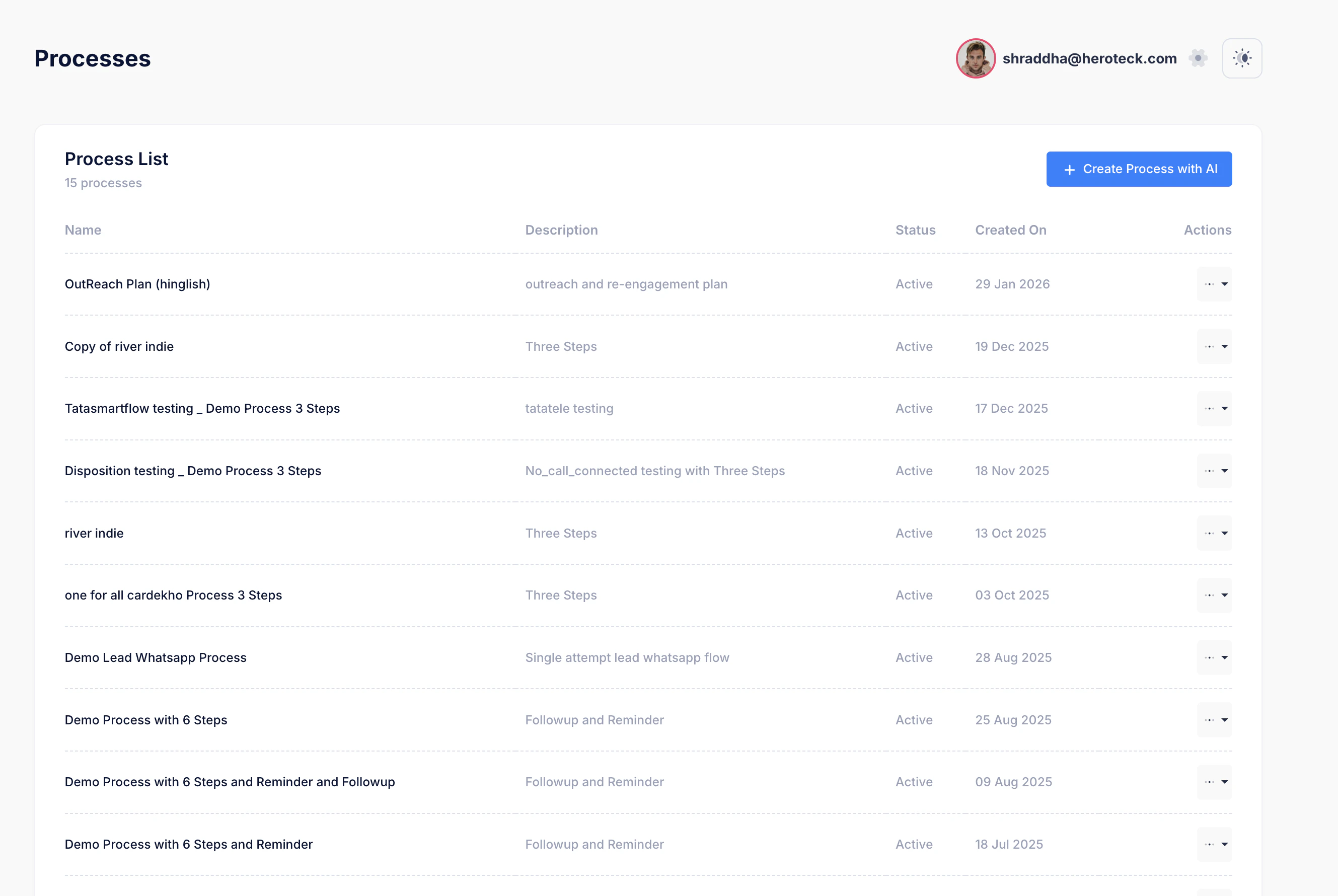
- Select the process where you want to add the webhook (e.g., OutReach Plan (hinglish)).
2. Go to Advanced Settings
- Inside the process details page, scroll down to Advanced Settings.
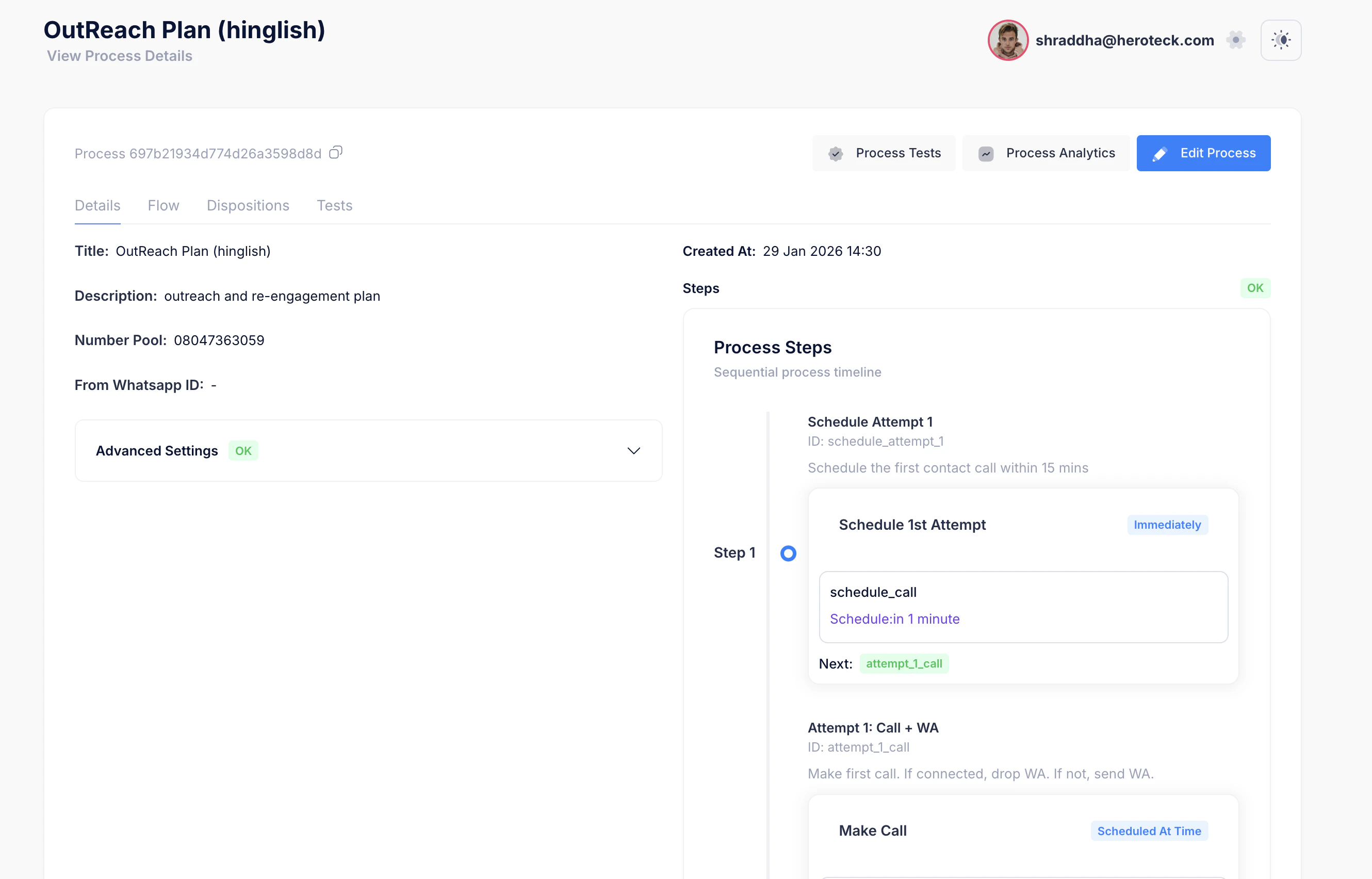
- Expand the section if it is collapsed.
- You will see Lead Update Callbacks.
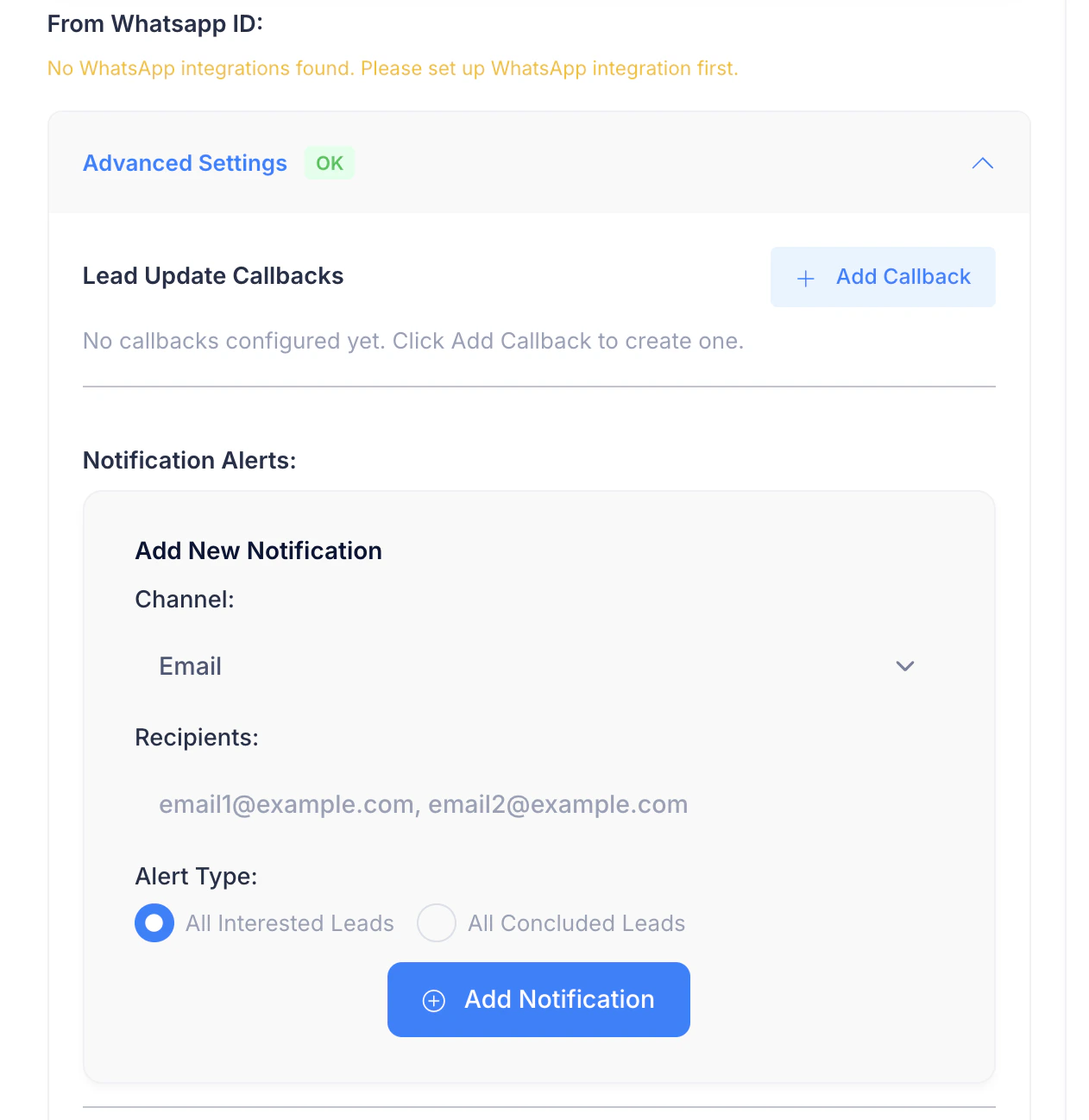
3. Add a New Callback
- Click on + Add Callback.
- A new block (e.g., Callback 1) will appear.
4. Configure the Webhook
a. Lead Update URL
- Enter your webhook endpoint URL.
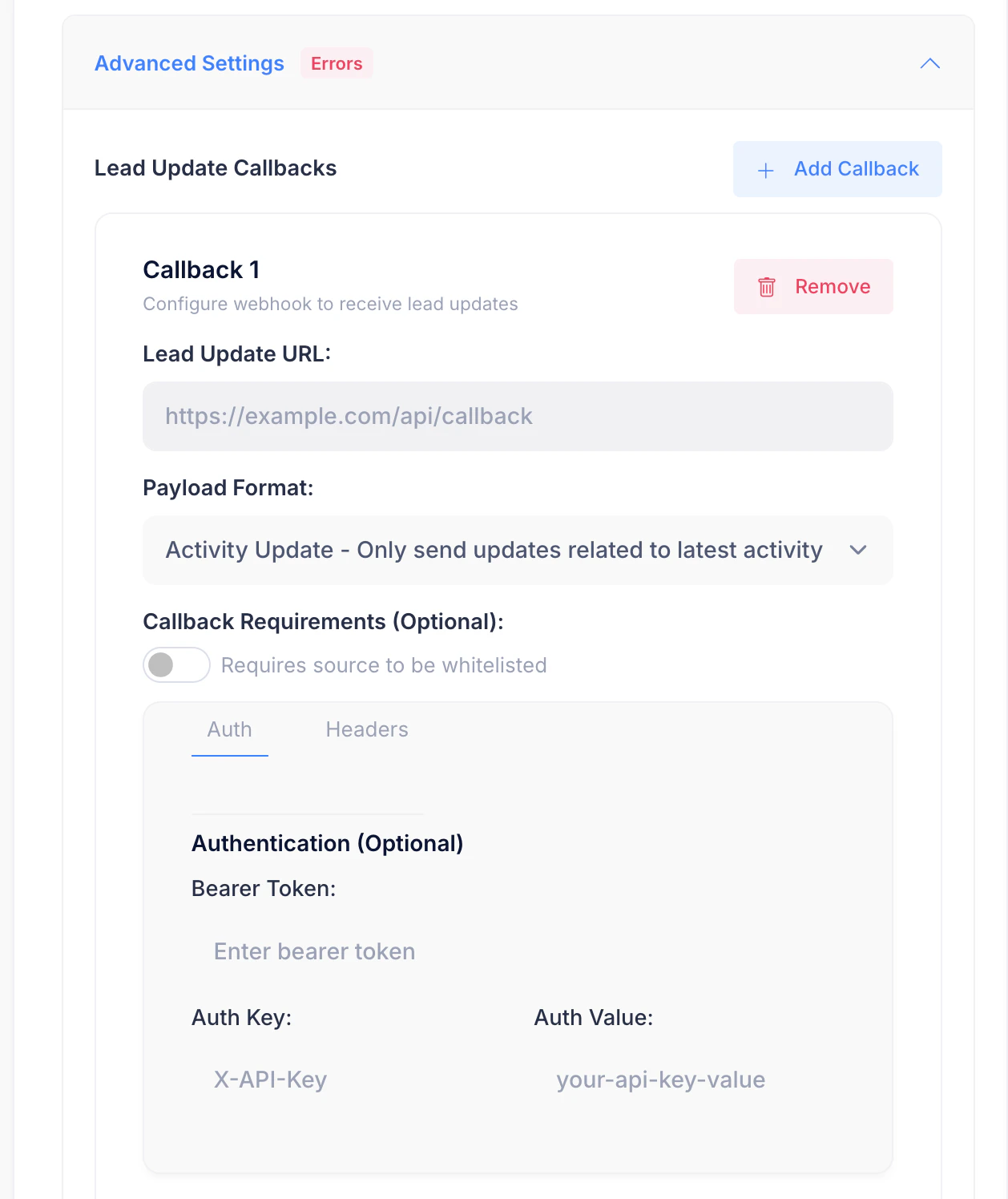
b. Payload Format
Choose how much data you want to receive:- Activity Update – Only send updates related to latest activity (recommended)
c. Callback Requirements (Optional)
- Enable Requires source to be whitelisted if your server only accepts requests from approved IPs.
d. Authentication (Optional)
If your endpoint requires authentication, configure one of the following:- Bearer Token
- Add a token that will be sent in the
Authorizationheader.
- Add a token that will be sent in the
- Custom Auth Header
- Auth Key: e.g.
X-API-Key - Auth Value: your API key value
- Auth Key: e.g.
5. Save and Verify
- Make sure there are no validation errors (Advanced Settings should show OK, not Errors).
- Save the process if required.
When Will the Webhook Fire?
The webhook is triggered when:- A call attempt is completed
- Lead status changes (Interested, Not Interested, No Answer, etc.)
- Final disposition is marked
- The latest activity in the process changes
Common Errors & Tips
- Advanced Settings shows “Errors”
- Check that the Lead Update URL is valid (HTTPS recommended)
- Ensure required auth fields are correctly filled
- No callbacks received
- Confirm your endpoint accepts
POSTrequests - Verify authentication headers
- Check server logs for rejected requests
- Confirm your endpoint accepts
Best Practices
- Use a dedicated endpoint for webhooks
- Log incoming payloads for debugging
- Respond with HTTP
200 OKquickly to avoid retries - Secure the endpoint using auth headers
You’re now set up to receive real-time lead updates from your process 🚀