
Step 1: Open the Conversation
Navigate to the conversation you want to review. You can fetch the recording and review the transcript before submitting feedback.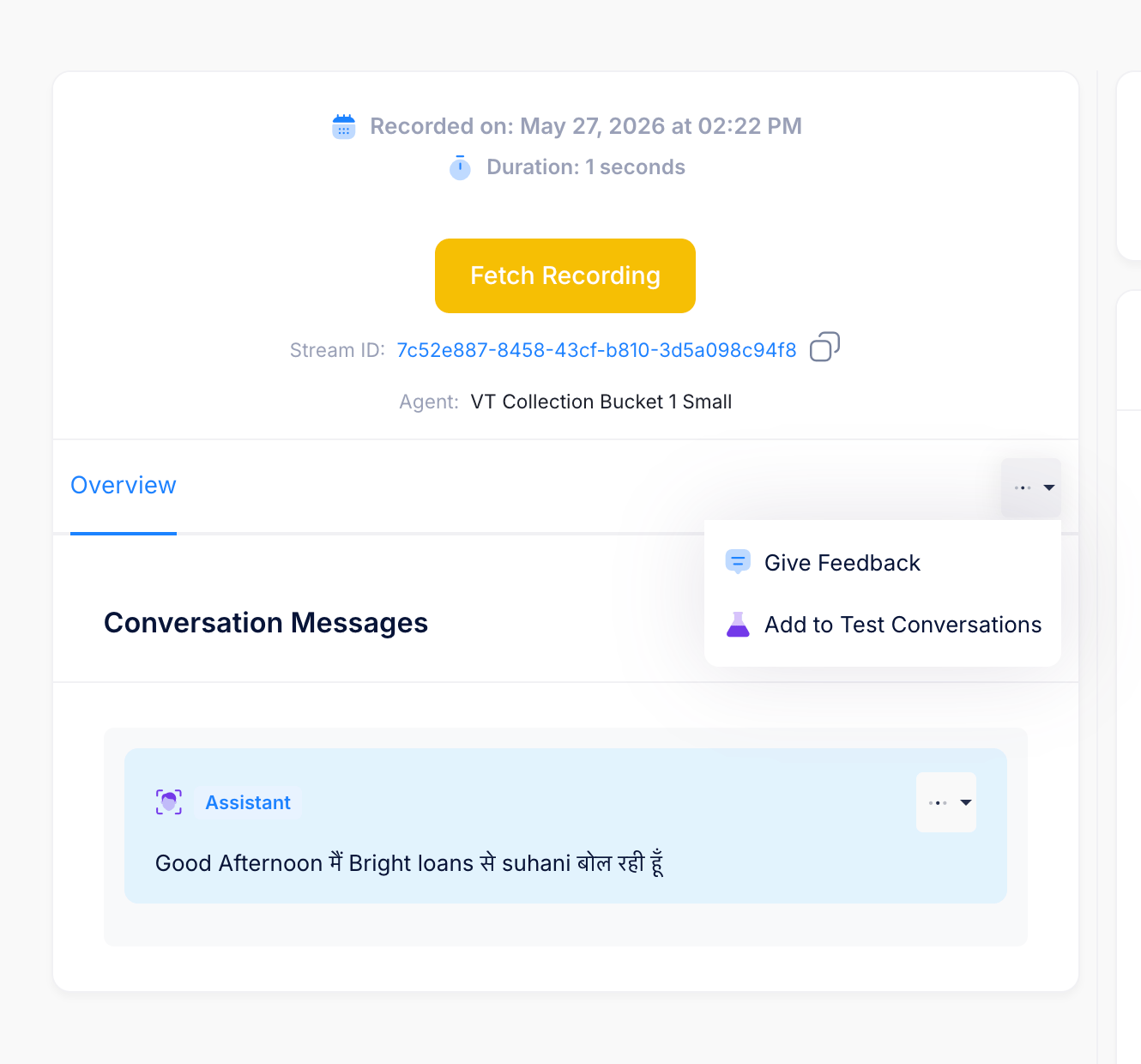
Step 2: Give Feedback
- Click on the three-dot menu (
⋯) on the conversation card. - Select Give Feedback.
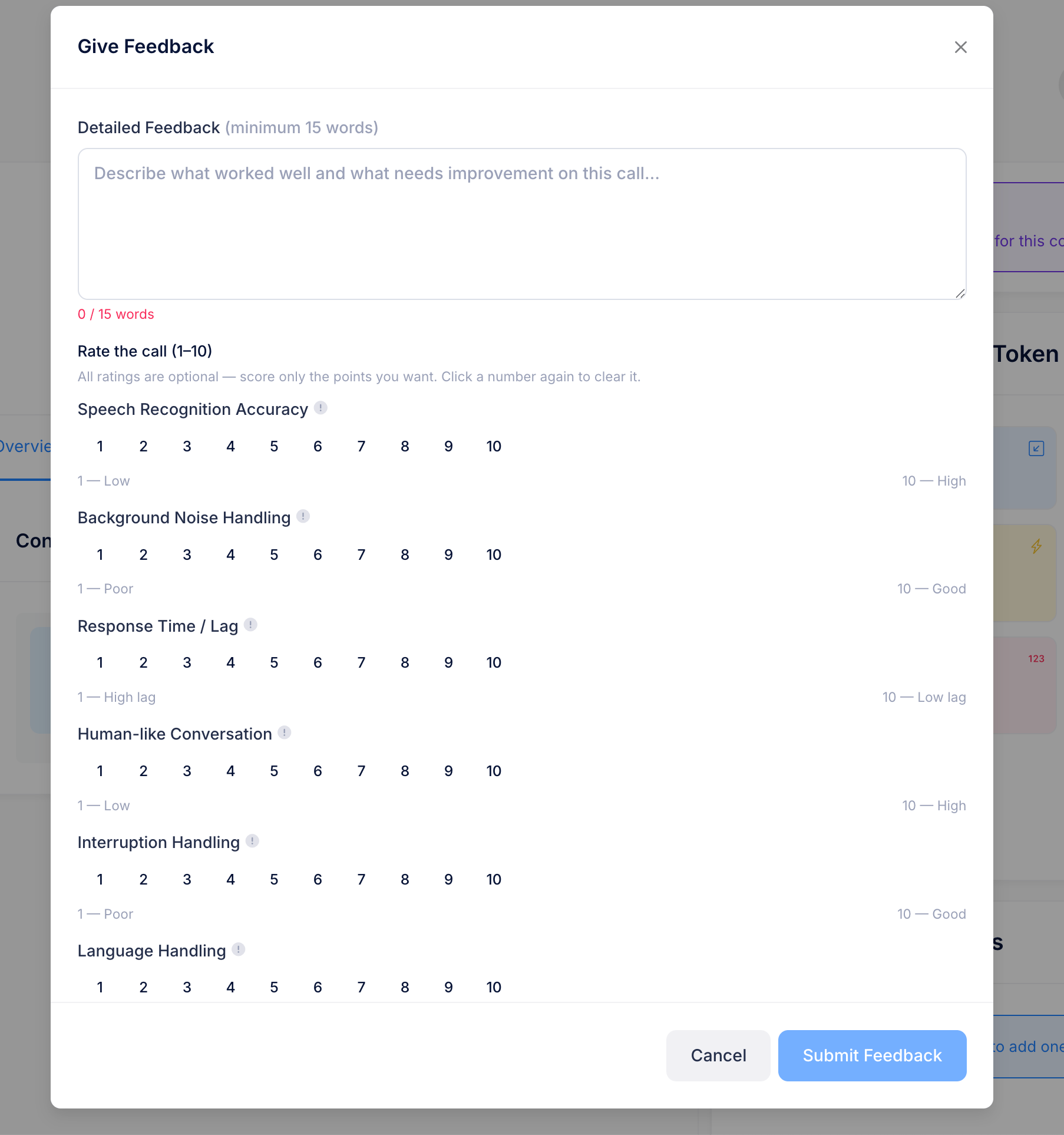
Available Rating Parameters
You can rate the conversation from 1–10 for:- Speech Recognition Accuracy
- Background Noise Handling
- Response Time / Lag
- Human-like Conversation
- Interruption Handling
- Language Handling
Viewing Submitted Feedback
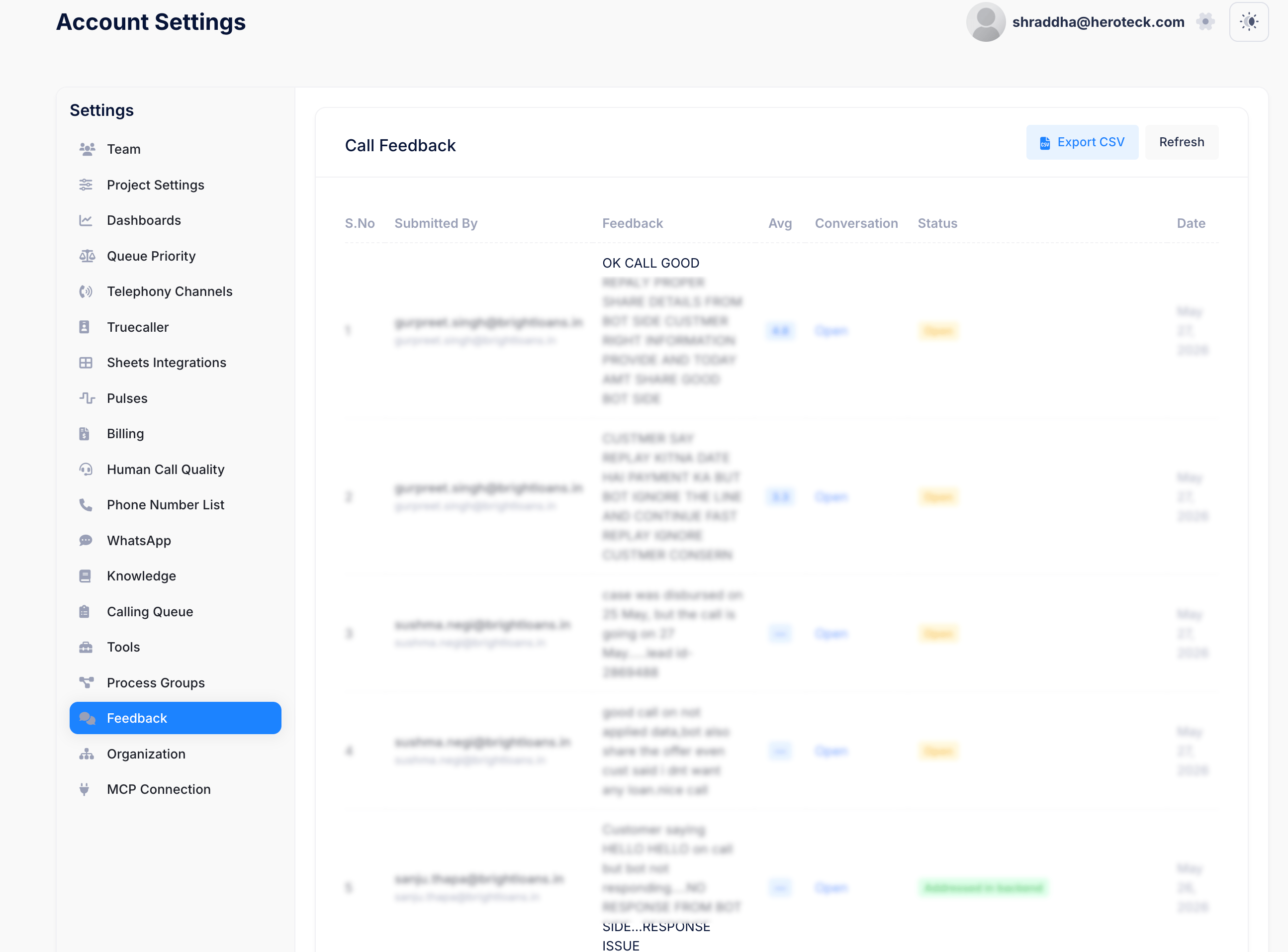
All submitted feedback can later be reviewed from the Account Settings section.Step 3: Open Feedback Dashboard
- Go to Account Settings
- Open the Feedback section from the left sidebar
What You Can View
The Feedback dashboard allows you to:- View submitted feedback comments
- Check average ratings
- Review conversation references
- Monitor feedback status
- Track submission dates
- Export feedback using Export CSV