
Overview
To send WhatsApp templates from your own number, connect your WhatsApp Business Account (WABA) to Uservox. You do this once per project, in a few minutes, through a short Meta window. Until a WABA is connected, the WhatsApp page shows the onboarding screen below.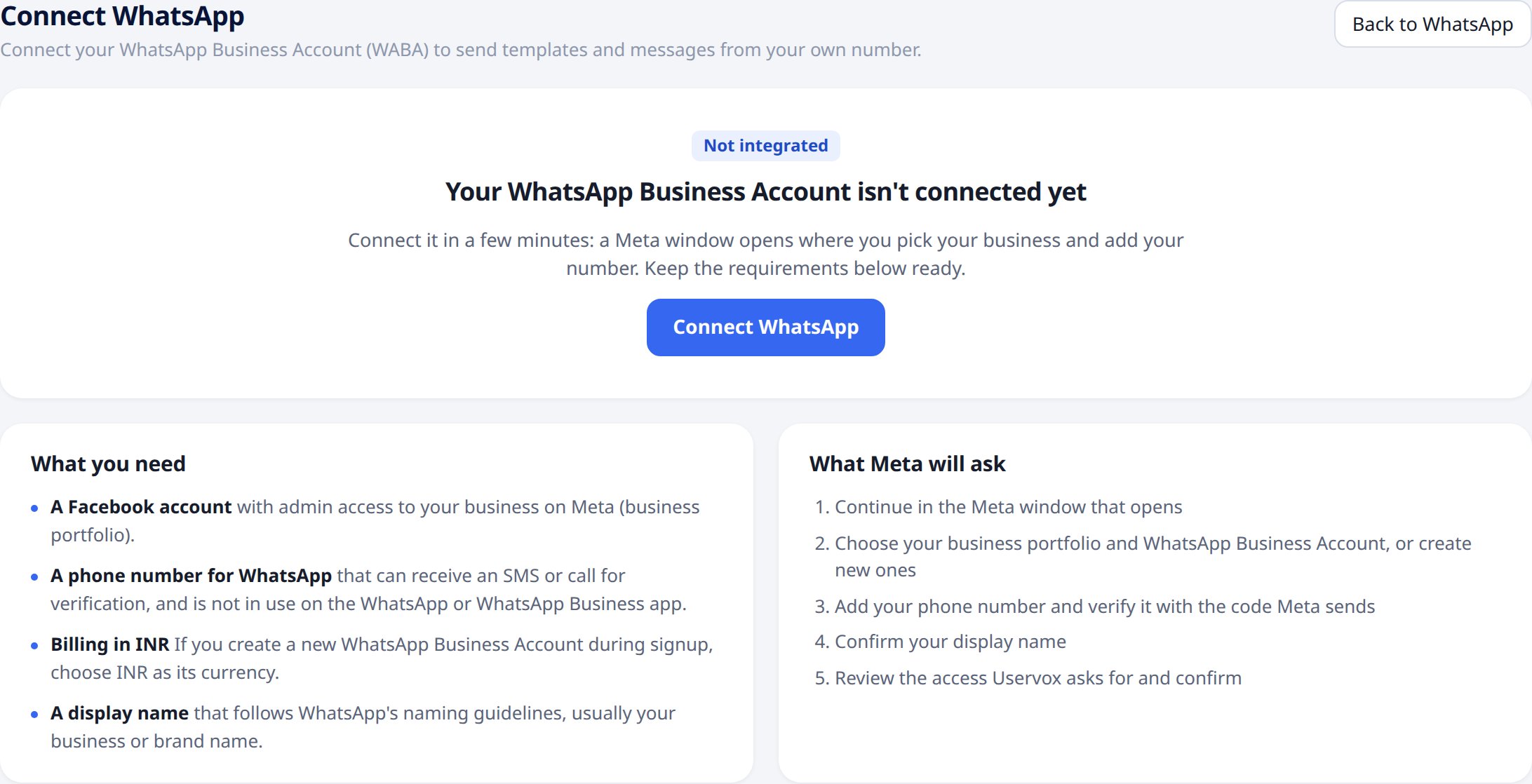
Before you start
Keep these ready:- A Facebook account with admin access to your business on Meta (your business portfolio).
- A phone number for WhatsApp that can receive an SMS or a call for verification. It must not be in use on the WhatsApp or WhatsApp Business app.
- Billing in INR. If you create a new WhatsApp Business Account during signup, choose INR as its currency. Accounts in other currencies can’t be connected.
- A display name that follows WhatsApp’s display name guidelines, usually your business or brand name.
Only a project admin can connect WhatsApp. Other members see a message asking them to contact an admin.
Connect your account
- Open WhatsApp from the left menu.
- Click Connect WhatsApp. A Meta window opens.
- Follow the steps in the Meta window (below).
- When you click Confirm in the last step, the window closes and Uservox starts setting up your number.
Step 1: Start
Meta explains what you are connecting. Click Continue.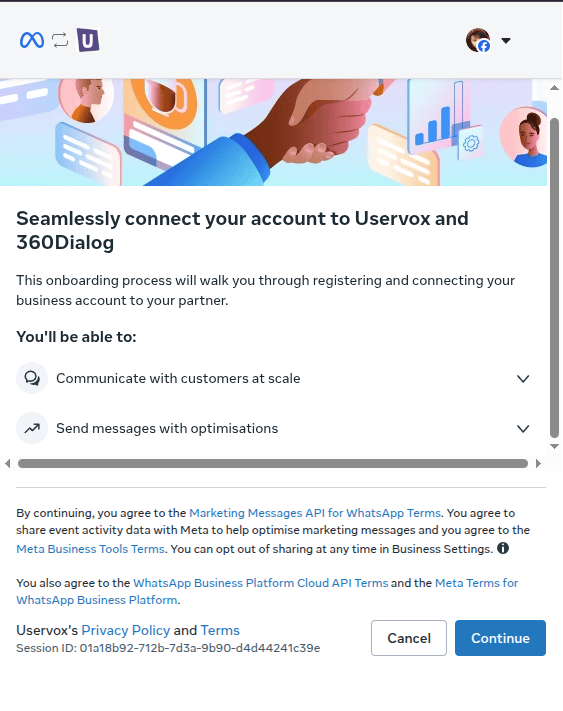
Step 2: Add your WhatsApp phone number
Choose the number you want customers to see, then choose how to verify it: Text message or Phone call. Enter the code Meta sends you.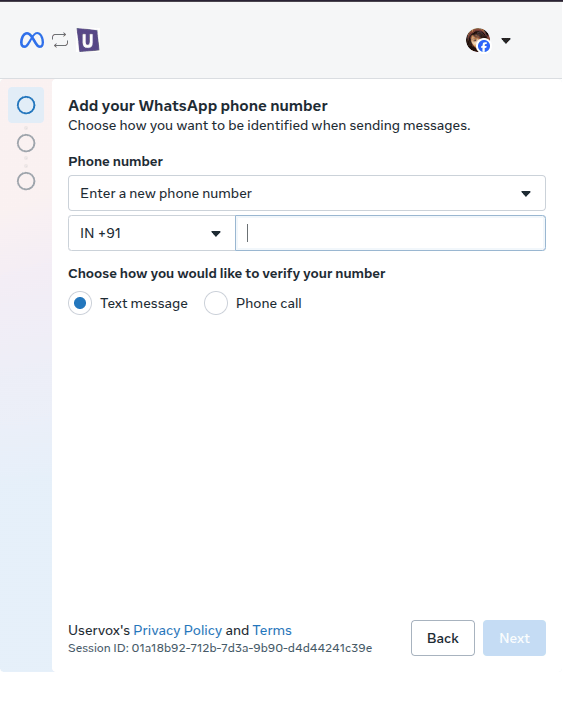
Step 3: Choose your business assets
Select your Business portfolio and WhatsApp account, or create new ones.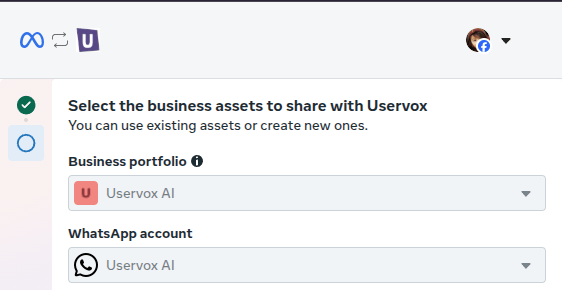
Step 4: Set your display name
Enter the name customers will see on your messages. A green tick means it meets WhatsApp’s guidelines.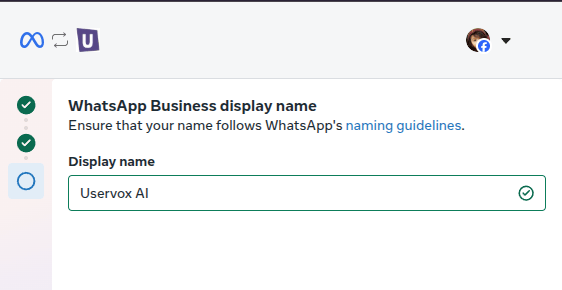
Step 5: Review and confirm
Meta lists the access Uservox needs to send and receive WhatsApp messages for your business. Click Confirm.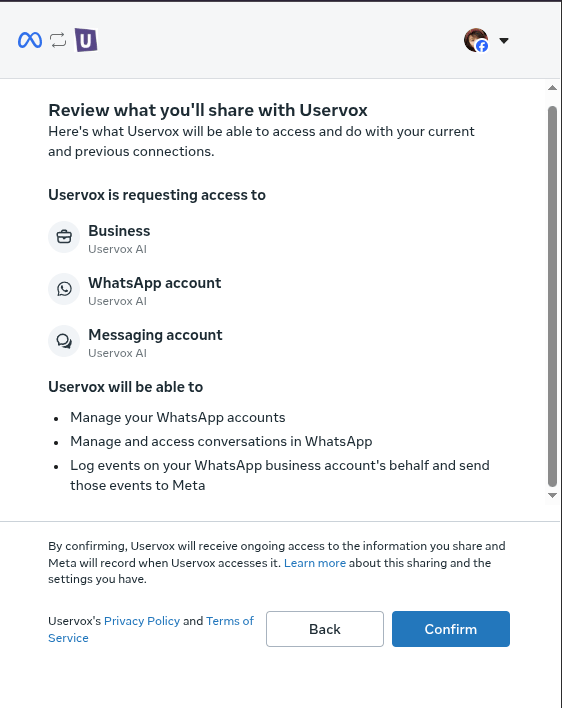
After you confirm
Uservox registers your number. This usually takes a few minutes, and the page updates on its own, so you can leave it open or come back later.
If setup fails
If something goes wrong, the page shows Setup failed with the reason, for example a number that is already registered on another WhatsApp Business Account. Fix the cause and click Retry WhatsApp signup.