
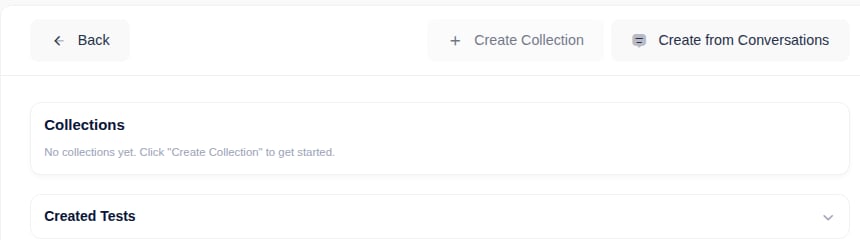
/agent/:id/tests), which also lets you group individual tests into Collections for running several tests together:
1. Start from the Conversation page
- Open the conversation you want to test:
/conversation/:id - In the Conversation Messages header (top-right), click the three-dots button
- What you’ll see:
- If a test already exists: Go to Test Conversation (opens in new tab)
- If no test exists: Turn Into Test Conversation
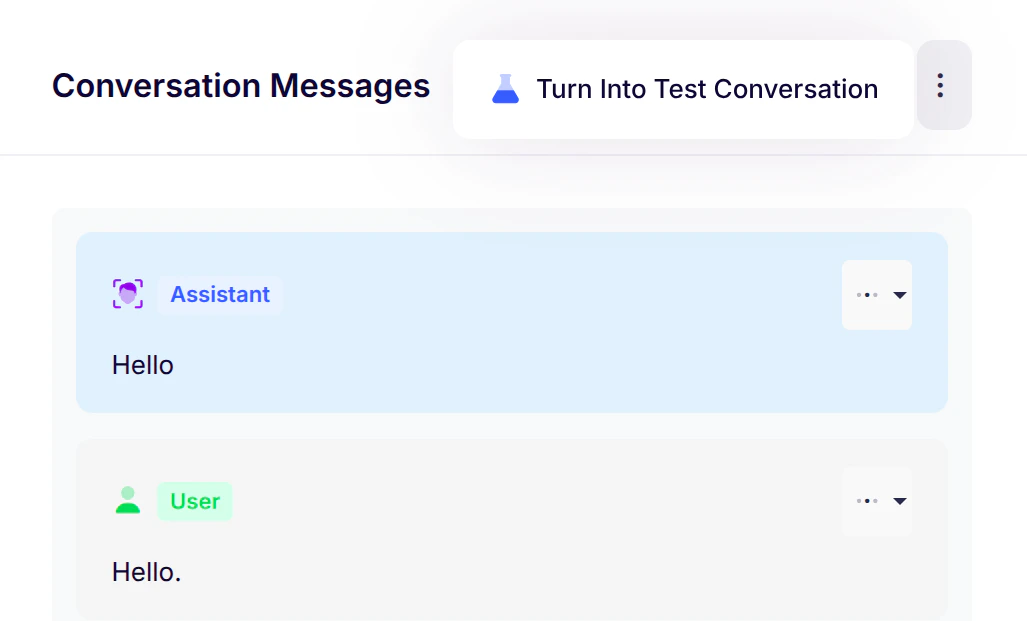
Tip: The menu briefly shows “Checking…” while verifying test existence
2. Create a Test Conversation (first time)
When you click Turn Into Test Conversation, a setup window appears: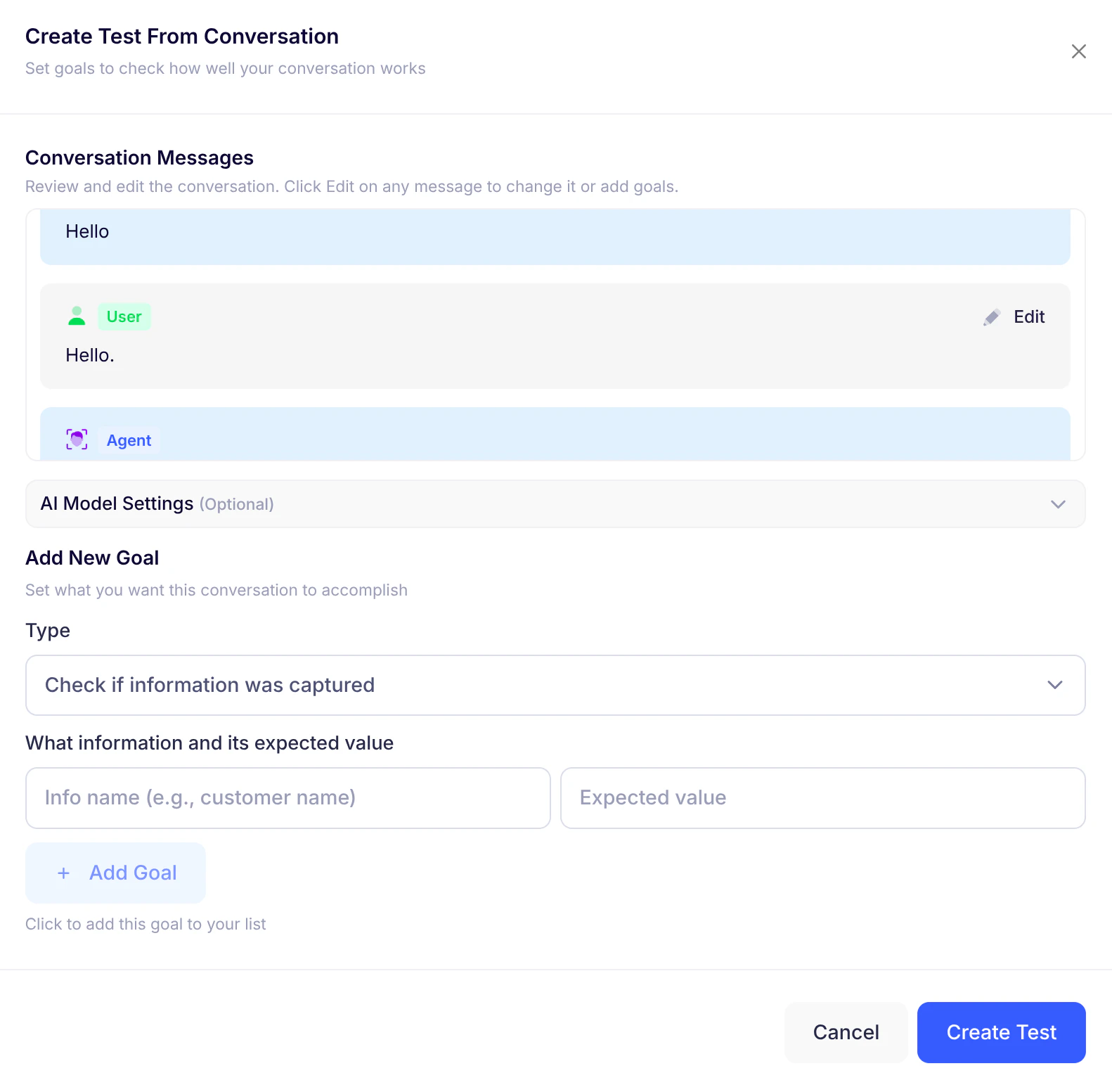
- Review/Edit messages - Adjust wording or add checks if needed
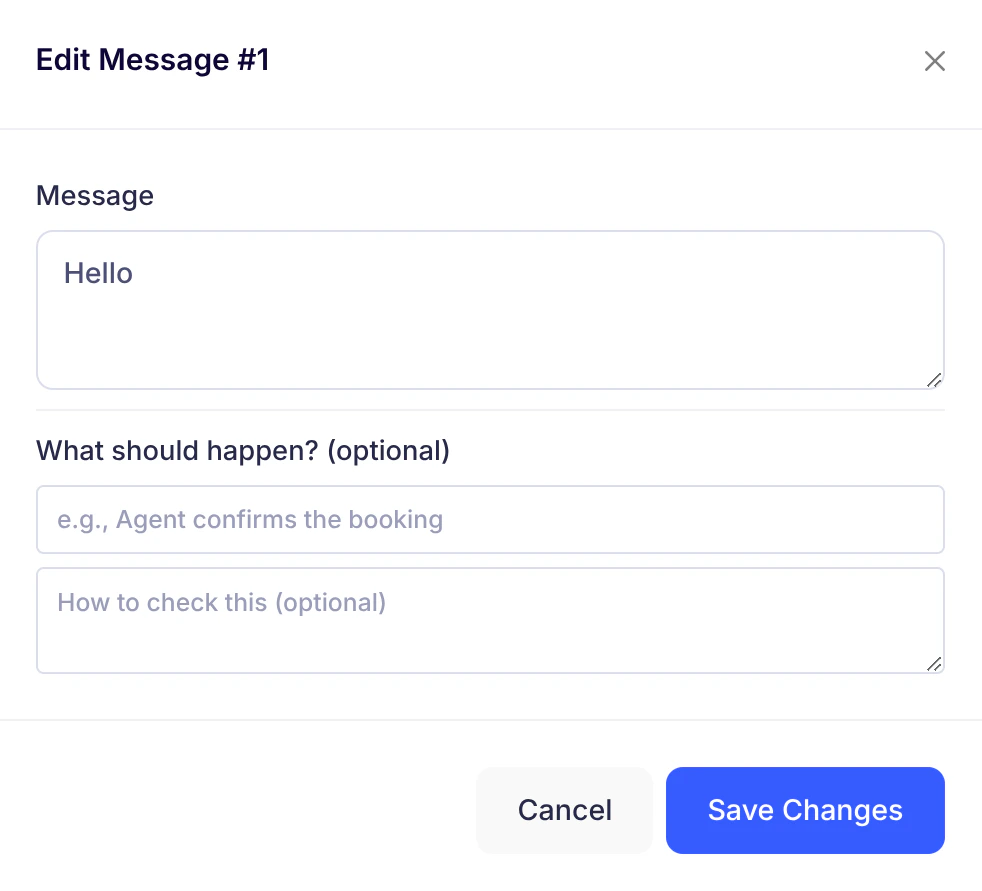
- Add goals - Define success criteria:
- “Customer’s name is captured”
- “Offer is explained clearly”
- Confirm AI settings (optional) - Model/provider/temperature
- Click Create Test
- Test space is created
- New tab opens to the Test Conversation dashboard (
/test-conversation/:id)
3. Test Conversation dashboard
Your control center for testing and learning: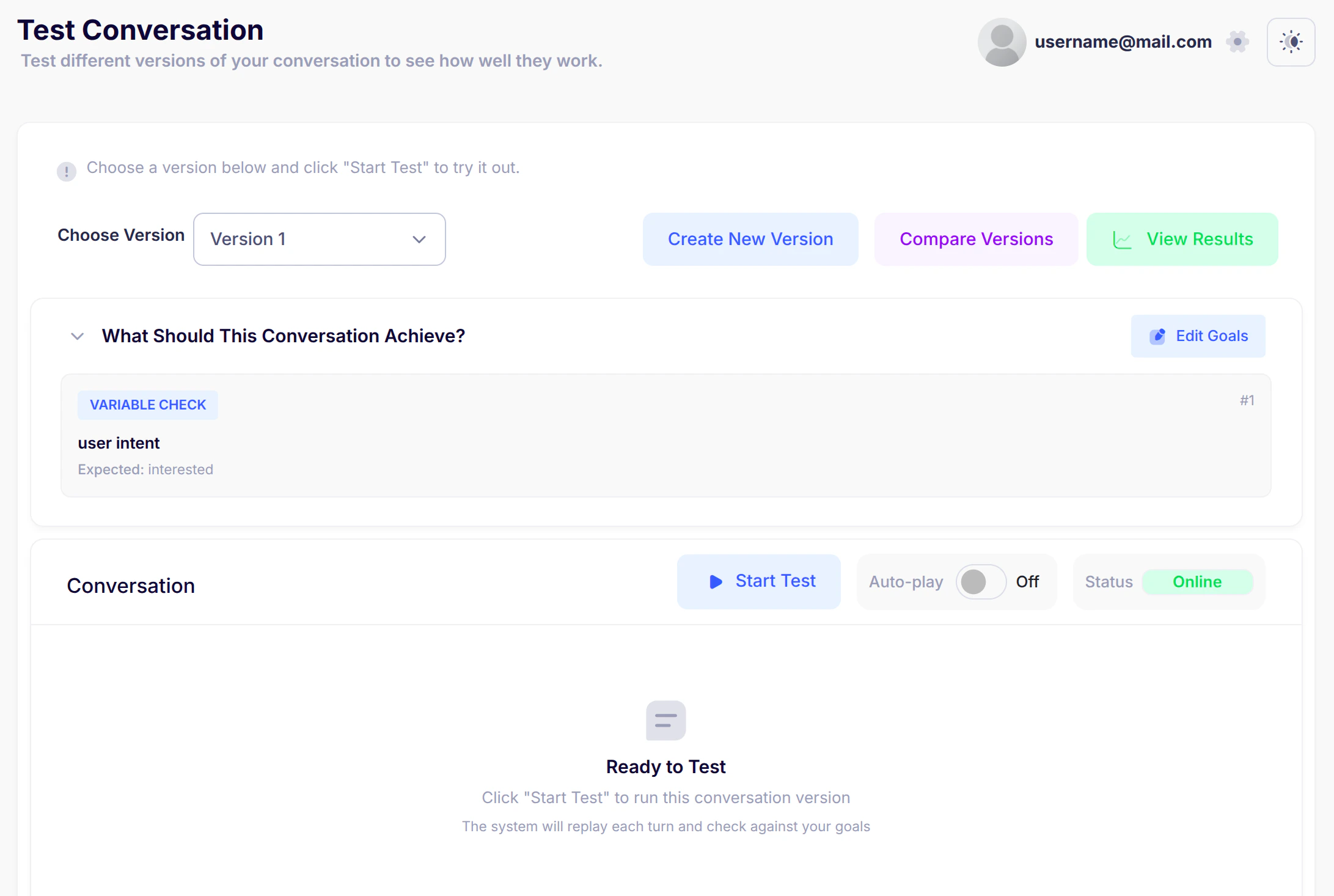
A) Version controls

- Choose Version: Select which conversation version to test
- Create New Version: Duplicate existing or rebuild from original
- Compare Versions: View 2-3 versions side-by-side
- View Results: Access saved test runs
B) Goals view

- What Should This Conversation Achieve? - Expand to see goals
- Edit Goals: Refine success criteria anytime
C) Test controls

- Auto-play toggle: ON = automatic advancement, OFF = manual Continue button
- Start Test: Begin simulation
- Stop Test: End early (saves gathered results)
- Connection Status: System readiness indicator
D) Conversation view
- Messages appear as the test runs
- Auto-play shows reminder when enabled
4. Run a test
- Select version
- Toggle Auto-play ON/OFF
- Click Start Test
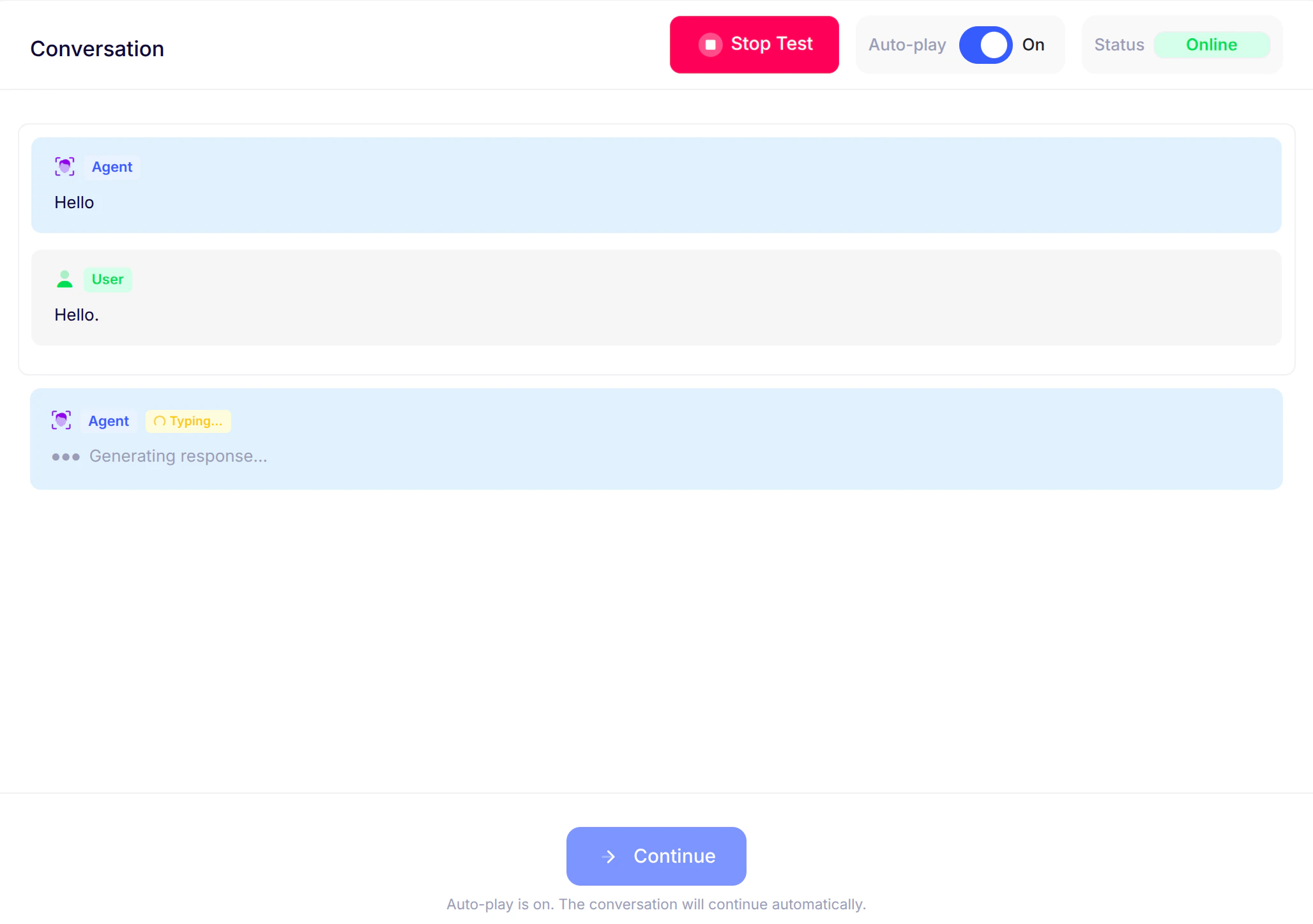
- Watch conversation:
- Auto-play OFF: Click Continue at your pace
- Auto-play ON: Advances automatically
- Click Stop Test anytime to end early
5. Create new versions
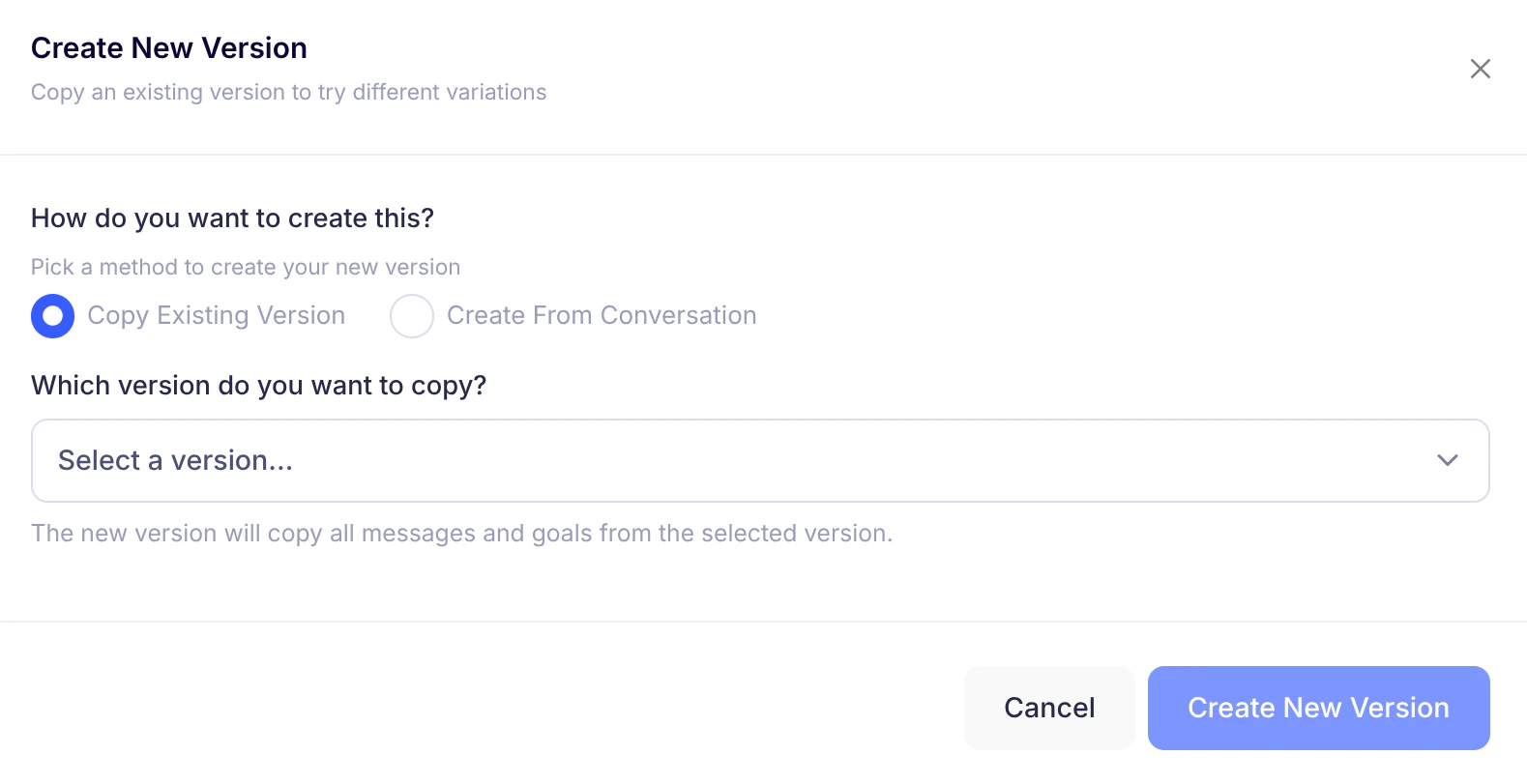
- Duplicate existing version: Copies all messages/goals
- Create from conversation: Start from original messages
- Edit message content
- Adjust goals
- Confirm AI settings
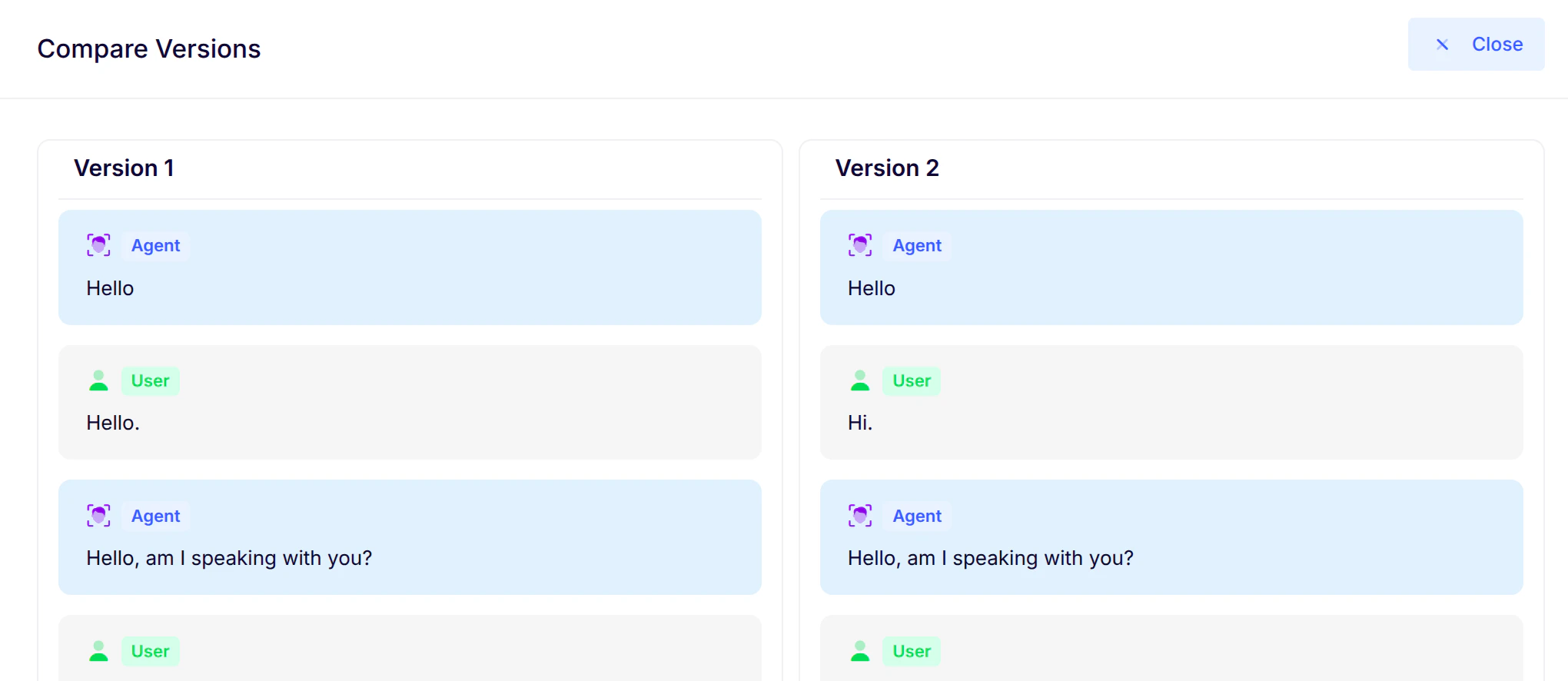
6. Compare versions
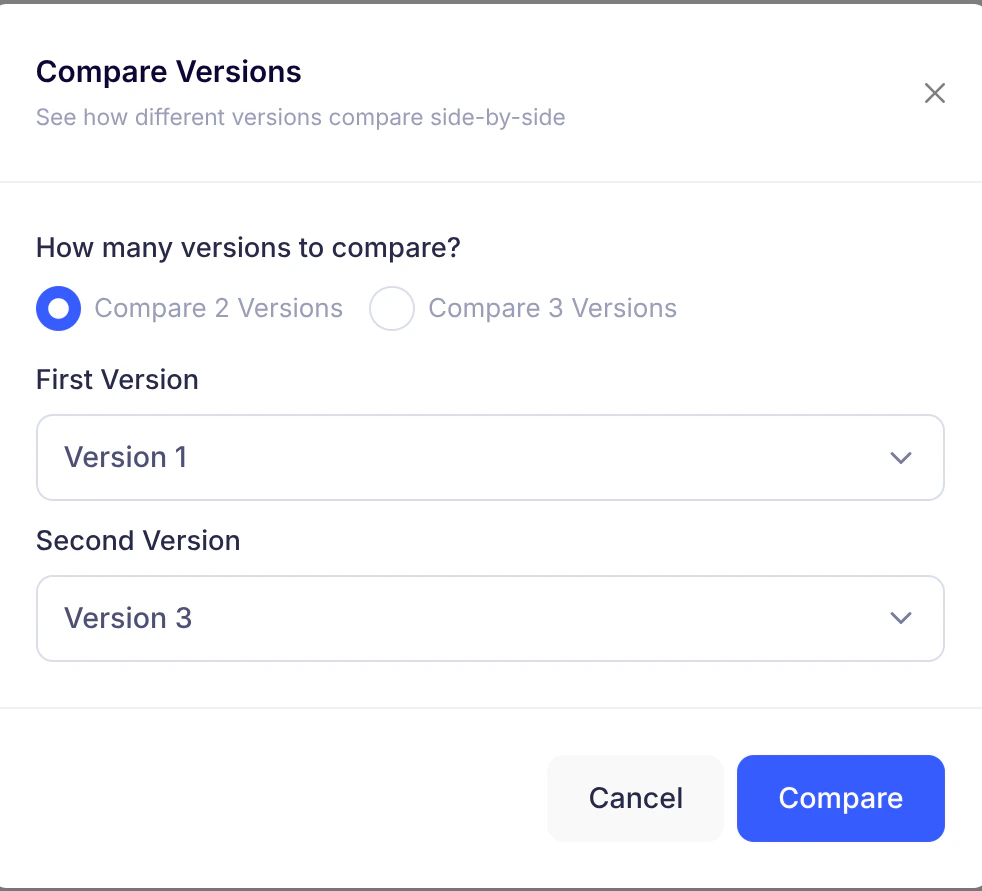
- Click Compare Versions
- Choose 2-3 versions
- Select different versions per column
- Click Compare
- Full conversation flow per version
- Synchronized scrolling
7. Edit goals
Refine success criteria anytime: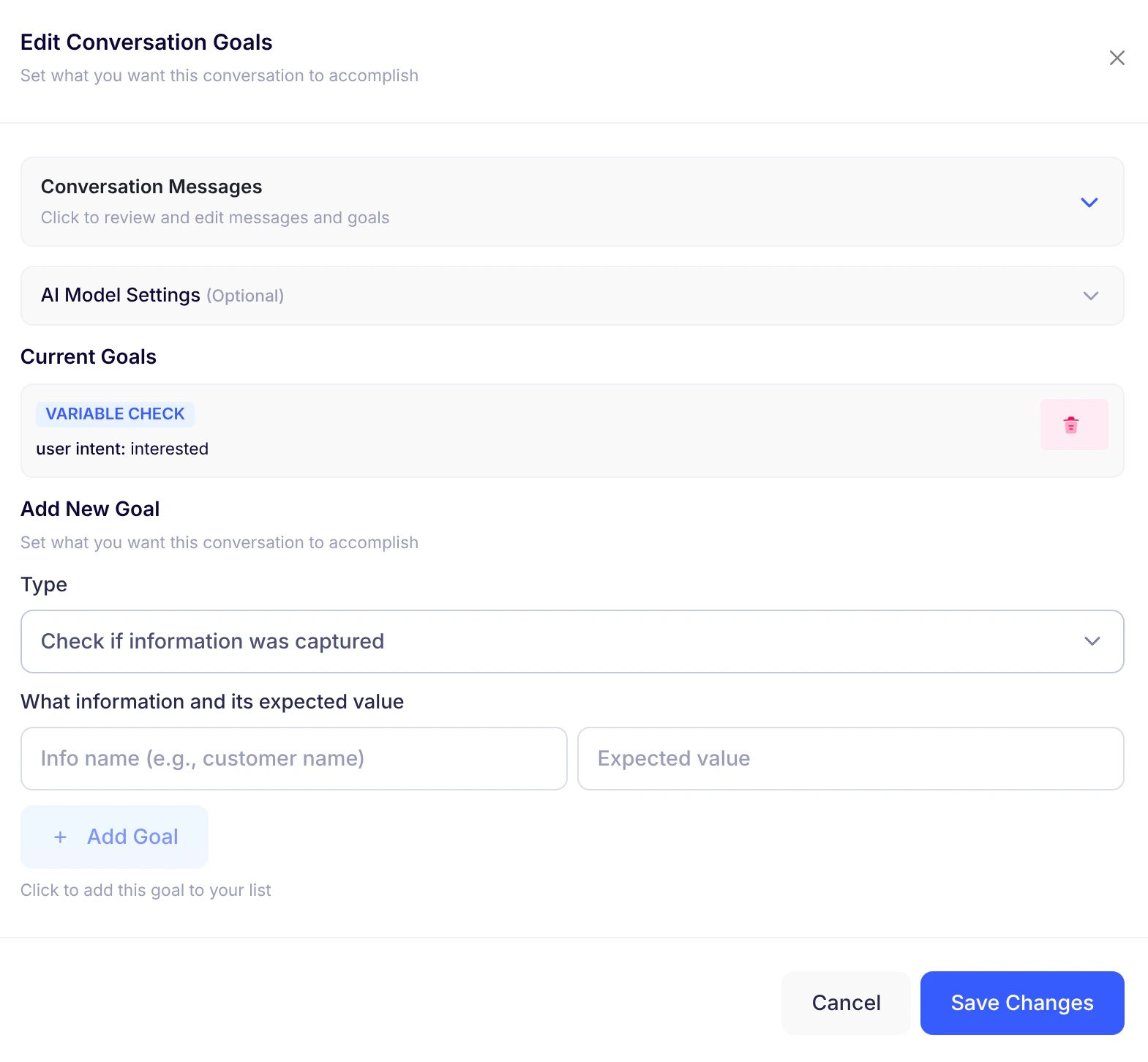
- Review messages (jump to specific steps)
- Adjust per-message checks
- Confirm AI model settings (optional)
- Add New Goal: Specify data to capture
- Click Save Changes
Note: Changes apply immediately to future tests
8. View test results
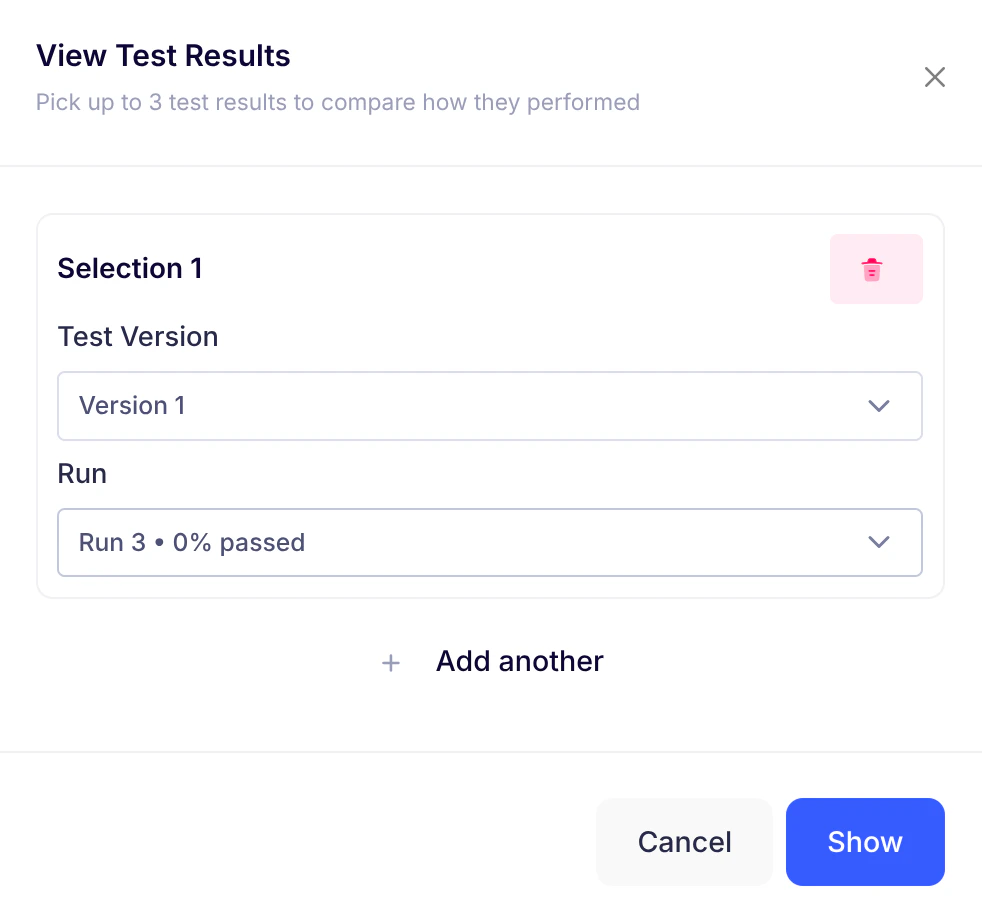
- Click View Results
- Select 1-3 runs
- Click Show
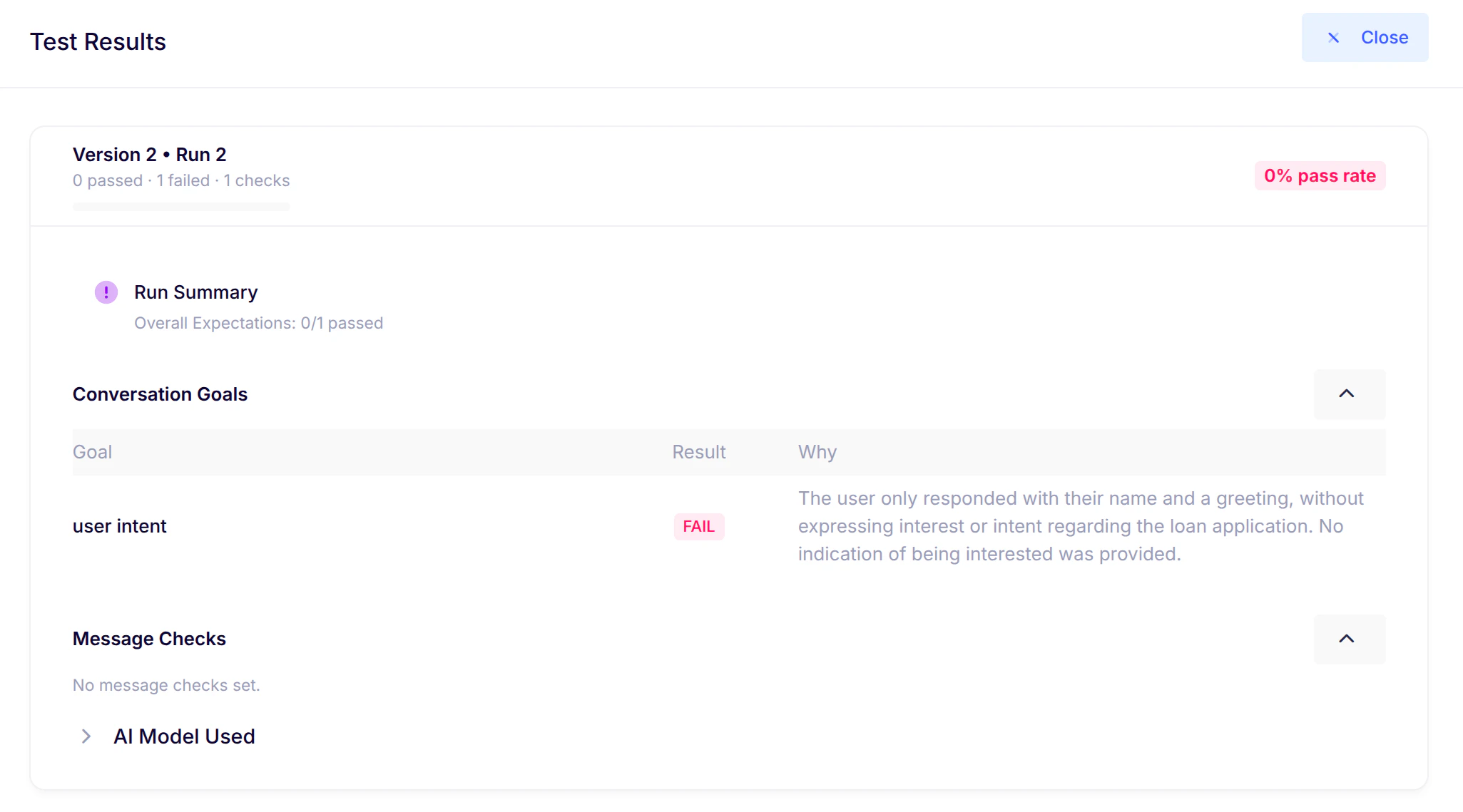
- Results include:
- Version label and run number
- Pass-rate badge (e.g., “82% pass rate”)
- Progress bar
- Summary (when available)
- Goals table (Goal | Pass/Fail | Explanation)
- Message checks table
- AI model details (expandable)
9. Common messages
- Creating Test…: After initiating test creation
- Test completed!: Run finished successfully
- Choose at least 2 versions: Comparison requirement
- Select different versions: Comparison constraint
- Failed to load results: Temporary issue
- Auto-play is on: Turn advancement reminder
10. Best practices
- Define clear goals - Enables pass/fail results with explanations
- Use Auto-play - For uninterrupted testing
- Review after each run - Learn what worked/didn’t
- Compare versions - Spot impact of conversation tweaks
- Iterate and improve - Saved results remain available
Summary
With Test Conversations, you can:- Turn real conversations into repeatable tests
- Measure performance against defined goals
- Compare different conversation versions
- Continuously improve based on clear metrics