> ## Documentation Index
> Fetch the complete documentation index at: https://docs.uservox.ai/llms.txt
> Use this file to discover all available pages before exploring further.
# How to upload a test
> Uploading a test lead allows you to quickly test your process or voice bot flow in Uservox without importing large datasets. Follow the steps below:
### Step 1: Go to Leads Section
1. From your UserVox dashboard, navigate to the **Leads** section in the left sidebar.
2. You will land on the **Leads List** screen where you can view, upload, and manage all leads.
### Step 2: Click “More” → Add Test Lead
1. On the top-right of the Leads List screen, click the **More** button (next to the “Upload Leads” button).
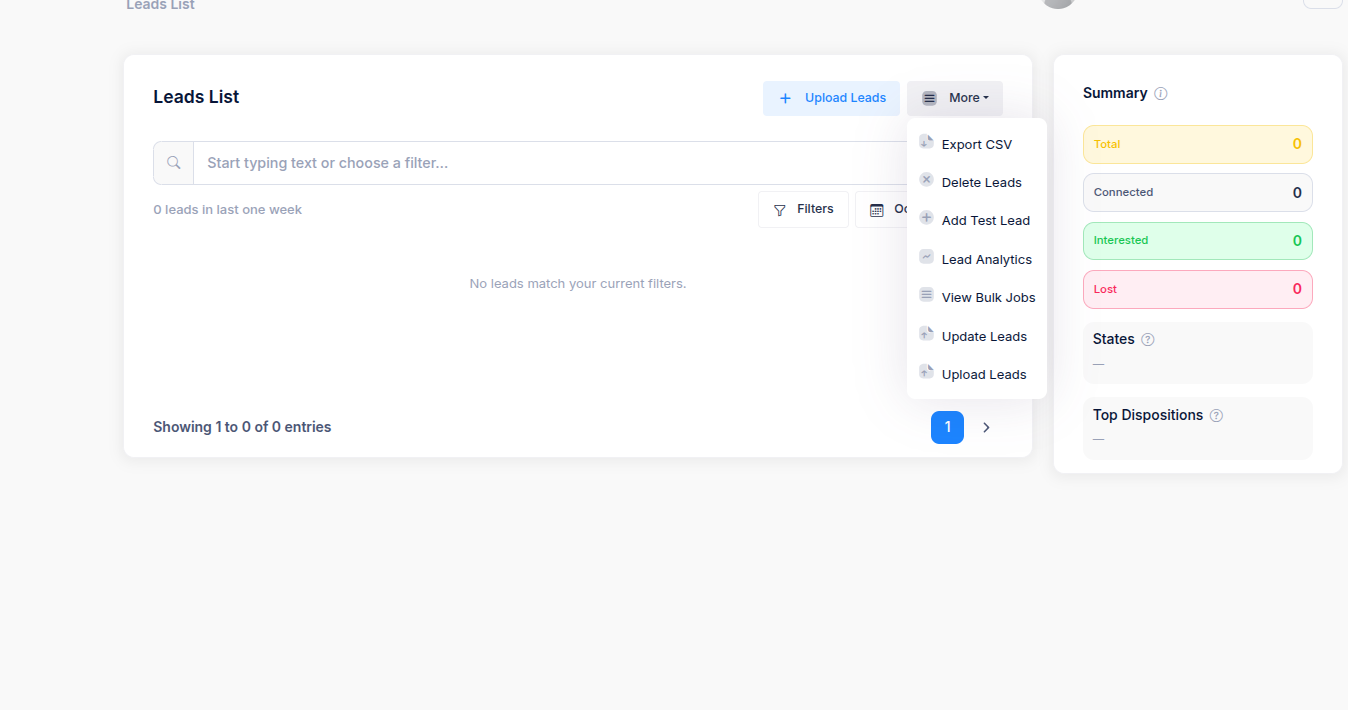 1. From the dropdown menu, select **Add Test Lead**.
* This opens a new popup window titled **Add Test Lead**.
1. From the dropdown menu, select **Add Test Lead**.
* This opens a new popup window titled **Add Test Lead**.
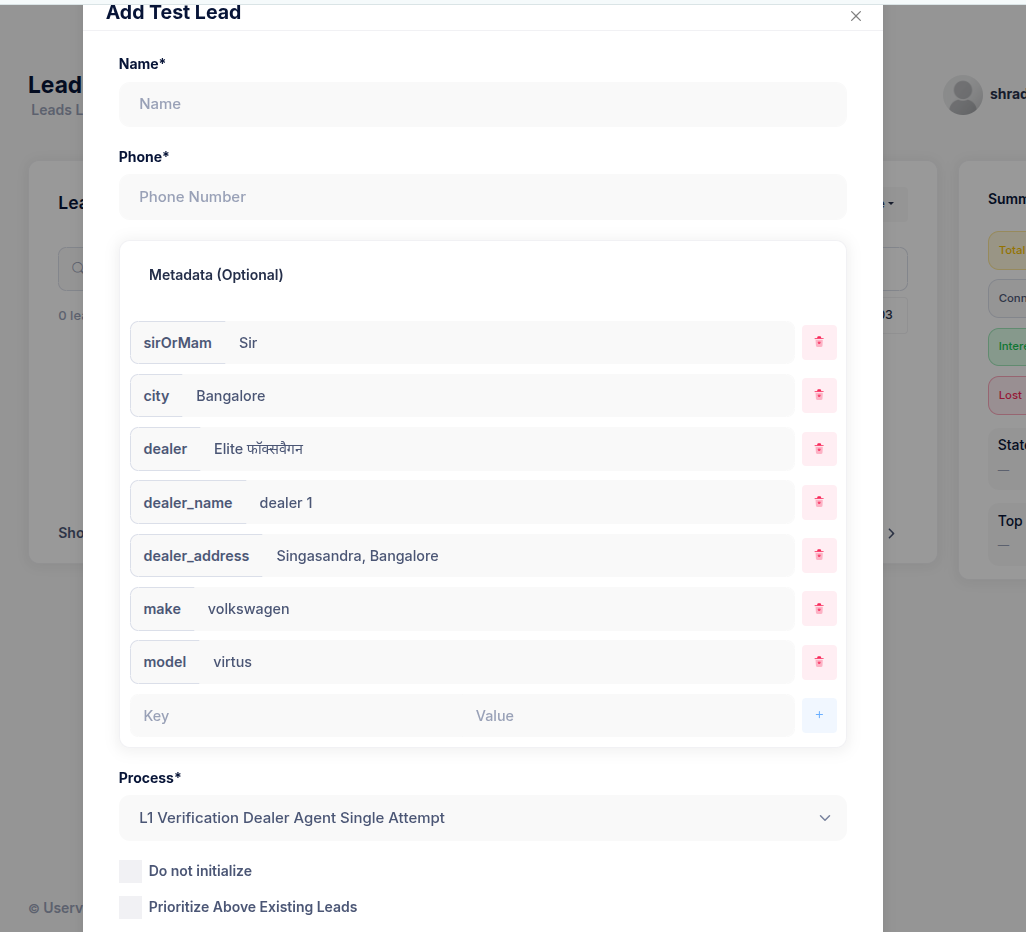 ### Step 3: Fill in Basic Details
In the popup:
* **Name** → Enter the test lead’s name.\
*(Example: Rajesh Kumar)*
* **Phone** → Enter the test mobile number (ensure it’s valid and reachable for testing).\
*(Example: 9876543210)*
### Step 4: Add Metadata (Optional but Recommended)
Use the metadata fields to simulate real lead data and ensure your bot flow receives the right context. This metadata is driven by the variables in the agent and is dynamically populated based on the process and agent requirement.
Some common fields:
| Field Name | Example Value | Description |
| :--------------- | :--------------------- | :------------------------------------- |
| `sirOrMam` | Sir / Ma’am | Used for personalization in the script |
| `city` | Bangalore | Customer’s city |
| `dealer` | Elite फॉक्सवैगन | Dealer name (can include local script) |
| `dealer_name` | dealer 1 | Internal dealer ID or name |
| `dealer_address` | Singasandra, Bangalore | Dealer location |
| `make` | volkswagen | Vehicle brand |
| `model` | virtus | Model name |
To add a new key-value pair, click the **+** icon at the bottom of the metadata section.
### Step 5: Select the Process
* Scroll down to the **Process** dropdown.
* Choose the correct process for the test call.\
*(Example: *`L1 Verification Dealer Agent Single Attempt`*)*
This determines which flow or voice agent process will handle the test lead.
### Step 6: Turn on “Prioritize Above Existing Leads”
Enable the **“Prioritize Above Existing Leads”** checkbox to ensure this test lead is **called immediately**, ahead of regular leads.\
✅ This is especially useful for quick bot testing.
*(Optional)*\
If you want to prevent this test lead from initializing automatically, check **“Do not initialize”** — but usually, you should leave it unchecked.
### Step 7: Save and Trigger
Once all details are filled:
* Click **Submit** or **Add Lead** (depending on your version).
* The test lead will appear in the Leads List and be queued for an immediate call.
### Best Practices
* Use your own or a teammate’s reachable number for test calls.
* Keep metadata realistic for accurate flow testing.
* Delete old test leads periodically to keep your data clean.
### Step 3: Fill in Basic Details
In the popup:
* **Name** → Enter the test lead’s name.\
*(Example: Rajesh Kumar)*
* **Phone** → Enter the test mobile number (ensure it’s valid and reachable for testing).\
*(Example: 9876543210)*
### Step 4: Add Metadata (Optional but Recommended)
Use the metadata fields to simulate real lead data and ensure your bot flow receives the right context. This metadata is driven by the variables in the agent and is dynamically populated based on the process and agent requirement.
Some common fields:
| Field Name | Example Value | Description |
| :--------------- | :--------------------- | :------------------------------------- |
| `sirOrMam` | Sir / Ma’am | Used for personalization in the script |
| `city` | Bangalore | Customer’s city |
| `dealer` | Elite फॉक्सवैगन | Dealer name (can include local script) |
| `dealer_name` | dealer 1 | Internal dealer ID or name |
| `dealer_address` | Singasandra, Bangalore | Dealer location |
| `make` | volkswagen | Vehicle brand |
| `model` | virtus | Model name |
To add a new key-value pair, click the **+** icon at the bottom of the metadata section.
### Step 5: Select the Process
* Scroll down to the **Process** dropdown.
* Choose the correct process for the test call.\
*(Example: *`L1 Verification Dealer Agent Single Attempt`*)*
This determines which flow or voice agent process will handle the test lead.
### Step 6: Turn on “Prioritize Above Existing Leads”
Enable the **“Prioritize Above Existing Leads”** checkbox to ensure this test lead is **called immediately**, ahead of regular leads.\
✅ This is especially useful for quick bot testing.
*(Optional)*\
If you want to prevent this test lead from initializing automatically, check **“Do not initialize”** — but usually, you should leave it unchecked.
### Step 7: Save and Trigger
Once all details are filled:
* Click **Submit** or **Add Lead** (depending on your version).
* The test lead will appear in the Leads List and be queued for an immediate call.
### Best Practices
* Use your own or a teammate’s reachable number for test calls.
* Keep metadata realistic for accurate flow testing.
* Delete old test leads periodically to keep your data clean.