> ## Documentation Index
> Fetch the complete documentation index at: https://docs.uservox.ai/llms.txt
> Use this file to discover all available pages before exploring further.
# Setting Up and Monitoring Incoming Calls on UserVox
UserVox allows you to configure incoming call routing so that calls received on different phone numbers are automatically directed to the appropriate process and call flow. This enables teams to manage multiple clients, campaigns, and use cases from a single platform.
## Step 1: Configure Incoming Call Routing
Navigate to:
**Account Settings → Project Settings**
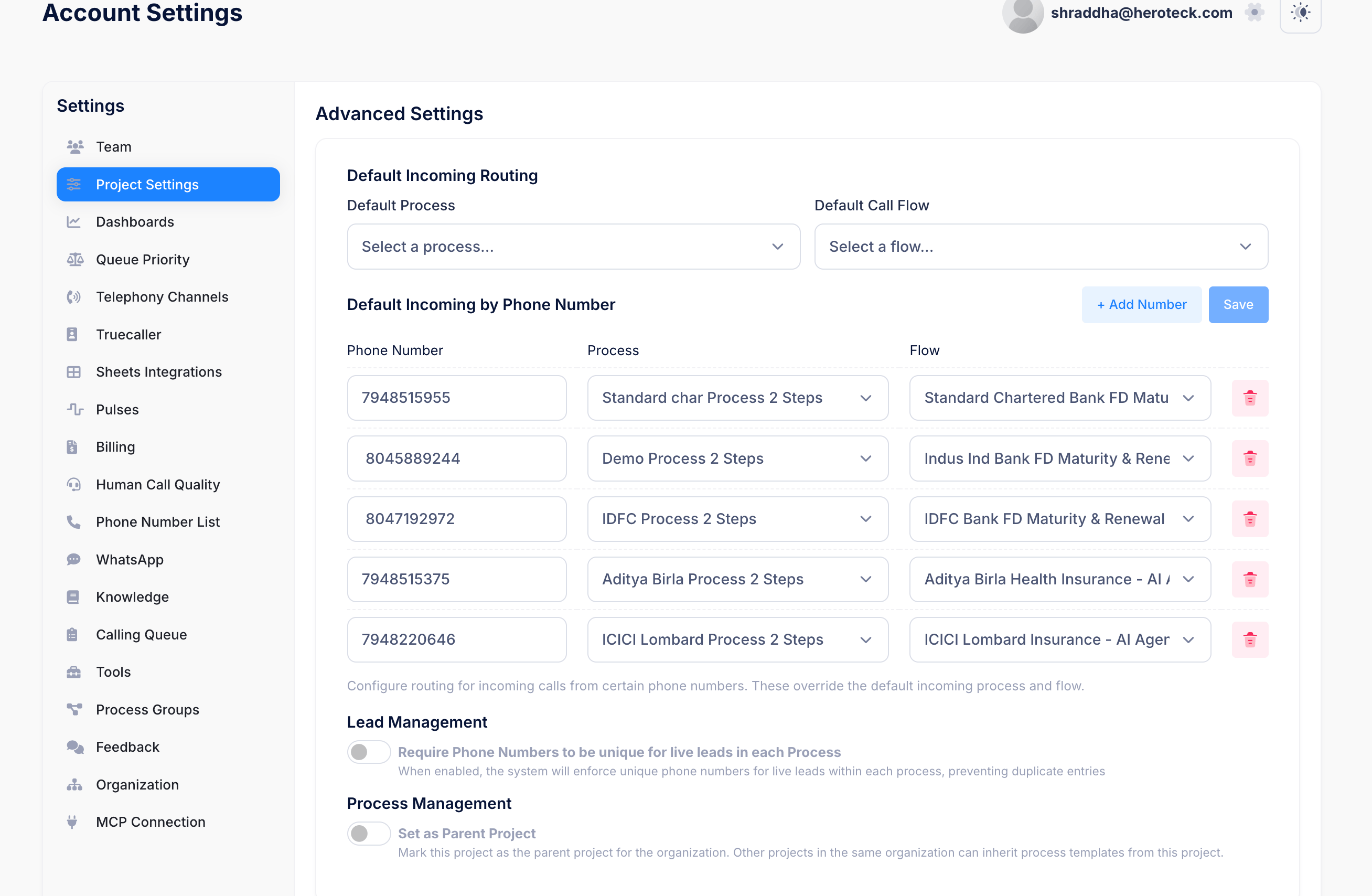
In the **Default Incoming Routing** section, you can define:
* **Default Process** – The process that will handle incoming calls if no specific number-based routing exists.
* **Default Call Flow** – The call flow that will be executed for incoming calls by default.
If you have multiple inbound numbers, you can configure routing on a per-number basis under **Default Incoming by Phone Number**.
 ### Number-Based Routing
For each phone number, select:
* The Process that should handle the call.
* The Flow that should be executed when a call arrives on that number.
This allows different numbers to serve different clients, products, or campaigns while operating within the same UserVox project.
**Example:**
* Number A → Standard Chartered FD Maturity Flow
* Number B → IndusInd Bank FD Renewal Flow
* Number C → Health Insurance Lead Qualification Flow
Calls received on these numbers will automatically follow their assigned flow.
***
## Step 2: Save the Configuration
After selecting the desired process and flow mappings, click **Save**.
From this point onward, UserVox will automatically route incoming calls according to the configured rules.
***
## Step 3: Find Incoming Calls
To review incoming call activity:
Navigate to:
**Leads List**
Use the advanced filters to locate inbound conversations.
### Filtering Incoming Calls
1. Open the filter panel.
2. Create a filter:
* **Incoming**
* **Equals**
* **True**
3. Apply the filter.
### Number-Based Routing
For each phone number, select:
* The Process that should handle the call.
* The Flow that should be executed when a call arrives on that number.
This allows different numbers to serve different clients, products, or campaigns while operating within the same UserVox project.
**Example:**
* Number A → Standard Chartered FD Maturity Flow
* Number B → IndusInd Bank FD Renewal Flow
* Number C → Health Insurance Lead Qualification Flow
Calls received on these numbers will automatically follow their assigned flow.
***
## Step 2: Save the Configuration
After selecting the desired process and flow mappings, click **Save**.
From this point onward, UserVox will automatically route incoming calls according to the configured rules.
***
## Step 3: Find Incoming Calls
To review incoming call activity:
Navigate to:
**Leads List**
Use the advanced filters to locate inbound conversations.
### Filtering Incoming Calls
1. Open the filter panel.
2. Create a filter:
* **Incoming**
* **Equals**
* **True**
3. Apply the filter.
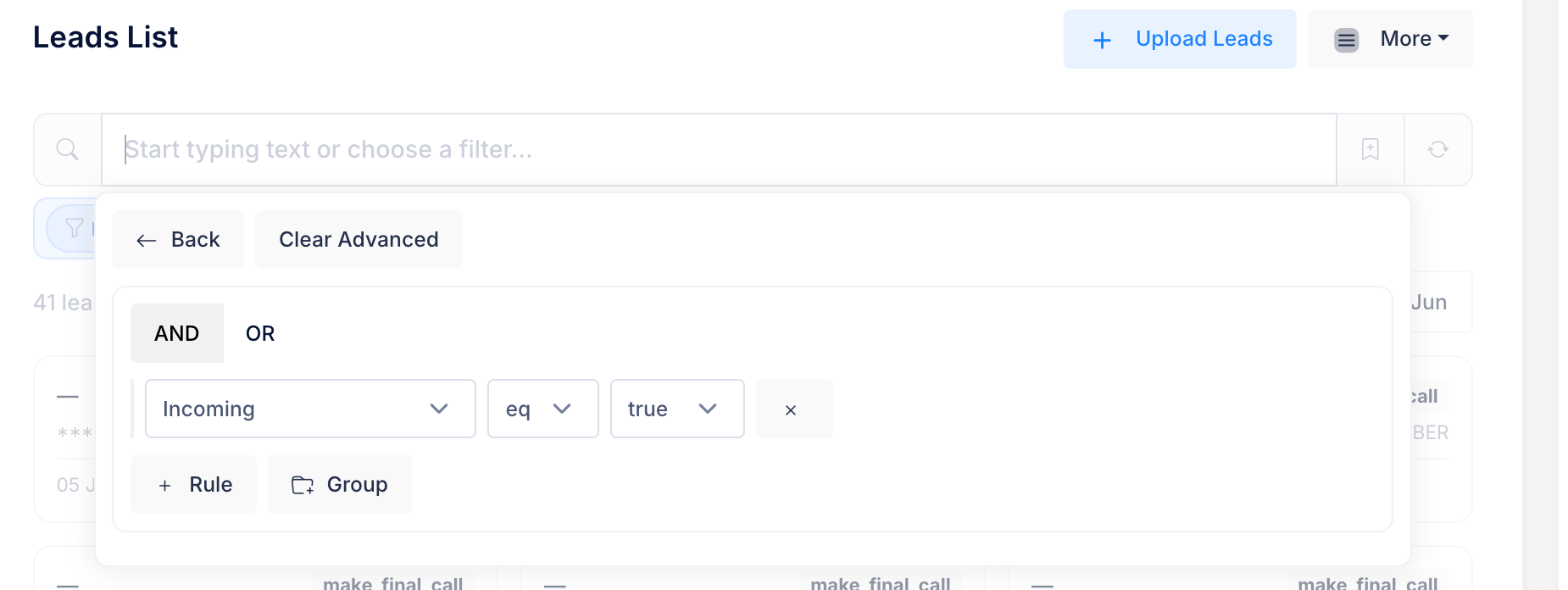 This displays all leads generated through incoming calls, making it easy to separate inbound traffic from outbound campaigns.
***
## Step 4: Monitor Incoming Call Activity
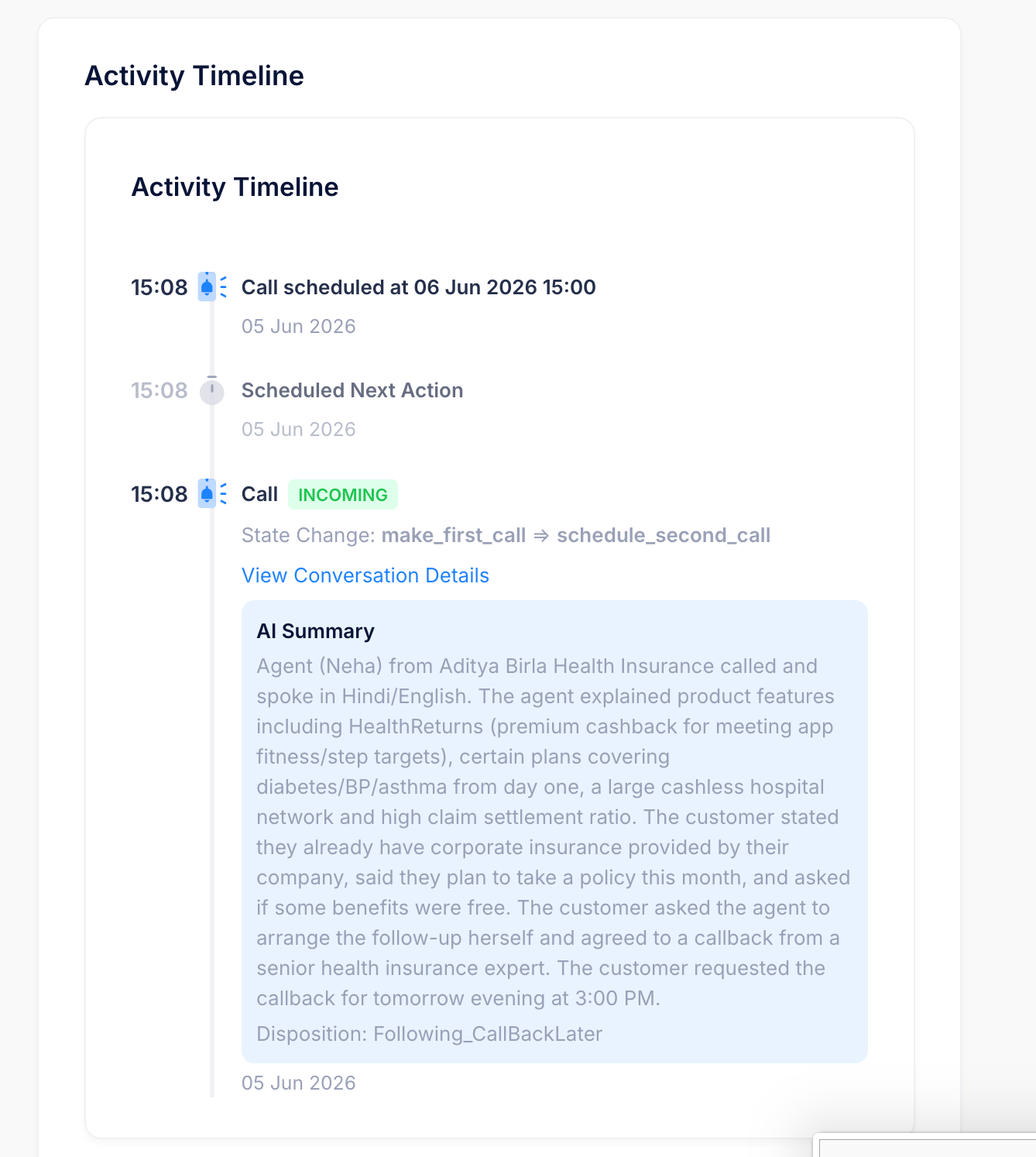
Open any lead from the filtered list to access its **Activity Timeline**.
The Activity Timeline provides complete visibility into the inbound interaction, including:
* Incoming call event
* State transitions within the flow
* AI-generated conversation summary
* Customer disposition
* Follow-up actions
* Scheduled callbacks
* Future workflow actions
This displays all leads generated through incoming calls, making it easy to separate inbound traffic from outbound campaigns.
***
## Step 4: Monitor Incoming Call Activity
Open any lead from the filtered list to access its **Activity Timeline**.
The Activity Timeline provides complete visibility into the inbound interaction, including:
* Incoming call event
* State transitions within the flow
* AI-generated conversation summary
* Customer disposition
* Follow-up actions
* Scheduled callbacks
* Future workflow actions
 ***
## Step 5: Review Call Outcomes
For every incoming call, UserVox automatically records:
### Conversation Summary
An AI-generated summary highlighting:
* Customer requirements
* Key discussion points
* Objections raised
* Next steps agreed upon
### Disposition
The final outcome of the interaction, such as:
* Interested
* Following\_CallBackLater
* Not Interested
* Qualified Lead
* Appointment Booked
### Callback Scheduling
If a callback is scheduled during the conversation, it appears in the timeline along with the scheduled date and time.
***
## Step 5: Review Call Outcomes
For every incoming call, UserVox automatically records:
### Conversation Summary
An AI-generated summary highlighting:
* Customer requirements
* Key discussion points
* Objections raised
* Next steps agreed upon
### Disposition
The final outcome of the interaction, such as:
* Interested
* Following\_CallBackLater
* Not Interested
* Qualified Lead
* Appointment Booked
### Callback Scheduling
If a callback is scheduled during the conversation, it appears in the timeline along with the scheduled date and time.