> ## Documentation Index
> Fetch the complete documentation index at: https://docs.uservox.ai/llms.txt
> Use this file to discover all available pages before exploring further.
# FAQ Sets
> Give your agent a searchable knowledge base it can query in real time during conversations.
## Overview
A FAQ Set is a collection of knowledge that an agent can search during a live call. When a caller asks something the agent needs to look up — pricing details, policies, procedures — the agent automatically searches the FAQ Set and uses the result to answer accurately.
Each FAQ Set becomes a **tool call** in the agent's toolCalls. The agent's AI decides when to use it based on the description you write for that FAQ Set.
 ***
## Navigating to FAQ Sets
1. Open [**Account Settings**](https://app.uservox.ai/account-settings) from the top navigation.
2. In the sidebar, click **FAQ Sets**.
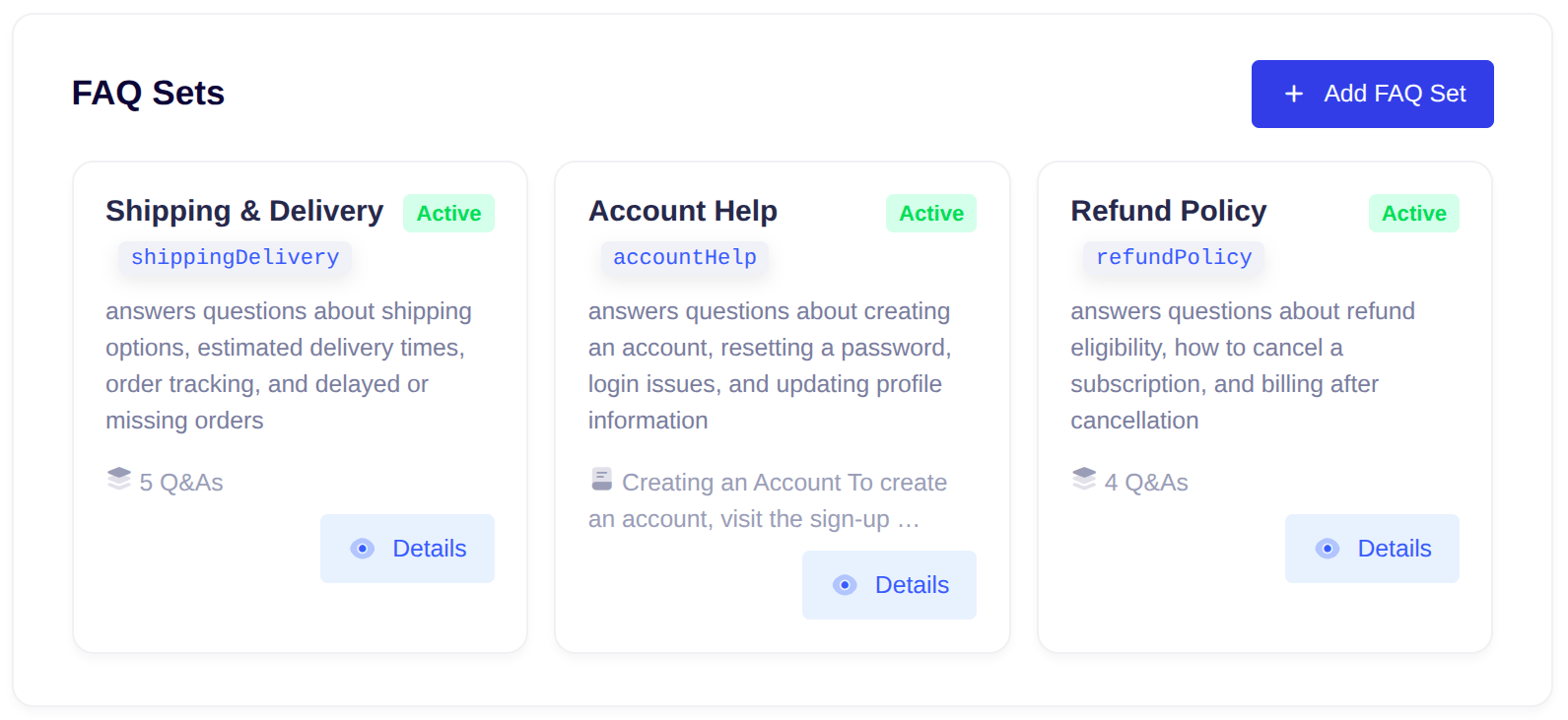
You'll see all FAQ Sets in your project with their name, tool name, active status, and a preview of their content.
***
## Creating a FAQ Set
Click **Add FAQ Set** in the top-right corner of the FAQ Sets page.
### Required Fields
| Field | Description |
| :-------------- | :-------------------------------------------------------------------------------------------------------------------- |
| **Name** | A human-readable label for this FAQ Set, e.g. "Product Pricing FAQ" |
| **Tool Name** | A camelCase identifier with no spaces, e.g. `productPricingFaq`. **Cannot be changed after creation.** |
| **Description** | Tells the agent *when* to use this FAQ Set. The agent reads this to decide whether to search it for a given question. |
| **Content** | Your Q\&As or free-form text (see below). |
### Writing a Good Description
The description is the most important field. Be specific about what topics this FAQ Set covers:
* ✅ **Good:** `answers questions about refund policy, cancellation process, and billing cycles`
* ❌ **Too vague:** `general information`
***
## Content Modes
You can structure your knowledge in two ways. Use the **Q\&As / Context** toggle to switch.
### Q\&As Mode
Add discrete question-and-answer pairs. Each pair is stored and searched independently, so the agent retrieves precise answers.
***
## Navigating to FAQ Sets
1. Open [**Account Settings**](https://app.uservox.ai/account-settings) from the top navigation.
2. In the sidebar, click **FAQ Sets**.
You'll see all FAQ Sets in your project with their name, tool name, active status, and a preview of their content.
***
## Creating a FAQ Set
Click **Add FAQ Set** in the top-right corner of the FAQ Sets page.
### Required Fields
| Field | Description |
| :-------------- | :-------------------------------------------------------------------------------------------------------------------- |
| **Name** | A human-readable label for this FAQ Set, e.g. "Product Pricing FAQ" |
| **Tool Name** | A camelCase identifier with no spaces, e.g. `productPricingFaq`. **Cannot be changed after creation.** |
| **Description** | Tells the agent *when* to use this FAQ Set. The agent reads this to decide whether to search it for a given question. |
| **Content** | Your Q\&As or free-form text (see below). |
### Writing a Good Description
The description is the most important field. Be specific about what topics this FAQ Set covers:
* ✅ **Good:** `answers questions about refund policy, cancellation process, and billing cycles`
* ❌ **Too vague:** `general information`
***
## Content Modes
You can structure your knowledge in two ways. Use the **Q\&As / Context** toggle to switch.
### Q\&As Mode
Add discrete question-and-answer pairs. Each pair is stored and searched independently, so the agent retrieves precise answers.
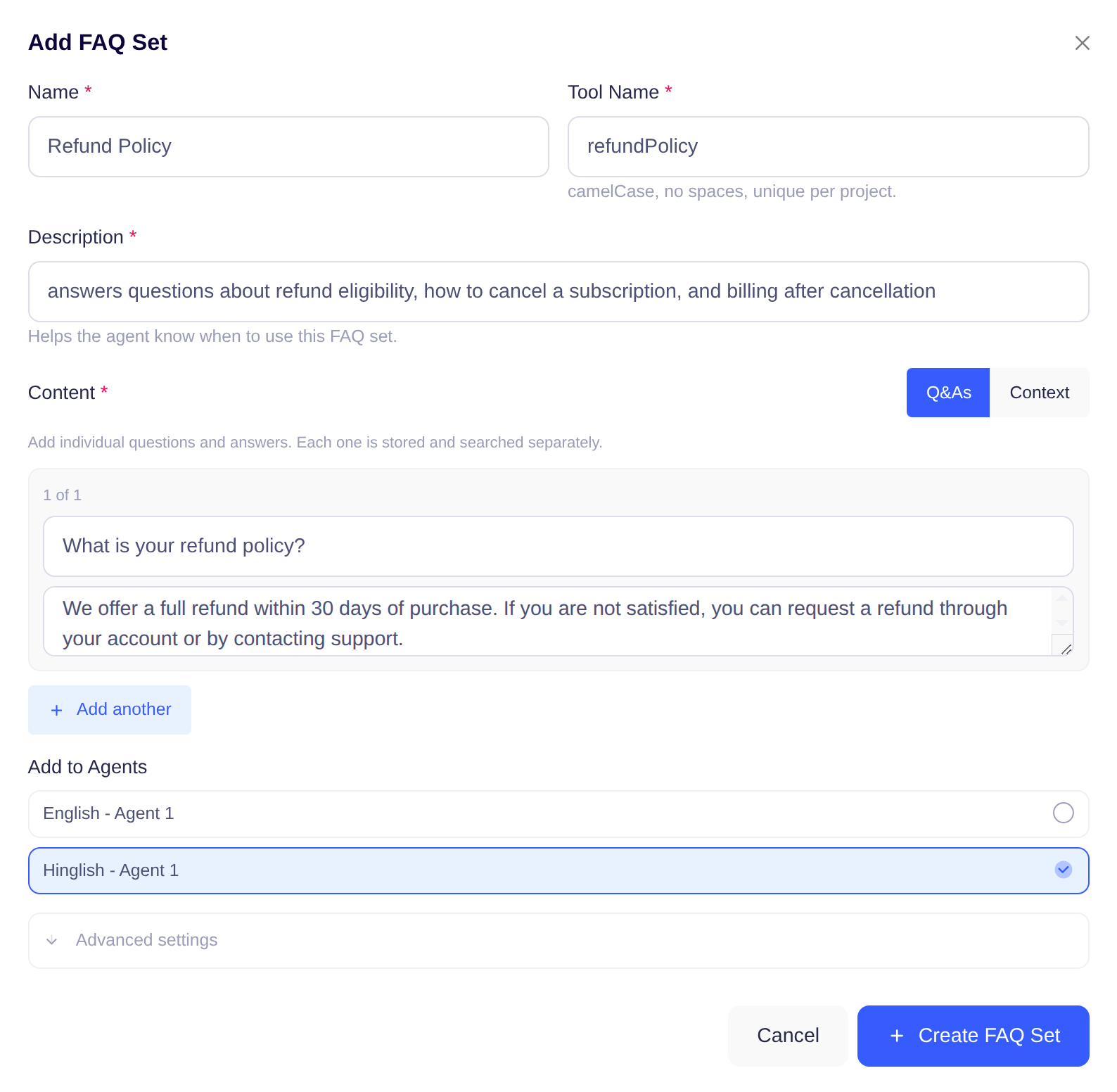 * Click **Add another** to add a new pair.
* Use the **×** button on a card to remove a pair.
* You can add as many pairs as needed.
In Q\&As mode, chunk size settings (min/max words) have no effect — each Q\&A pair is always stored as its own unit regardless of length.
### Context Mode
Paste any free-form text — support articles, product documentation, call scripts, etc. The system automatically splits it into searchable sections.
* Click **Add another** to add a new pair.
* Use the **×** button on a card to remove a pair.
* You can add as many pairs as needed.
In Q\&As mode, chunk size settings (min/max words) have no effect — each Q\&A pair is always stored as its own unit regardless of length.
### Context Mode
Paste any free-form text — support articles, product documentation, call scripts, etc. The system automatically splits it into searchable sections.
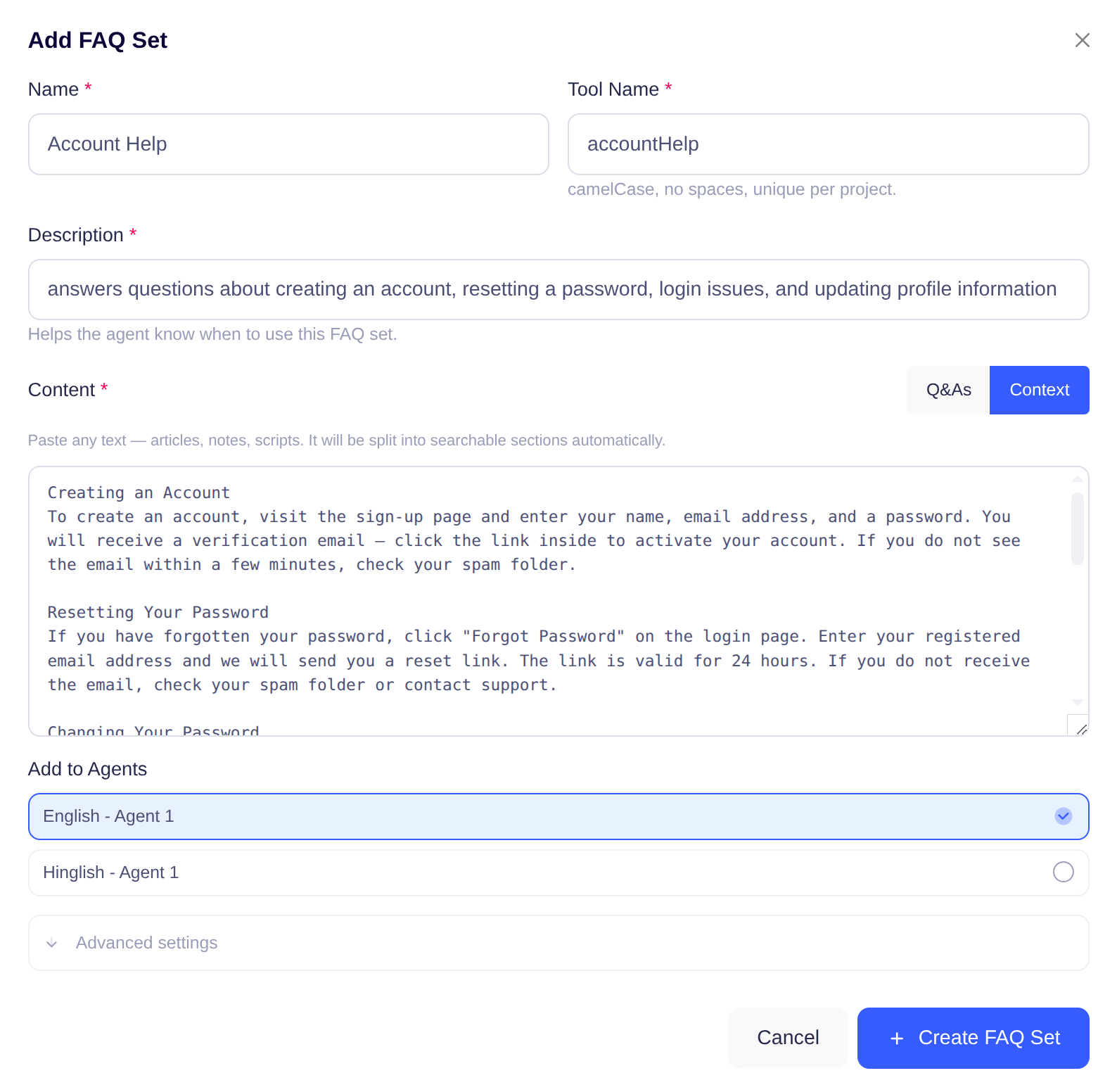 Use the **Advanced settings** (see below) to control how the text is split.
***
## Connecting Agents
While creating or editing a FAQ Set, you'll see a list of your active agents. Click any row to toggle whether this FAQ Set is linked to that agent.
* **Highlighted with a checkmark** — the agent has this FAQ Set in its toolCalls.
* **Unchecked** — the agent does not have access to this FAQ Set.
When you save, the tool call is automatically added to or removed from each agent. There is no need to edit agent settings separately.
To see which agents are currently connected to a FAQ Set, open its **Details** view. Connected agents are shown as badges.
***
## Advanced Settings
Click **Advanced settings** at the bottom of the form to expand additional options.
Use the **Advanced settings** (see below) to control how the text is split.
***
## Connecting Agents
While creating or editing a FAQ Set, you'll see a list of your active agents. Click any row to toggle whether this FAQ Set is linked to that agent.
* **Highlighted with a checkmark** — the agent has this FAQ Set in its toolCalls.
* **Unchecked** — the agent does not have access to this FAQ Set.
When you save, the tool call is automatically added to or removed from each agent. There is no need to edit agent settings separately.
To see which agents are currently connected to a FAQ Set, open its **Details** view. Connected agents are shown as badges.
***
## Advanced Settings
Click **Advanced settings** at the bottom of the form to expand additional options.
 | Setting | Default | Description |
| :---------------------- | :------ | :------------------------------------------------------------------------------------------------------------------- |
| **Max results** | 10 | How many matching sections the agent retrieves per search. Increase for broader coverage; lower for focused answers. |
| **Min words per chunk** | 250 | *(Context mode only)* Minimum section size when splitting your text. |
| **Max words per chunk** | 500 | *(Context mode only)* Maximum section size when splitting your text. |
***
## Viewing Details
Click **Details** on any FAQ Set card to open a read-only summary.
| Setting | Default | Description |
| :---------------------- | :------ | :------------------------------------------------------------------------------------------------------------------- |
| **Max results** | 10 | How many matching sections the agent retrieves per search. Increase for broader coverage; lower for focused answers. |
| **Min words per chunk** | 250 | *(Context mode only)* Minimum section size when splitting your text. |
| **Max words per chunk** | 500 | *(Context mode only)* Maximum section size when splitting your text. |
***
## Viewing Details
Click **Details** on any FAQ Set card to open a read-only summary.
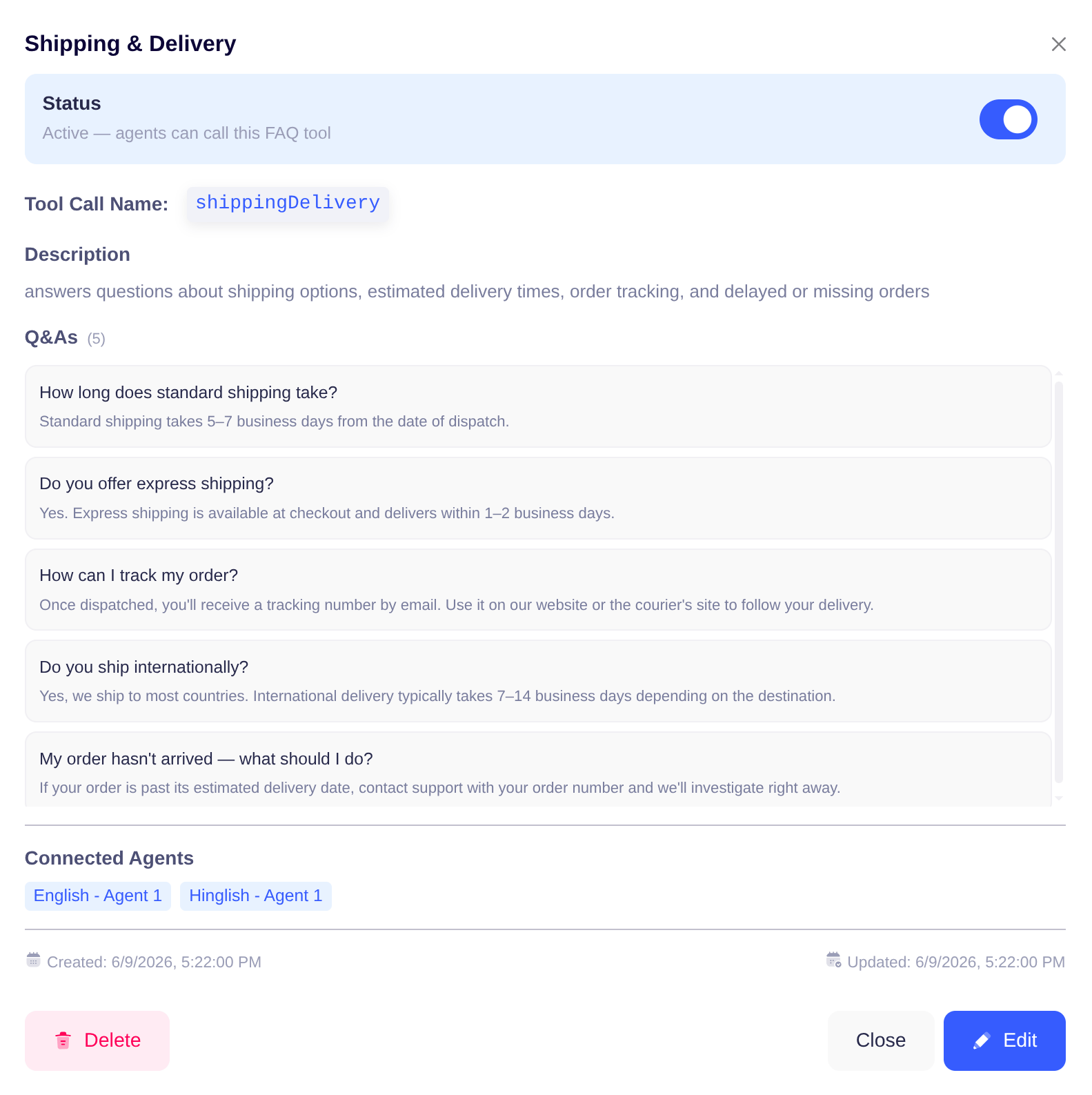 From the Details view you can:
* Toggle the FAQ Set **active or inactive** without opening the Edit form.
* See all **Q\&A pairs** or the full **content** text.
* See the **connected agents** as badges.
* Open **Edit** to make changes.
* **Delete** the FAQ Set.
***
## Editing a FAQ Set
Open the **Details** view and click **Edit**. You can update all fields except the **Tool Name**.
Changes take effect immediately — the agent's knowledge base is rebuilt in the background as soon as you save.
***
## Enabling and Disabling
From the **Details** view, use the **Status** toggle to activate or deactivate a FAQ Set without deleting it.
| Status | Behaviour |
| :----------- | :------------------------------------------------------------------------------------------- |
| **Active** | The agent can search this FAQ Set during conversations. |
| **Inactive** | The FAQ Set is hidden from the agent's toolCalls. Ongoing conversations are not interrupted. |
***
## Deleting a FAQ Set
Open the **Details** view and click **Delete**. This permanently removes the FAQ Set, its stored knowledge, and the tool call from all connected agents.
Deletion cannot be undone.
***
## How It Works End-to-End
Add your Q\&As or paste content and link it to the relevant agents.
The system registers a tool call for the FAQ Set and adds it to each linked agent's toolCalls.
When a caller's question matches the FAQ Set's description, the agent automatically searches it and retrieves the most relevant sections.
The agent uses the retrieved content to form an accurate, specific response — no manual routing needed.
***
## Related
* [Creating and Editing an Agent](/essentials/create-edit-agent)
* [Adding Knowledge to Your Agent](/essentials/add-knowledge-to-agent)
From the Details view you can:
* Toggle the FAQ Set **active or inactive** without opening the Edit form.
* See all **Q\&A pairs** or the full **content** text.
* See the **connected agents** as badges.
* Open **Edit** to make changes.
* **Delete** the FAQ Set.
***
## Editing a FAQ Set
Open the **Details** view and click **Edit**. You can update all fields except the **Tool Name**.
Changes take effect immediately — the agent's knowledge base is rebuilt in the background as soon as you save.
***
## Enabling and Disabling
From the **Details** view, use the **Status** toggle to activate or deactivate a FAQ Set without deleting it.
| Status | Behaviour |
| :----------- | :------------------------------------------------------------------------------------------- |
| **Active** | The agent can search this FAQ Set during conversations. |
| **Inactive** | The FAQ Set is hidden from the agent's toolCalls. Ongoing conversations are not interrupted. |
***
## Deleting a FAQ Set
Open the **Details** view and click **Delete**. This permanently removes the FAQ Set, its stored knowledge, and the tool call from all connected agents.
Deletion cannot be undone.
***
## How It Works End-to-End
Add your Q\&As or paste content and link it to the relevant agents.
The system registers a tool call for the FAQ Set and adds it to each linked agent's toolCalls.
When a caller's question matches the FAQ Set's description, the agent automatically searches it and retrieves the most relevant sections.
The agent uses the retrieved content to form an accurate, specific response — no manual routing needed.
***
## Related
* [Creating and Editing an Agent](/essentials/create-edit-agent)
* [Adding Knowledge to Your Agent](/essentials/add-knowledge-to-agent)