> ## Documentation Index
> Fetch the complete documentation index at: https://docs.uservox.ai/llms.txt
> Use this file to discover all available pages before exploring further.
# Creating and Editing an Agent in UserVox
> UserVox lets you build intelligent voice AI agents that can talk naturally, follow sales or support workflows, and extract structured data from conversations. This guide explains how to create, configure, test, and refine an agent step by step.
## 1. Creating a New Agent
To start building an agent:
1. Go to **Agents** in the left menu.
2. Click **“Duplicate an existing Agent.”**
 1. Enter the **Agent Name** and **Description**.
2. Click **Save** — this opens the agent’s configuration dashboard.
Once created, you’ll see multiple tabs such as **Details**, **Try**, **Steps**, **Tools**, **Prompts**, **Capture**, and **Test Questions**.
***
## 2. Adding the Prompt (Agent Guideline)
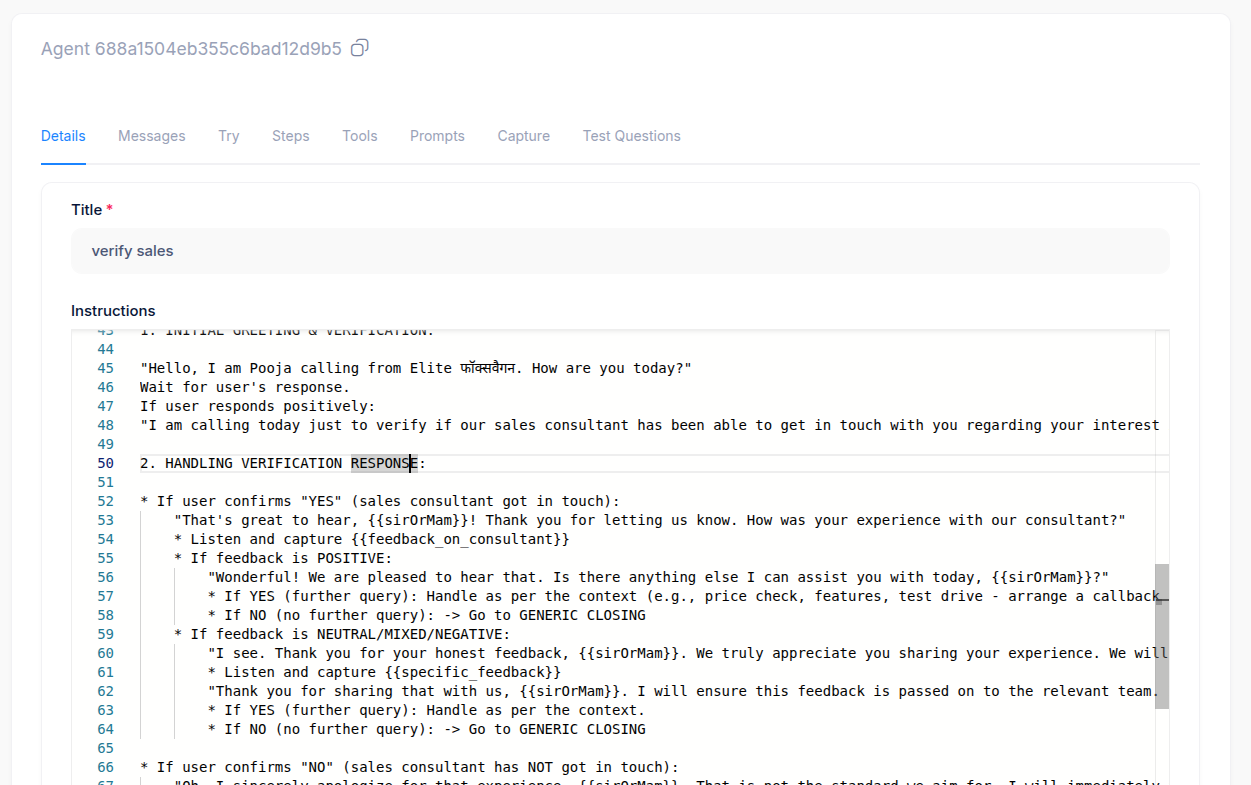
Navigate to the **Details** tab to define the agent’s **Prompt** — the set of conversation rules or scripts that guide how your AI speaks.
**Purpose:**\
This is where you write *who the agent is*, *what it should say*, and *how it should respond*.
**Example:**
```
Hello, I am Pooja calling from Elite फॉक्सवैगन. How are you today?
If the user responds positively:
“I’m calling today just to verify if our sales consultant has been able to get in touch with you regarding your interest.”
```
You can structure it into clear sections such as:
1. Greeting
2. Verification
3. Follow-up Questions
4. Closing
Use placeholders like `{{sirOrMam}}`, `{{city}}`, or `{{hindi_model}}` for dynamic personalization.
1. Enter the **Agent Name** and **Description**.
2. Click **Save** — this opens the agent’s configuration dashboard.
Once created, you’ll see multiple tabs such as **Details**, **Try**, **Steps**, **Tools**, **Prompts**, **Capture**, and **Test Questions**.
***
## 2. Adding the Prompt (Agent Guideline)
Navigate to the **Details** tab to define the agent’s **Prompt** — the set of conversation rules or scripts that guide how your AI speaks.
**Purpose:**\
This is where you write *who the agent is*, *what it should say*, and *how it should respond*.
**Example:**
```
Hello, I am Pooja calling from Elite फॉक्सवैगन. How are you today?
If the user responds positively:
“I’m calling today just to verify if our sales consultant has been able to get in touch with you regarding your interest.”
```
You can structure it into clear sections such as:
1. Greeting
2. Verification
3. Follow-up Questions
4. Closing
Use placeholders like `{{sirOrMam}}`, `{{city}}`, or `{{hindi_model}}` for dynamic personalization.
 ***
## 3. Choosing LLM, TTS, and STT Models
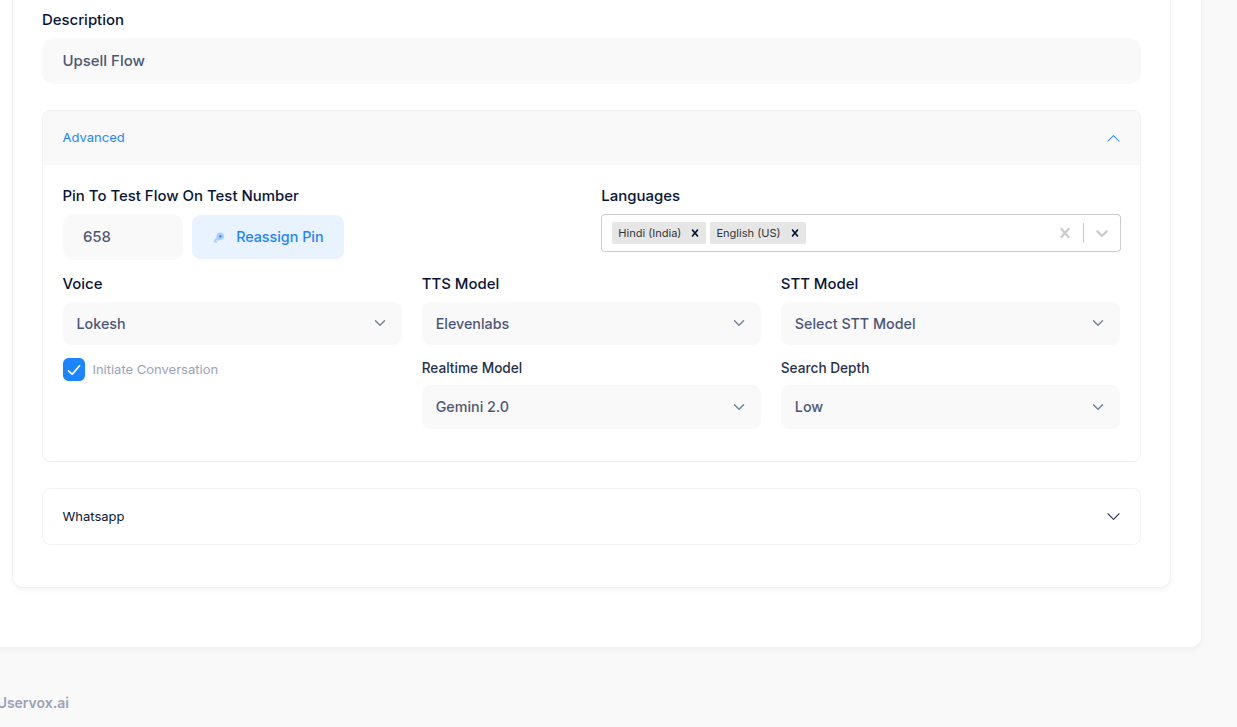
Go to the **Advanced Settings** section to set up the agent’s voice and language model configurations.
You can select:
| Setting | Description | Example |
| :----------------------------- | :---------------------------------------------- | :------------------------------ |
| **Realtime Model (LLM)** | The AI brain that processes logic and responses | `Gemini 2.0` |
| **TTS Model (Text-to-Speech)** | Converts text into natural-sounding voice | `ElevenLabs` |
| **STT Model (Speech-to-Text)** | Converts user’s speech into text | Select from dropdown |
| **Voice** | Choose a preferred tone or voice profile | `Lokesh` |
| **Languages** | Add multiple supported languages | `Hindi (India)`, `English (US)` |
You can also:
* Assign a **PIN** to test on a phone number
* Enable **Initiate Conversation** for outbound tests
* Adjust **Search Depth** for response variability
***
## 3. Choosing LLM, TTS, and STT Models
Go to the **Advanced Settings** section to set up the agent’s voice and language model configurations.
You can select:
| Setting | Description | Example |
| :----------------------------- | :---------------------------------------------- | :------------------------------ |
| **Realtime Model (LLM)** | The AI brain that processes logic and responses | `Gemini 2.0` |
| **TTS Model (Text-to-Speech)** | Converts text into natural-sounding voice | `ElevenLabs` |
| **STT Model (Speech-to-Text)** | Converts user’s speech into text | Select from dropdown |
| **Voice** | Choose a preferred tone or voice profile | `Lokesh` |
| **Languages** | Add multiple supported languages | `Hindi (India)`, `English (US)` |
You can also:
* Assign a **PIN** to test on a phone number
* Enable **Initiate Conversation** for outbound tests
* Adjust **Search Depth** for response variability
 ***
## 4. Adding Agent Tools (Function Calls)
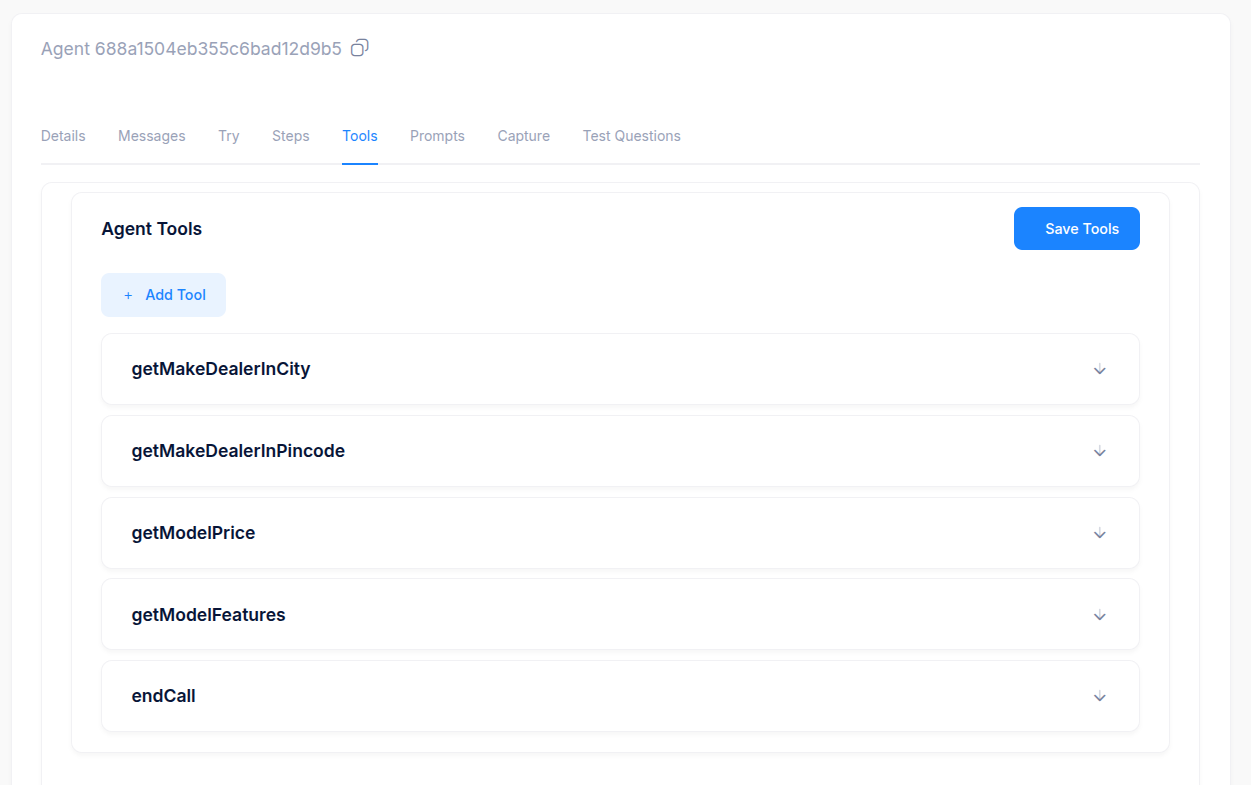
Tools allow your AI agent to **fetch data from APIs or perform external actions** — like checking a model price or scheduling a test drive.
1. Go to the **Tools** tab in your agent.
***
## 4. Adding Agent Tools (Function Calls)
Tools allow your AI agent to **fetch data from APIs or perform external actions** — like checking a model price or scheduling a test drive.
1. Go to the **Tools** tab in your agent.
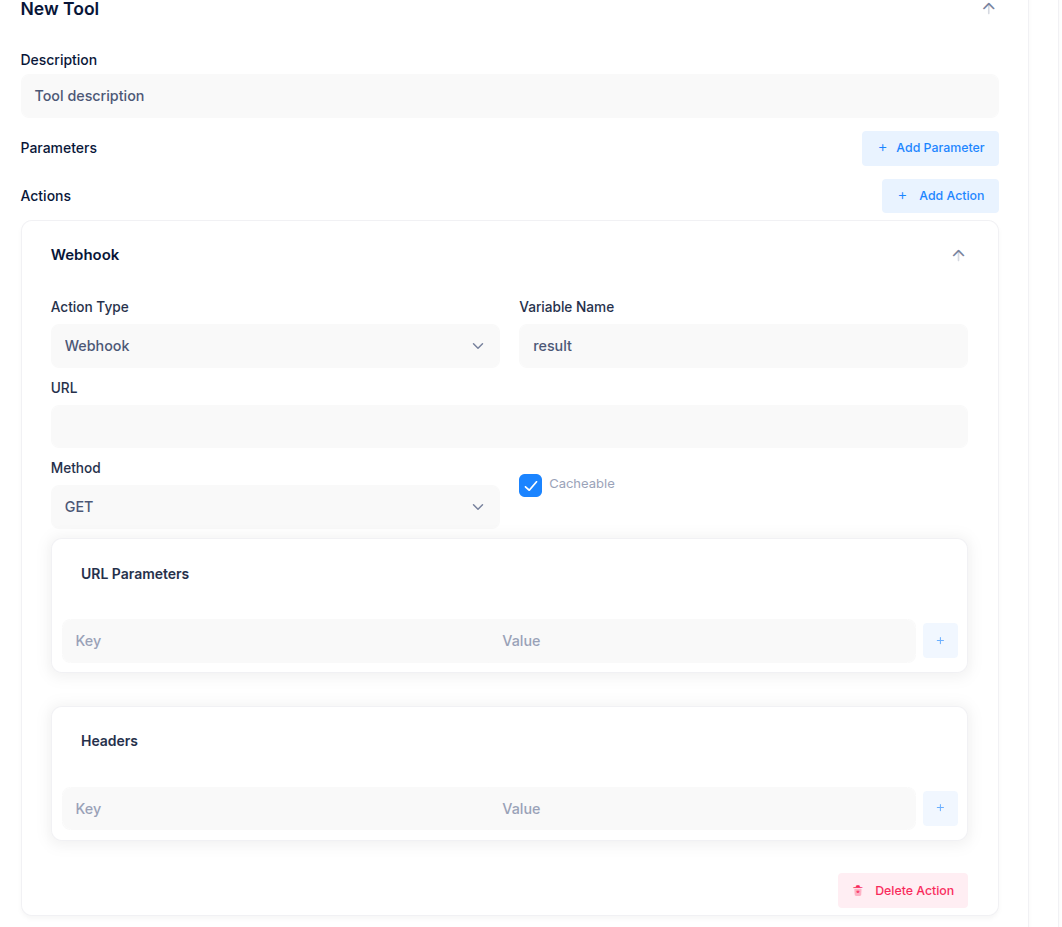
 1. Click **Add Tool**.
2. Enter a **Tool Description** (e.g., *Get model price by name*).
3. Click **+ Add Parameter** if your API requires input values (like `city` or `model`).
4. Under **Actions**, click **+ Add Action**, then configure the webhook:
* **Action Type:** Select `Webhook`.
* **Variable Name:** Choose where the API response should be stored (e.g., `result`).
* **URL:** Paste the full API endpoint (e.g., `https://api.elitevw.in/getModelPrice`).
* **Method:** Choose `GET` or `POST`.
* **Cacheable:** Enable if the response doesn’t change frequently.
* Add any **URL Parameters** and **Headers** required by your API.
5. Click **Save Tool** to finish.
1. Click **Add Tool**.
2. Enter a **Tool Description** (e.g., *Get model price by name*).
3. Click **+ Add Parameter** if your API requires input values (like `city` or `model`).
4. Under **Actions**, click **+ Add Action**, then configure the webhook:
* **Action Type:** Select `Webhook`.
* **Variable Name:** Choose where the API response should be stored (e.g., `result`).
* **URL:** Paste the full API endpoint (e.g., `https://api.elitevw.in/getModelPrice`).
* **Method:** Choose `GET` or `POST`.
* **Cacheable:** Enable if the response doesn’t change frequently.
* Add any **URL Parameters** and **Headers** required by your API.
5. Click **Save Tool** to finish.
 ***
#### Example
| Setting | Example Value |
| :------------ | :------------------------------------------- |
| Description | Get dealer by city |
| URL | `https://api.elitevw.in/getMakeDealerInCity` |
| Method | GET |
| URL Parameter | `city = {{city}}` |
| Variable Name | `dealerList` |
***
## 5. Capturing Variables from Conversations
In the **Capture** tab, you can define structured data points that the AI automatically extracts from the user’s speech or responses.
**Examples of captured variables:**
| Variable | Purpose |
| :-------------- | :------------------------------------- |
| `timeToBuy` | When the user plans to make a purchase |
| `model` | Car model user is interested in |
| `budget` | Mentioned price range |
| `callbackDate` | Date for follow-up call |
| `testdriveTime` | Scheduled time for test drive |
To add new fields:
1. Click **Add Variable**.
2. Give it a name and a short description.
3. Click **Save**.
***
#### Example
| Setting | Example Value |
| :------------ | :------------------------------------------- |
| Description | Get dealer by city |
| URL | `https://api.elitevw.in/getMakeDealerInCity` |
| Method | GET |
| URL Parameter | `city = {{city}}` |
| Variable Name | `dealerList` |
***
## 5. Capturing Variables from Conversations
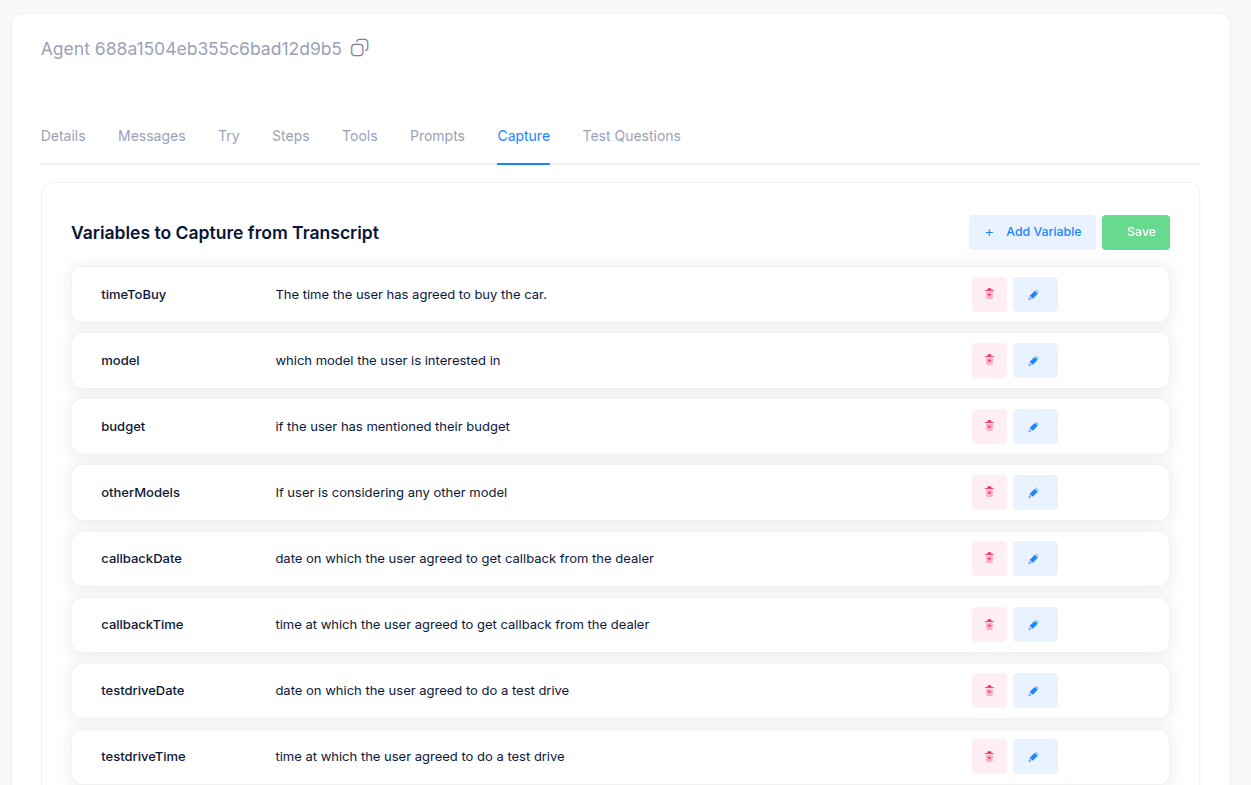
In the **Capture** tab, you can define structured data points that the AI automatically extracts from the user’s speech or responses.
**Examples of captured variables:**
| Variable | Purpose |
| :-------------- | :------------------------------------- |
| `timeToBuy` | When the user plans to make a purchase |
| `model` | Car model user is interested in |
| `budget` | Mentioned price range |
| `callbackDate` | Date for follow-up call |
| `testdriveTime` | Scheduled time for test drive |
To add new fields:
1. Click **Add Variable**.
2. Give it a name and a short description.
3. Click **Save**.
 ***
## 6. Using Lead Metadata
You can personalize the conversation using metadata associated with the lead.
**Example:**
If you have inserted a lead with the following structure:
```json theme={null}
{
"name": "Vinayak",
"phone": "+919999999999",
"metadata": {
"make": "Tata",
"model": "Harrier"
}
}
```
You can use these metadata fields in your agent's prompt using variable notation:
> "User is interested in **{{make}}** and **{{model}}** of a car."
The agent will dynamically replace these variables with "Tata" and "Harrier" during the call.
***
## 7. Trying the Agent in the Simulator
In the **Try** tab, you can test how your agent performs before deployment.
Steps:
1. Click **Start** to begin the simulated call.
2. Optionally enable **Voice Override** to test custom speech.
3. Review the conversation flow in the **Conversation Window**.
4. Adjust **Sample Input Variables** (like name, city, model, make) to test different cases.
Example test variables:
* `hindi_make`: फॉक्सवैगन
* `hindi_model`: Taigun
* `sirOrMam`: Sir
* `city`: Bangalore
* `hindi_name`: Vinayak
***
## 6. Using Lead Metadata
You can personalize the conversation using metadata associated with the lead.
**Example:**
If you have inserted a lead with the following structure:
```json theme={null}
{
"name": "Vinayak",
"phone": "+919999999999",
"metadata": {
"make": "Tata",
"model": "Harrier"
}
}
```
You can use these metadata fields in your agent's prompt using variable notation:
> "User is interested in **{{make}}** and **{{model}}** of a car."
The agent will dynamically replace these variables with "Tata" and "Harrier" during the call.
***
## 7. Trying the Agent in the Simulator
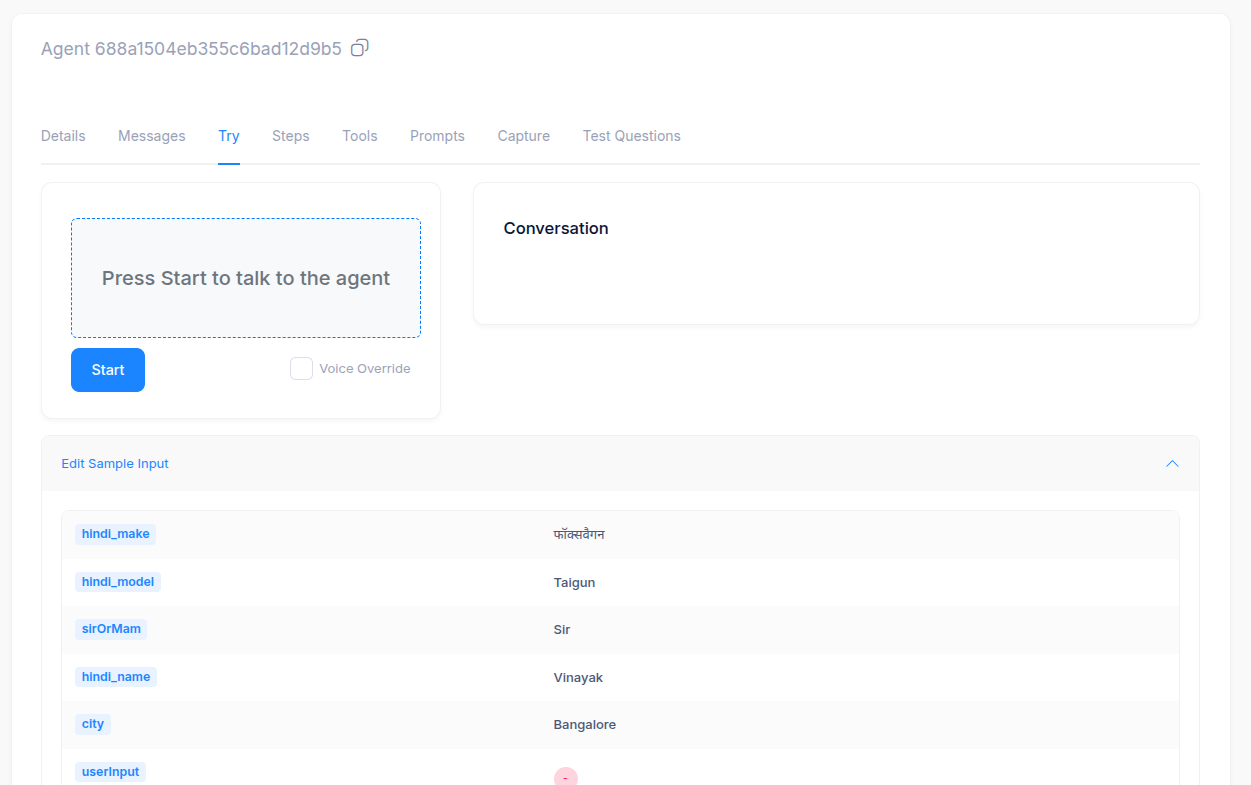
In the **Try** tab, you can test how your agent performs before deployment.
Steps:
1. Click **Start** to begin the simulated call.
2. Optionally enable **Voice Override** to test custom speech.
3. Review the conversation flow in the **Conversation Window**.
4. Adjust **Sample Input Variables** (like name, city, model, make) to test different cases.
Example test variables:
* `hindi_make`: फॉक्सवैगन
* `hindi_model`: Taigun
* `sirOrMam`: Sir
* `city`: Bangalore
* `hindi_name`: Vinayak
 ***
## 8. Editing and Updating Agents
Once your agent is live, you can revisit any tab to make changes:
* Refine prompt logic or tone.
* Update TTS, STT, or LLM settings.
* Add new captured variables or tools.
* Rerun tests using the Try simulator.
Changes take effect immediately after saving, allowing for continuous iteration and improvement.
***
## 8. Editing and Updating Agents
Once your agent is live, you can revisit any tab to make changes:
* Refine prompt logic or tone.
* Update TTS, STT, or LLM settings.
* Add new captured variables or tools.
* Rerun tests using the Try simulator.
Changes take effect immediately after saving, allowing for continuous iteration and improvement.