> ## Documentation Index
> Fetch the complete documentation index at: https://docs.uservox.ai/llms.txt
> Use this file to discover all available pages before exploring further.
# Sharing Feedback on Conversations
You can easily review conversations and share detailed feedback directly from the conversation screen. This helps teams improve call quality, speech recognition, response handling, and overall customer experience.
***
## Step 1: Open the Conversation
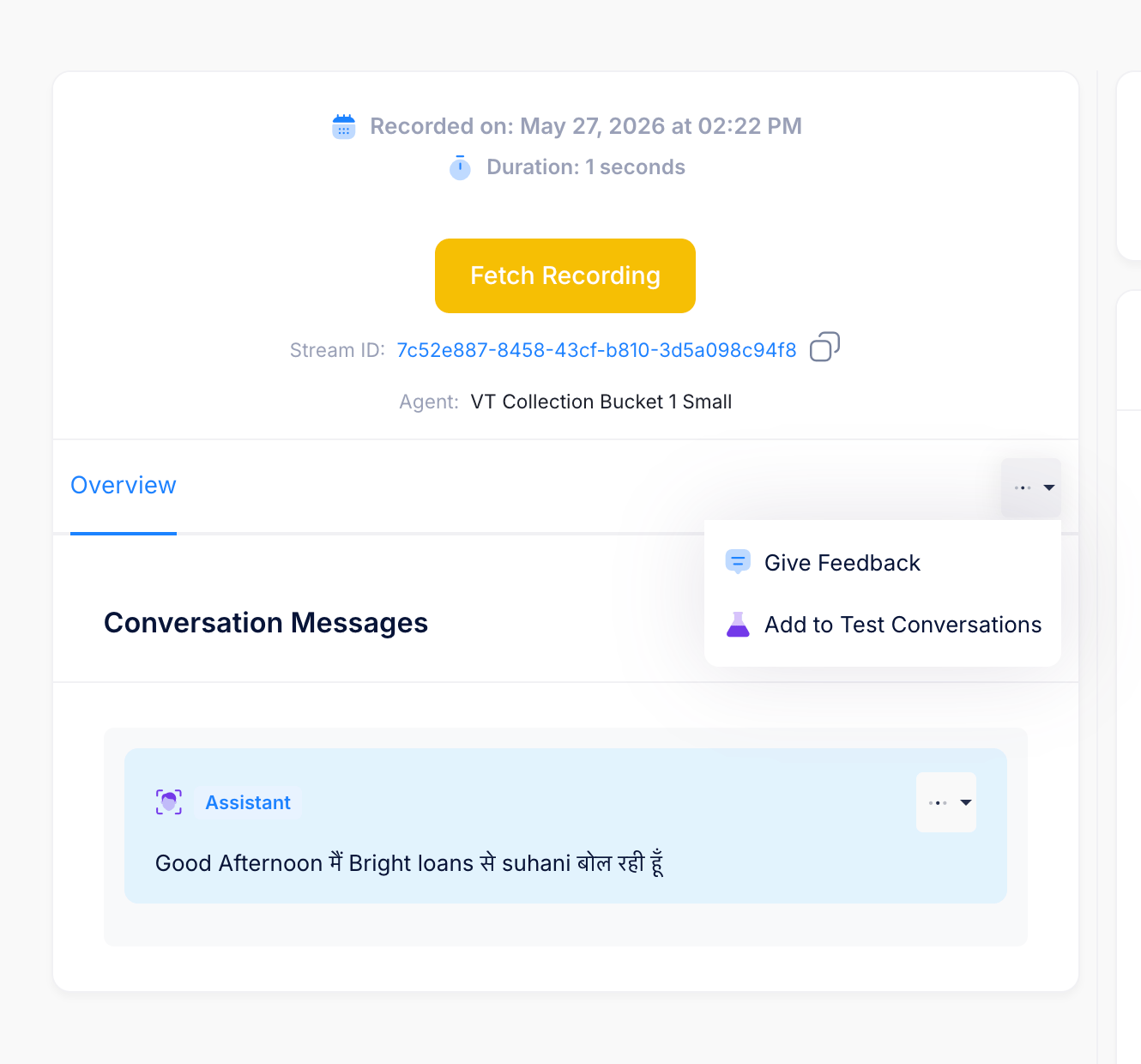
Navigate to the conversation you want to review. You can fetch the recording and review the transcript before submitting feedback.
 ***
## Step 2: Give Feedback
1. Click on the three-dot menu (`⋯`) on the conversation card.
2. Select **Give Feedback**.
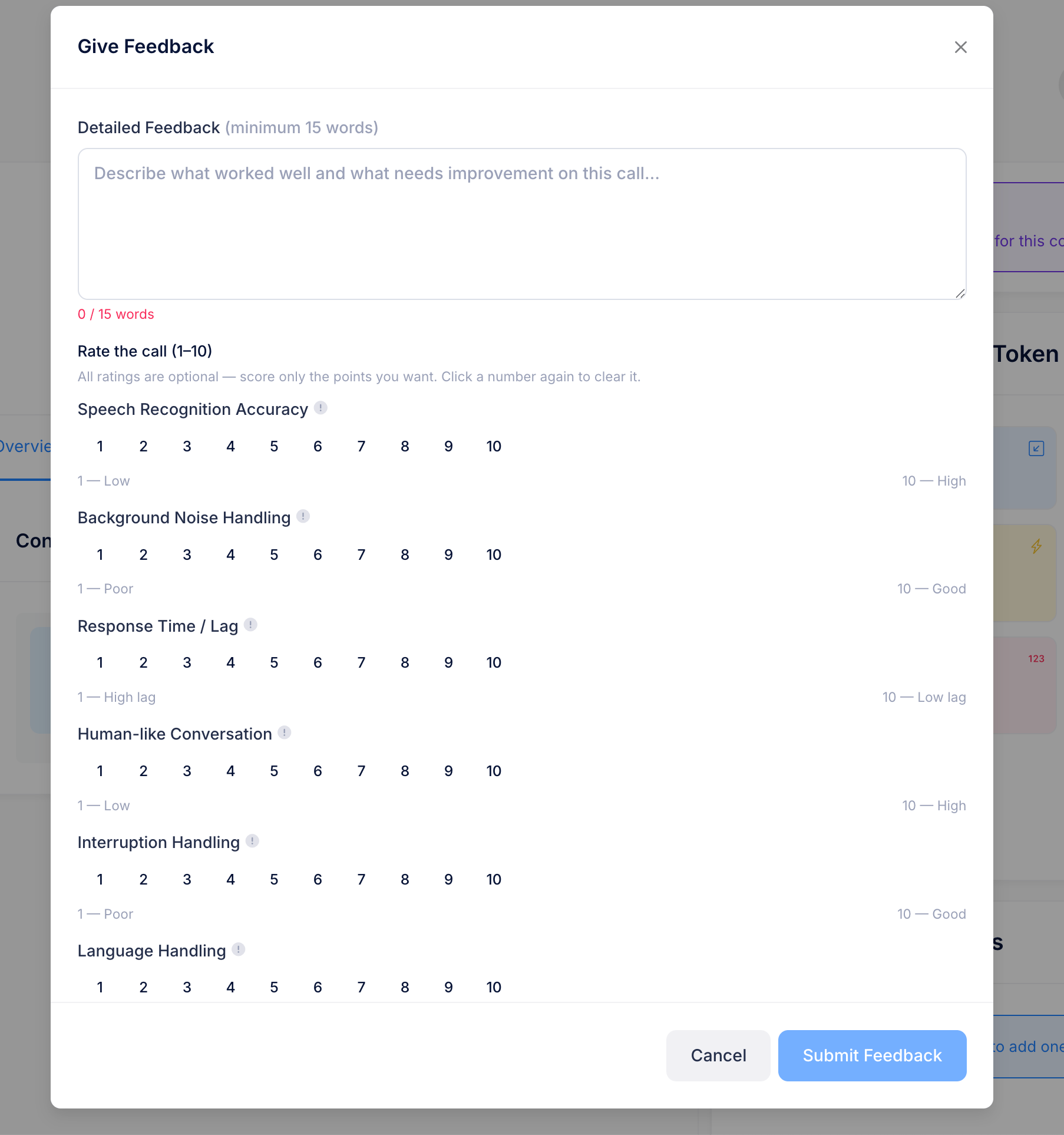
This opens the feedback popup where you can add comments and rate the conversation quality.
***
## Step 2: Give Feedback
1. Click on the three-dot menu (`⋯`) on the conversation card.
2. Select **Give Feedback**.
This opens the feedback popup where you can add comments and rate the conversation quality.
 ### Available Rating Parameters
You can rate the conversation from **1–10** for:
* Speech Recognition Accuracy
* Background Noise Handling
* Response Time / Lag
* Human-like Conversation
* Interruption Handling
* Language Handling
After filling in the details, click **Submit Feedback**.
***
# Viewing Submitted Feedback
All submitted feedback can later be reviewed from the Account Settings section.
## Step 3: Open Feedback Dashboard
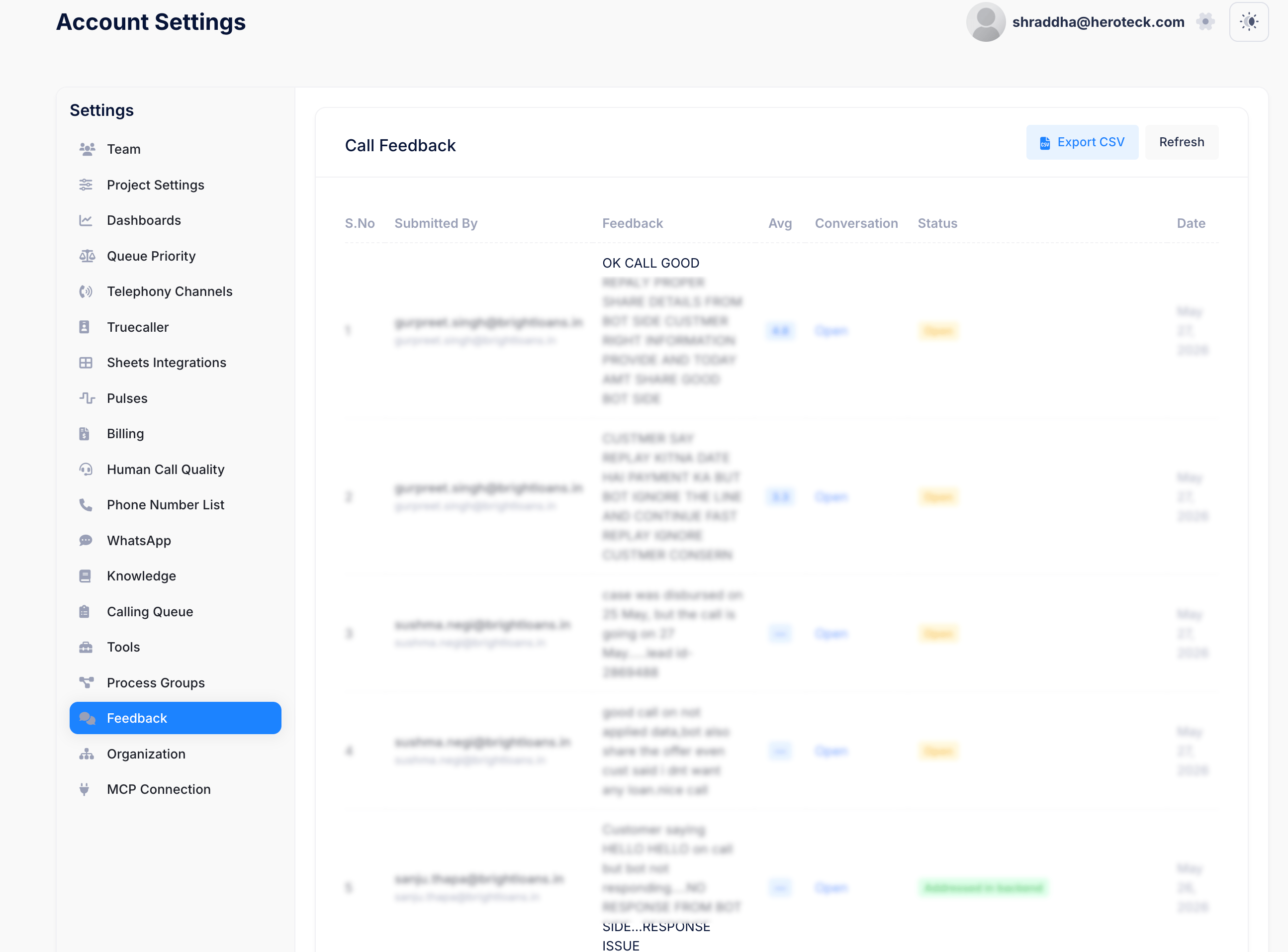
1. Go to **Account Settings**
2. Open the **Feedback** section from the left sidebar
### Available Rating Parameters
You can rate the conversation from **1–10** for:
* Speech Recognition Accuracy
* Background Noise Handling
* Response Time / Lag
* Human-like Conversation
* Interruption Handling
* Language Handling
After filling in the details, click **Submit Feedback**.
***
# Viewing Submitted Feedback
All submitted feedback can later be reviewed from the Account Settings section.
## Step 3: Open Feedback Dashboard
1. Go to **Account Settings**
2. Open the **Feedback** section from the left sidebar
 ***
## What You Can View
The Feedback dashboard allows you to:
* View submitted feedback comments
* Check average ratings
* Review conversation references
* Monitor feedback status
* Track submission dates
* Export feedback using **Export CSV**
This helps teams continuously monitor and improve AI conversation quality.
***
## What You Can View
The Feedback dashboard allows you to:
* View submitted feedback comments
* Check average ratings
* Review conversation references
* Monitor feedback status
* Track submission dates
* Export feedback using **Export CSV**
This helps teams continuously monitor and improve AI conversation quality.